> ## Documentation Index
> Fetch the complete documentation index at: https://docs.aptlystar.ai/llms.txt
> Use this file to discover all available pages before exploring further.
# Project Settings - ObstraLog
The **Settings** tab in the Project Console displays **ObstraLog** instance information specific to your project.
ObstraLog allows you to:
* 📊 Monitor **LLM usage**
* 💰 Track **cost analytics**
* 📝 Capture **logs** and request-level metadata
* 🔍 Enhance visibility into AI performance per project
***
## 🔐 Access ObstraLog for a Project
To view the ObstraLog instance:
* Navigate to your **Project Console**
* Click on the **Settings** tab
You’ll see:
* An **ObstraLog Access Key**
* A **Unique Instance ID**
These credentials are automatically generated when your project is created.
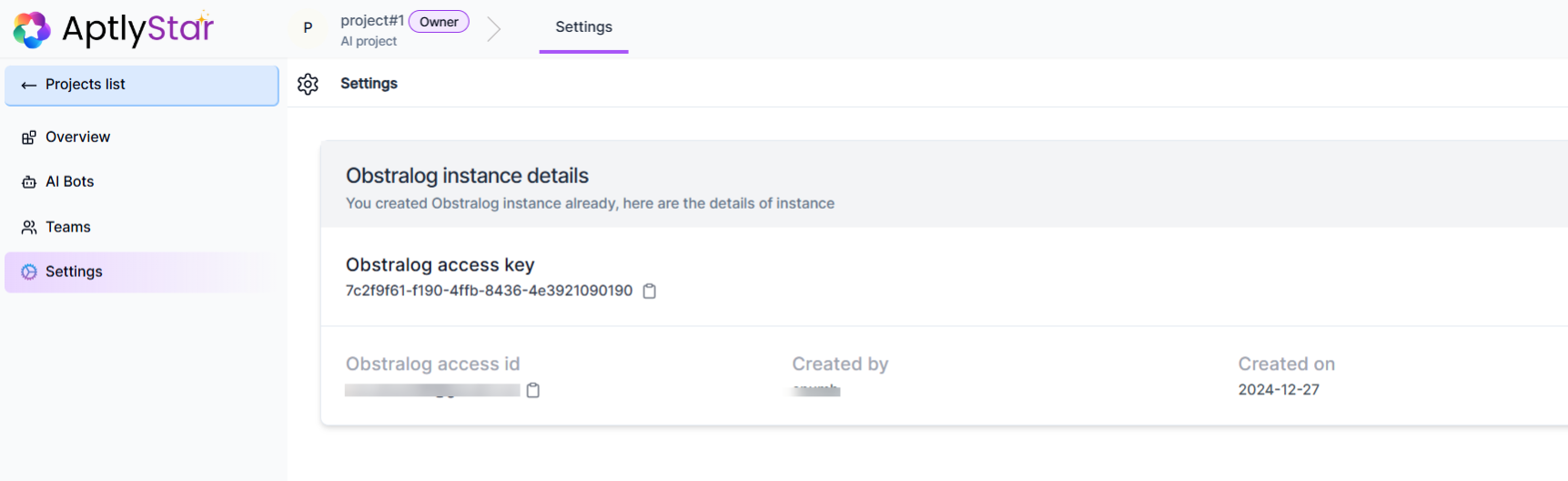 Each project has its own ObstraLog instance, scoped independently for accurate cost and usage tracking