> ## Documentation Index
> Fetch the complete documentation index at: https://docs.aptlystar.ai/llms.txt
> Use this file to discover all available pages before exploring further.
# Settings
## Settings Overview
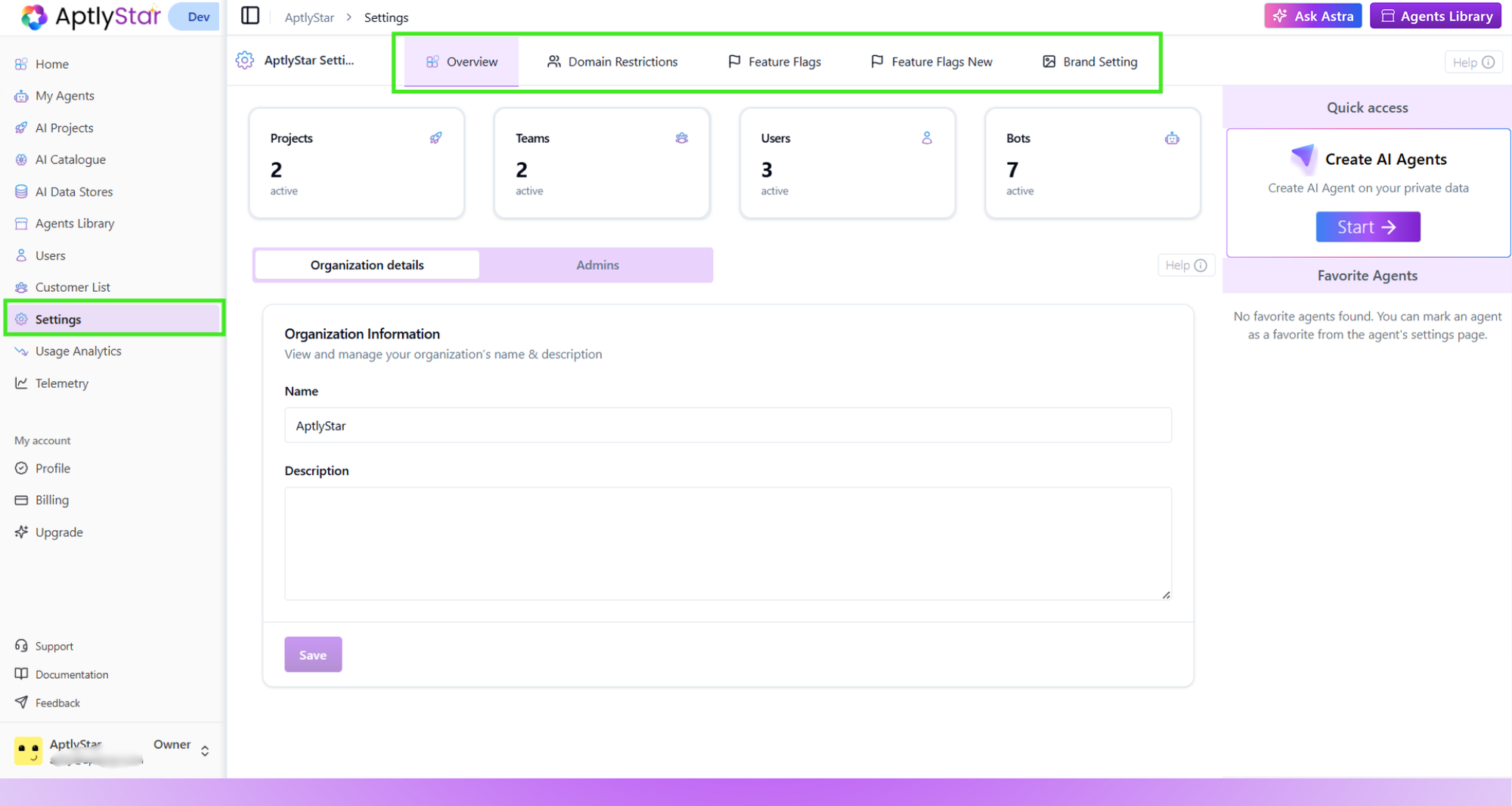
The Settings section lets organization owners and admins manage workspace configuration, access control, domain restrictions, feature availability, and branding.
This page includes the following tabs:
* **Overview**
* **Domain Restrictions**
* **Feature Flags**
* **Brand Setting**
 ***
## Overview
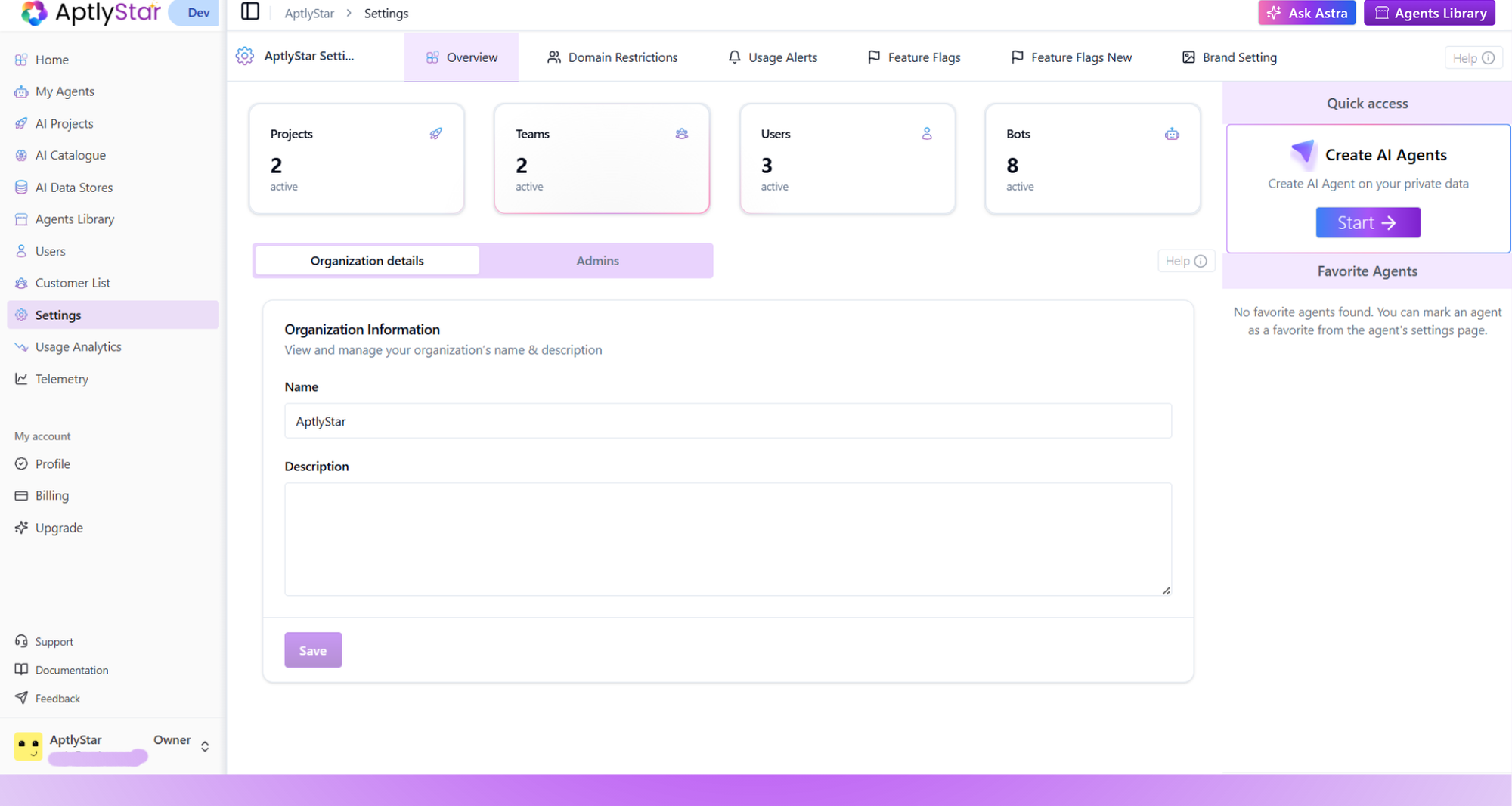
The Overview tab provides a quick snapshot of your organization.
You can view:
* Active projects
* Active teams
* Active users
* Active bots
Along with the ability to update:
* Organization name
* Organization description
***
## Overview
The Overview tab provides a quick snapshot of your organization.
You can view:
* Active projects
* Active teams
* Active users
* Active bots
Along with the ability to update:
* Organization name
* Organization description
 ***
## Domain Restrictions
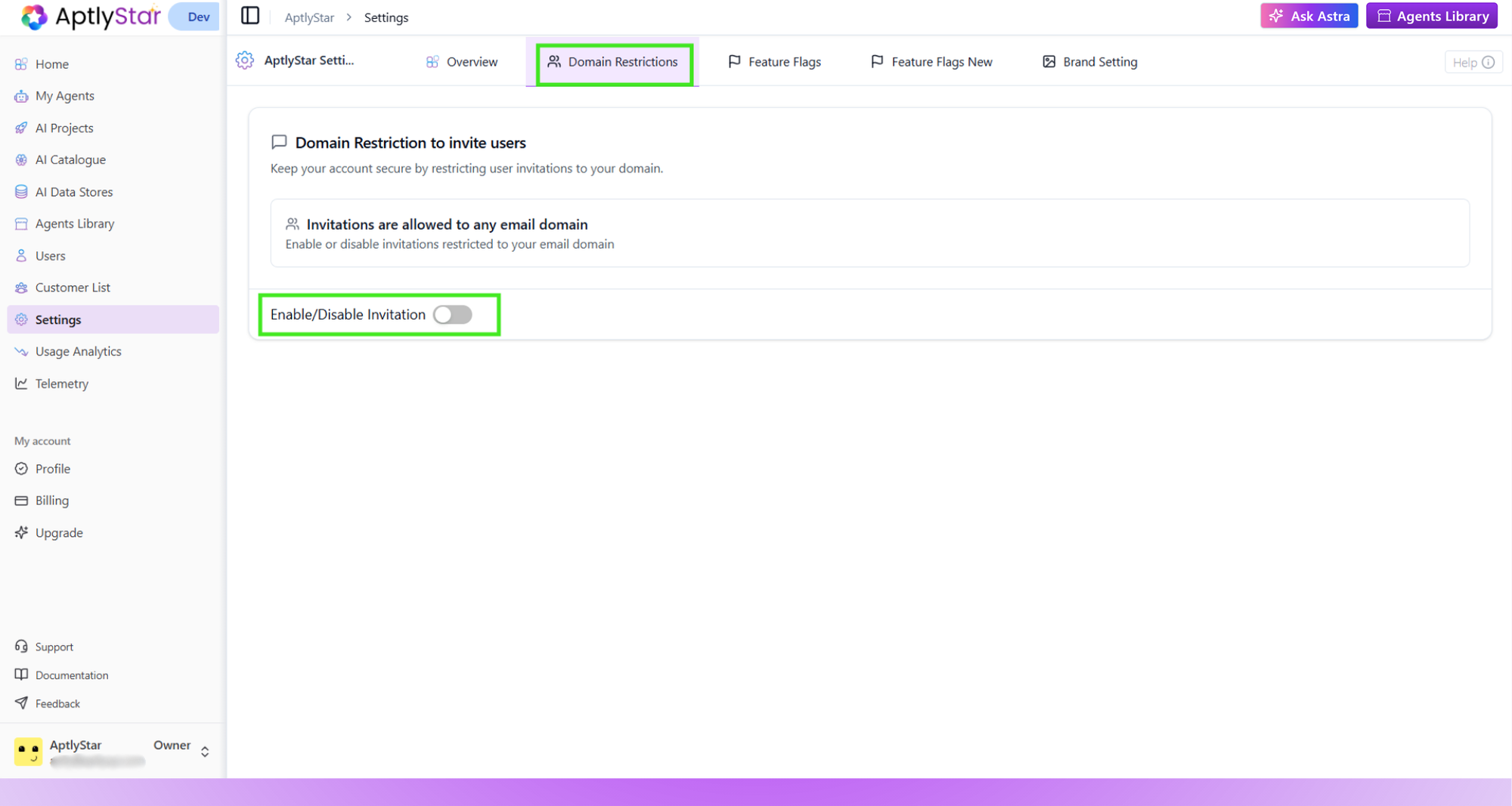
Use Domain Restrictions to control who can join your organization.
When enabled:
* Only users with your company’s email domain can be invited
* External or mistyped domains cannot be added
* You can toggle this setting on or off at any time
***
## Domain Restrictions
Use Domain Restrictions to control who can join your organization.
When enabled:
* Only users with your company’s email domain can be invited
* External or mistyped domains cannot be added
* You can toggle this setting on or off at any time
 ***
## Feature Flags
The Feature Flags tab allows you to manage early access or restricted features inside your organization.\
This content is based entirely on the new feature flags interface.
You can:
* View all available feature flags
* Enable or disable a feature
* Assign access to specific users
* Remove user access
* Disable an entire feature flag for everyone
### Feature Flags List
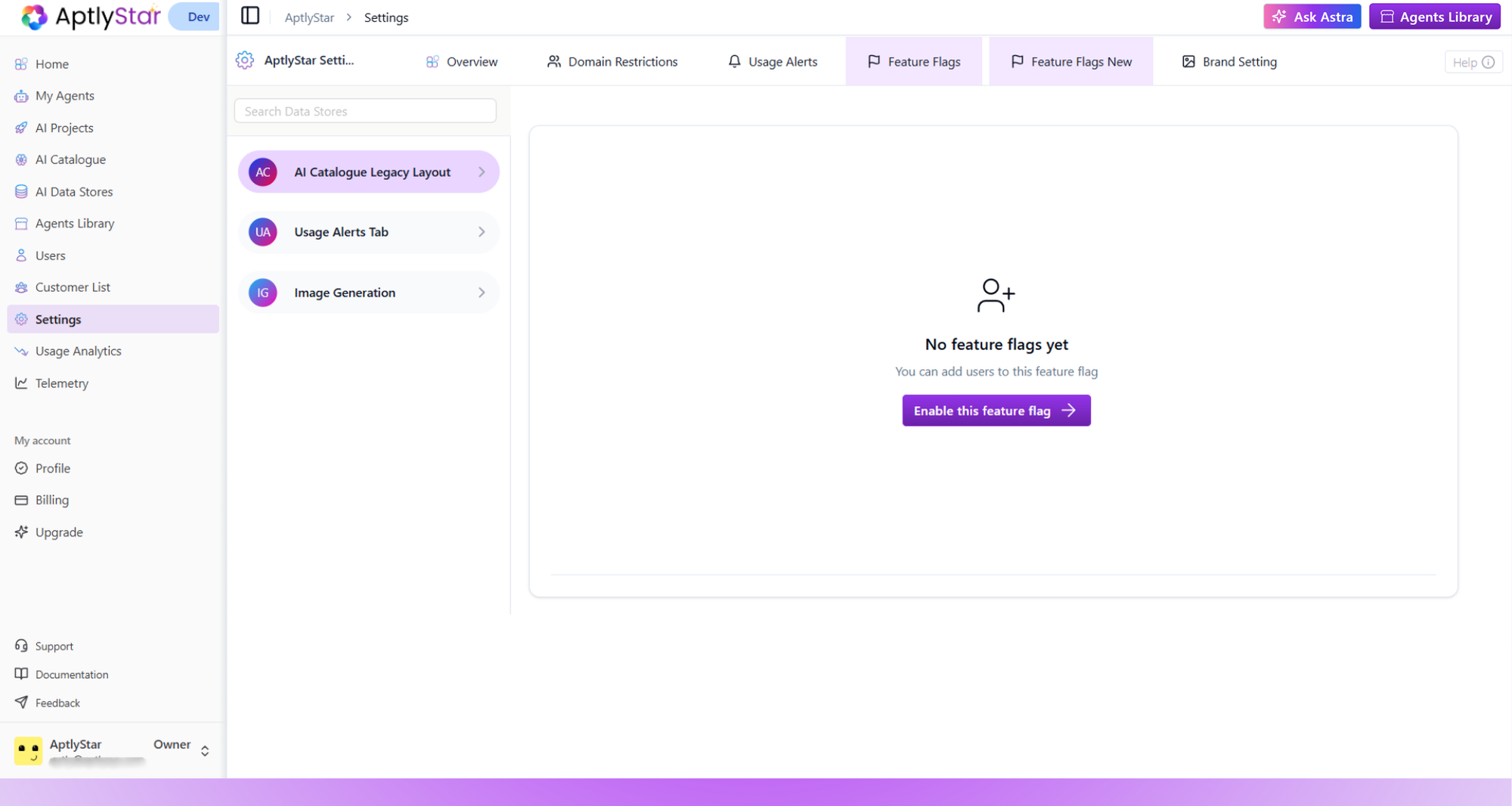
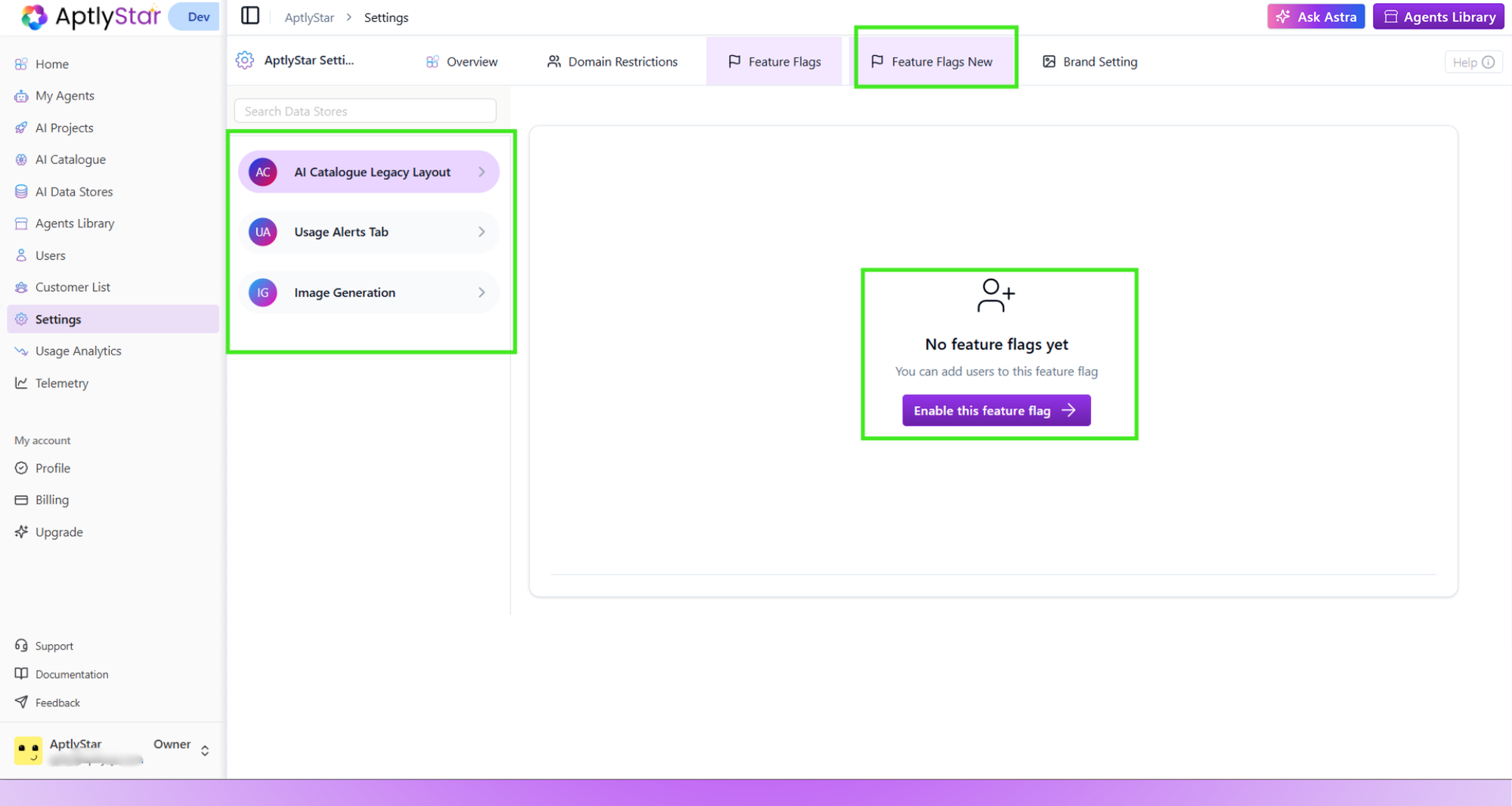
All flags appear in the left panel. Selecting a flag shows its details and user access options.
***
## Feature Flags
The Feature Flags tab allows you to manage early access or restricted features inside your organization.\
This content is based entirely on the new feature flags interface.
You can:
* View all available feature flags
* Enable or disable a feature
* Assign access to specific users
* Remove user access
* Disable an entire feature flag for everyone
### Feature Flags List
All flags appear in the left panel. Selecting a flag shows its details and user access options.
 ### No feature flags enabled yet
If a feature has no enabled users, you will see an empty state with an option to activate it.
### No feature flags enabled yet
If a feature has no enabled users, you will see an empty state with an option to activate it.
 ### Managing user access
You can:
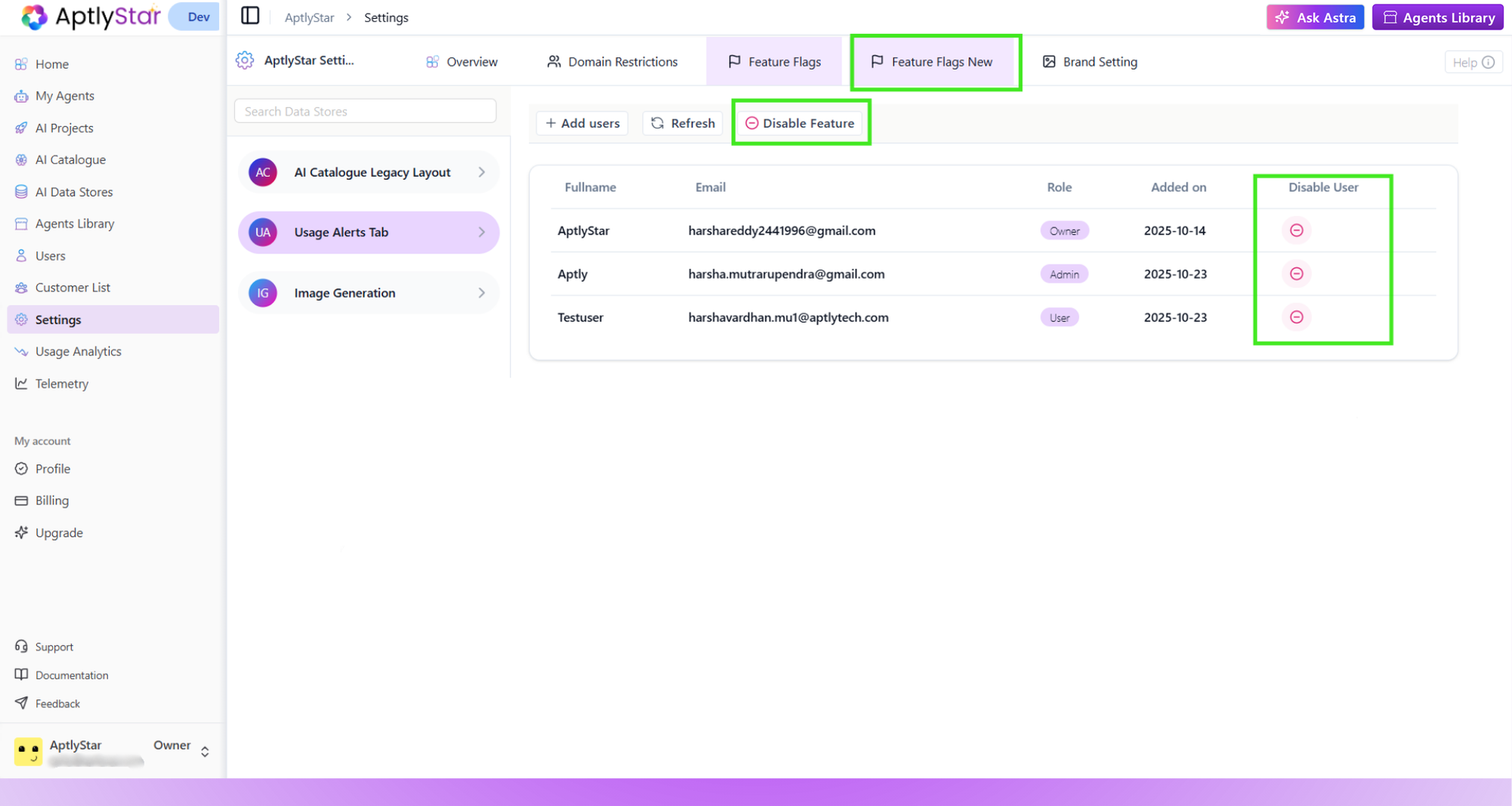
* Add users to enable the feature for them
* Remove users to revoke access
* Disable the feature entirely with the **Disable Feature** button
### Managing user access
You can:
* Add users to enable the feature for them
* Remove users to revoke access
* Disable the feature entirely with the **Disable Feature** button
 ***
## Brand Setting
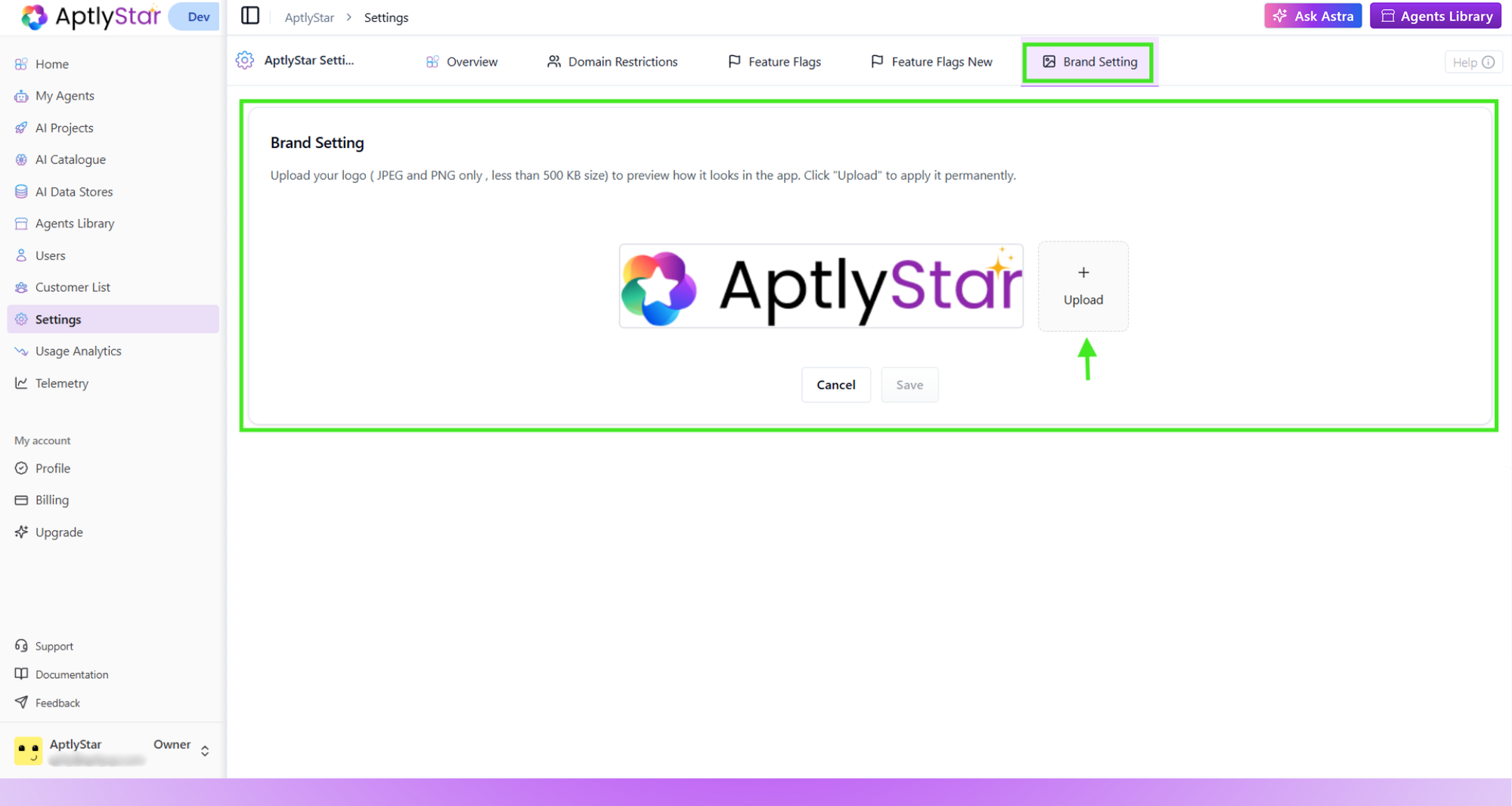
Brand Setting allows you to upload your organization's logo.\
This logo is displayed across the platform wherever branding is supported.
Supported formats:
* JPEG
* PNG
* File size under 500 KB
You can upload, preview, and save your logo.
***
## Brand Setting
Brand Setting allows you to upload your organization's logo.\
This logo is displayed across the platform wherever branding is supported.
Supported formats:
* JPEG
* PNG
* File size under 500 KB
You can upload, preview, and save your logo.
 ***
***