> ## Documentation Index
> Fetch the complete documentation index at: https://docs.aptlystar.ai/llms.txt
> Use this file to discover all available pages before exploring further.
# Data Stores of Organization
## 🗂️ What is a Data Store?
A **Datastore** is a centralized collection of various data sources—such as PDFs, webpages, or internal knowledge bases—managed through the **Organization Console**.
It acts as a unified repository for your data, enabling seamless access and integration across:
* Multiple AI agents
* AI-powered workflows
* Organizational applications
Datastores allow you to reuse data across projects, eliminating the need to recreate sources repeatedly.
This reusability improves **consistency**, reduces **manual effort**, and saves **time and costs** when scaling your AI initiatives.
Whether you're working with structured or unstructured data, datastores offer a scalable way to manage your organization’s knowledge corpus.
```mermaid theme={null}
flowchart TB
DS[("DATA STORES")] --> SRC[("DATA SOURCES")]
SRC --> FILES([Files])
SRC --> WEBPAGES([Webpages])
SRC --> TEXT([Text])
FILES -->|Embeddings| VECTOR[(Vector DB)]
WEBPAGES -->|Embeddings| VECTOR
TEXT -->|Embeddings| VECTOR
```
***
## 🛠️ Steps to Add a Datastore
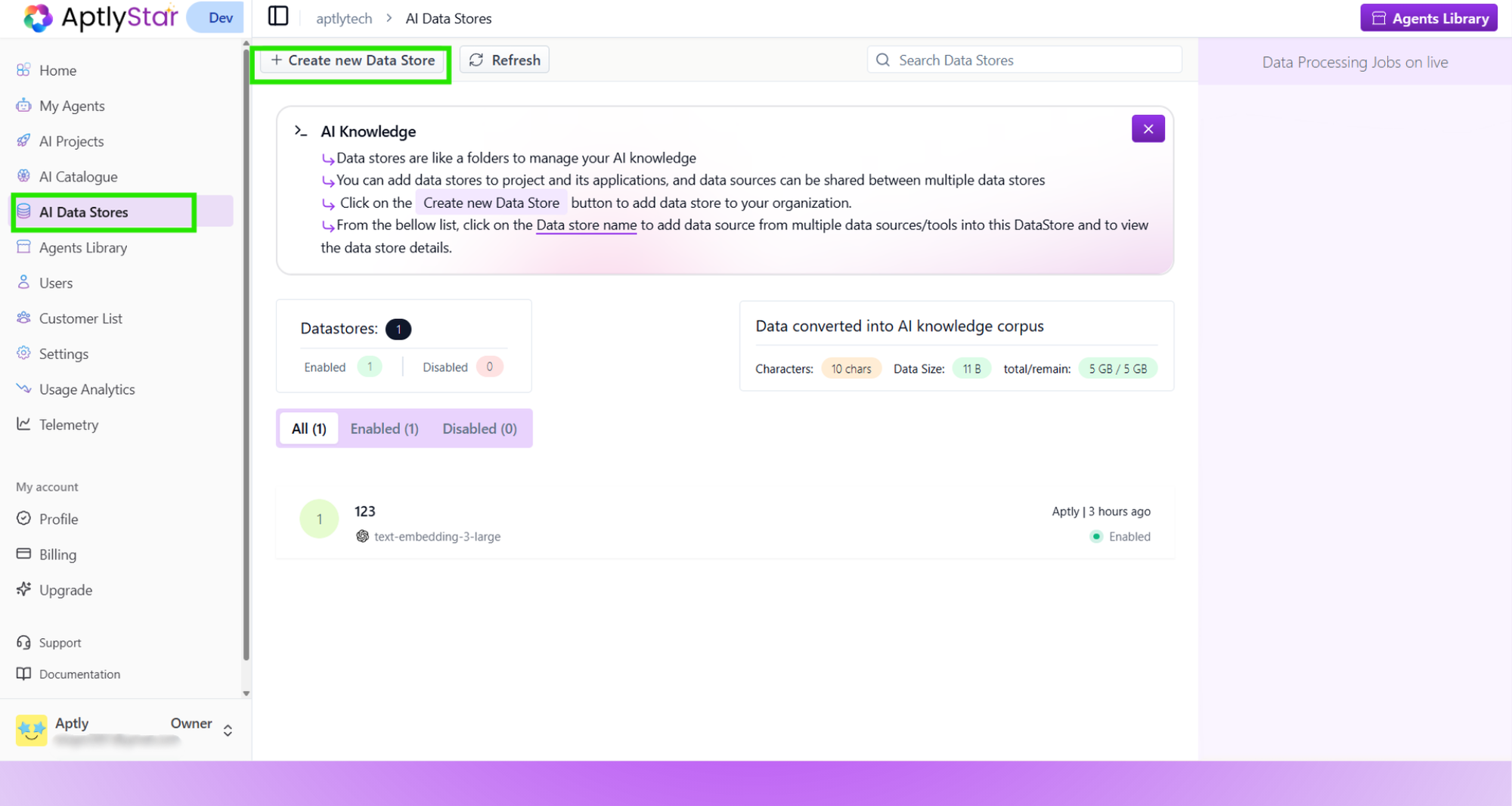
* Navigate to the **AI Data Stores** section in the organization console
* Click on **Create New Data Store**
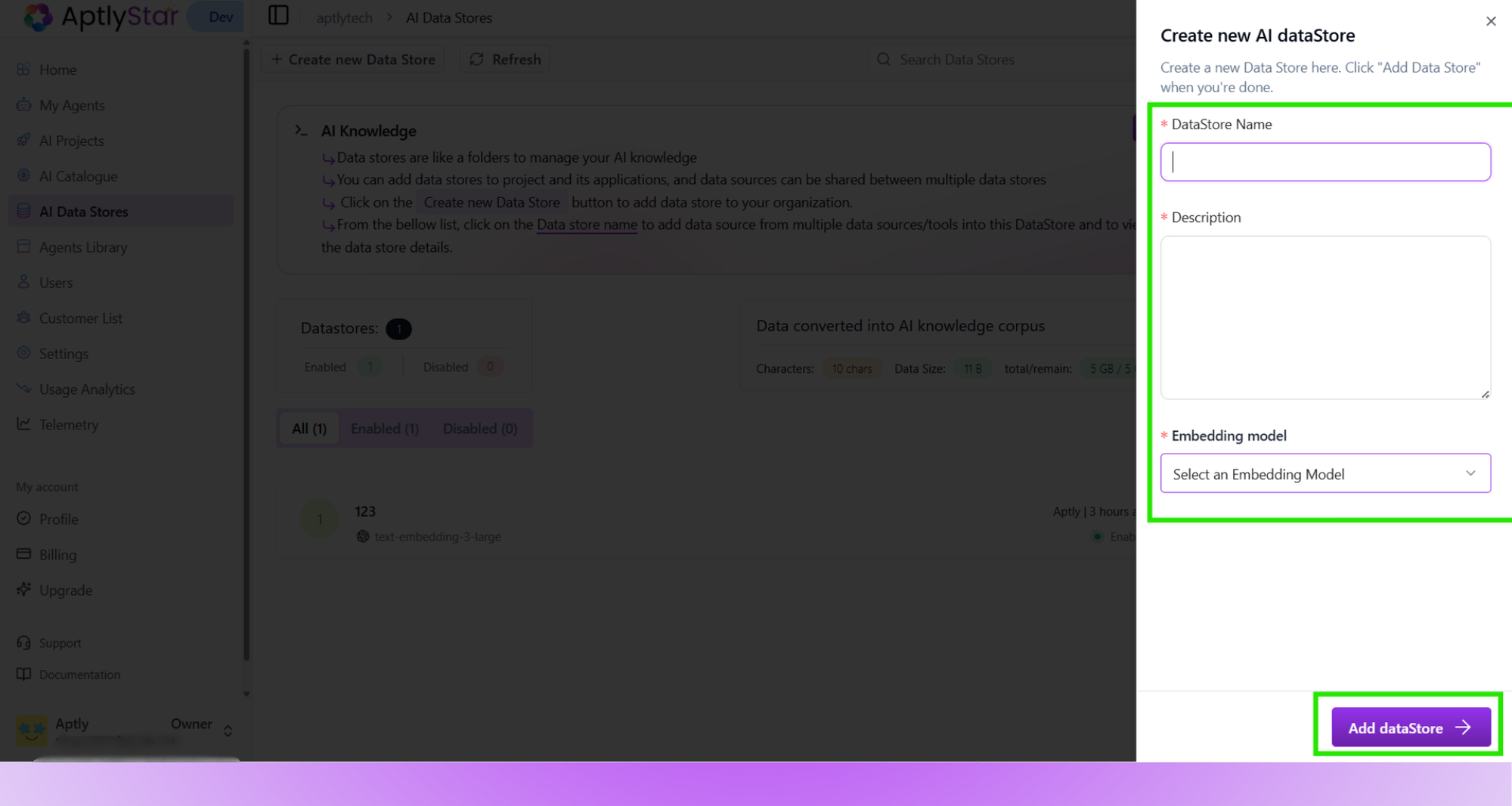
 * Fill in the following:
* **Datastore Name**
* **Description**
* **Embedding Model**
* Click **Add Datastore** to finalize
* Fill in the following:
* **Datastore Name**
* **Description**
* **Embedding Model**
* Click **Add Datastore** to finalize
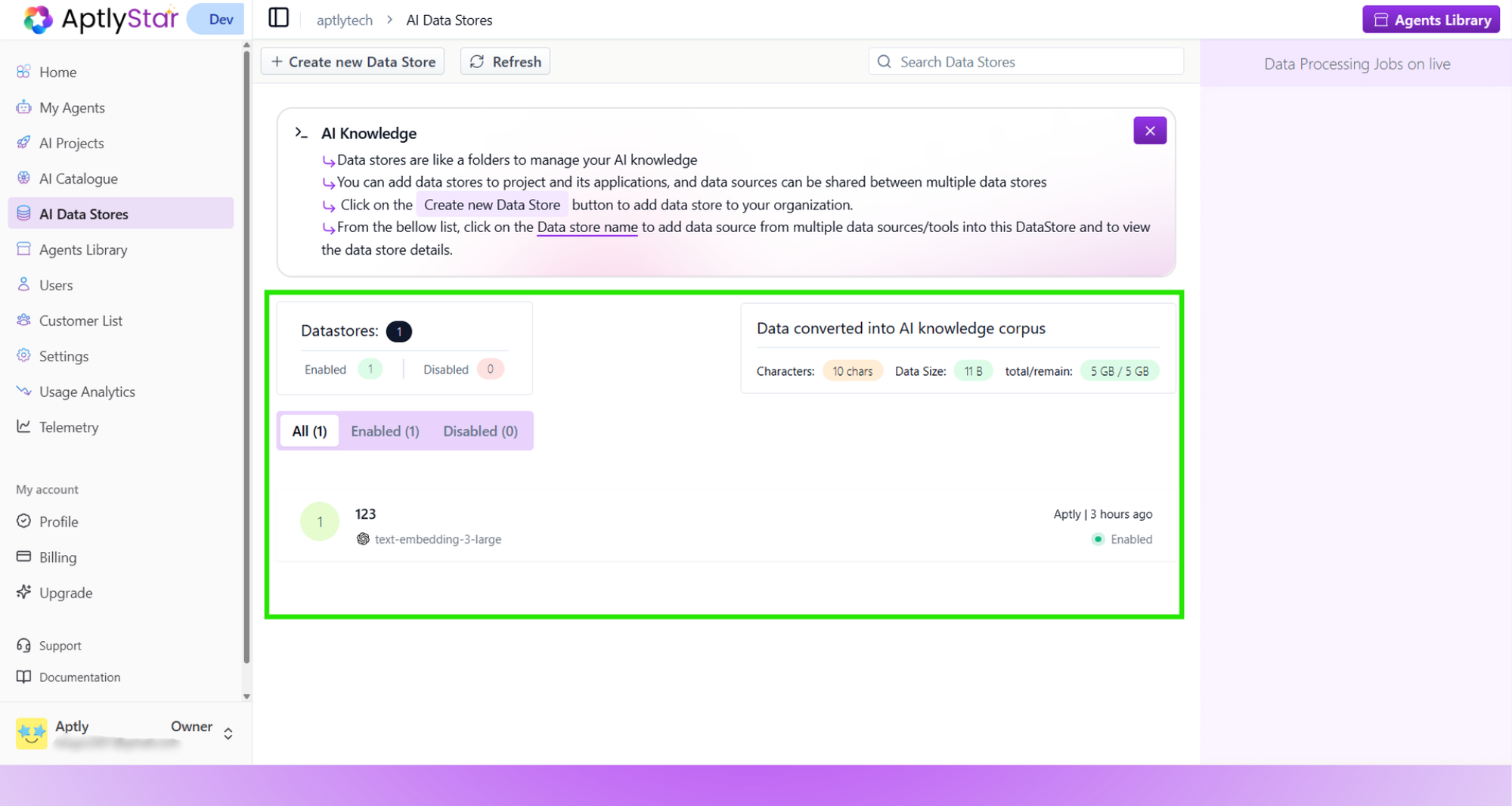
 Once created, your datastore will appear in the organization’s list with embedding info and data stats.
 📌 **Note:**\
While multiple datastores within the same project can use different **embedding models**, to **link a datastore with a agent**, both must use the **same embedding model**.
📌 **Note:**\
While multiple datastores within the same project can use different **embedding models**, to **link a datastore with a agent**, both must use the **same embedding model**.