> ## Documentation Index
> Fetch the complete documentation index at: https://docs.aptlystar.ai/llms.txt
> Use this file to discover all available pages before exploring further.
# AI Catalogue
## What is AI Catalogue?
AI Catalogue contains AI models that are algorithms trained on data to perform specific tasks such as pattern recognition, data analysis, content generation, and predictions. They range from classic machine learning models to advanced large language models (LLMs) like **GPT**, which specialize in understanding and generating human-like text.
These models are essential for powering AI-driven applications like agents, enabling:
* Natural, human-like conversations
* Personalized interactions
* Continuous learning and improvement
Choosing the **right LLM model** is critical to ensure optimal performance. Depending on your use case — whether it's **customer support**, **content creation**, or **workflow automation** — the appropriate model enhances:
* Accuracy
* Efficiency
* Scalability
***
## AI Catalogue in AptlyStar
The **AI Catalogue** section in AptlyStar displays a list of models added to your organization. You can check them in **Models in Org**.
 AptlyStar supports **49 LLM models** and **11 embedding models**, giving you flexibility to power a variety of AI-driven applications.
These models allow you to integrate cutting-edge AI capabilities into your agents— all tailored to your needs.
### Supported Providers
The following providers are supported by AptlyStar for LLM integration:
* OpenAI
* Azure OpenAI
* Groq
* Anthropic
* Cohere
* Google
* Fireworks
* Ollama
These providers enable you to harness best-in-class language models in your organization’s AI projects.Find a full list of supported models in **Catalogue**.
AptlyStar supports **49 LLM models** and **11 embedding models**, giving you flexibility to power a variety of AI-driven applications.
These models allow you to integrate cutting-edge AI capabilities into your agents— all tailored to your needs.
### Supported Providers
The following providers are supported by AptlyStar for LLM integration:
* OpenAI
* Azure OpenAI
* Groq
* Anthropic
* Cohere
* Google
* Fireworks
* Ollama
These providers enable you to harness best-in-class language models in your organization’s AI projects.Find a full list of supported models in **Catalogue**.
 ## Add Models to Your Organization
Add your favorite LLM model to create AI agents.
Add an embedding model to enable your agents to process and retrieve knowledge effectively.
***
## 🛠️ How to Add LLM Models
### 1) Add LLM Models to Your Organization
To add LLM models:
* Navigate to the **AI Catalogue** page
* Click **Add Model**
* Use the filters at the top of the selection modal to refine results:
* **Provider Filter** – lets you quickly narrow down models based on their source.\
For example, you can view only **OpenAI**, **Anthropic**, **Azure OpenAI**, or **Groq** models depending on your preferred infrastructure and compliance needs.\
This makes it easier to align your agent setup with organizational standards (e.g., Azure-hosted for enterprise security or Groq for cost optimization).
* **Image Analysis Filter** – highlights only models that support **vision and multimodal tasks** (image + text).\
By enabling this filter, you can instantly see which LLMs allow you to build agents that analyze and interpret images.\
This is especially useful for use cases like **document OCR**, **screenshot QA**, **visual inspections**, or **content moderation involving images**.
* Select one or more models from the filtered list
* Click **Add to org** to complete
## Add Models to Your Organization
Add your favorite LLM model to create AI agents.
Add an embedding model to enable your agents to process and retrieve knowledge effectively.
***
## 🛠️ How to Add LLM Models
### 1) Add LLM Models to Your Organization
To add LLM models:
* Navigate to the **AI Catalogue** page
* Click **Add Model**
* Use the filters at the top of the selection modal to refine results:
* **Provider Filter** – lets you quickly narrow down models based on their source.\
For example, you can view only **OpenAI**, **Anthropic**, **Azure OpenAI**, or **Groq** models depending on your preferred infrastructure and compliance needs.\
This makes it easier to align your agent setup with organizational standards (e.g., Azure-hosted for enterprise security or Groq for cost optimization).
* **Image Analysis Filter** – highlights only models that support **vision and multimodal tasks** (image + text).\
By enabling this filter, you can instantly see which LLMs allow you to build agents that analyze and interpret images.\
This is especially useful for use cases like **document OCR**, **screenshot QA**, **visual inspections**, or **content moderation involving images**.
* Select one or more models from the filtered list
* Click **Add to org** to complete
 Once models are selected, confirm and complete the addition:
 The **Provider filter** helps you choose *where* your models come from, while the **Image Analysis filter** helps you choose *what they can do*. Using both together ensures you add the most relevant models to your organization.
### 2) Add Embedding Models to Your Organization
To add embedding models:
* On the same **AI Catalogue** page, click on **Add Embedding Model**
* Select an embedding model from the list
* Click **Add to org** to add it
The **Provider filter** helps you choose *where* your models come from, while the **Image Analysis filter** helps you choose *what they can do*. Using both together ensures you add the most relevant models to your organization.
### 2) Add Embedding Models to Your Organization
To add embedding models:
* On the same **AI Catalogue** page, click on **Add Embedding Model**
* Select an embedding model from the list
* Click **Add to org** to add it
 Ensure both **LLM models** and **embedding models** are successfully added to your organization to enable full agent functionality and performance.
## AI Catalogue Config
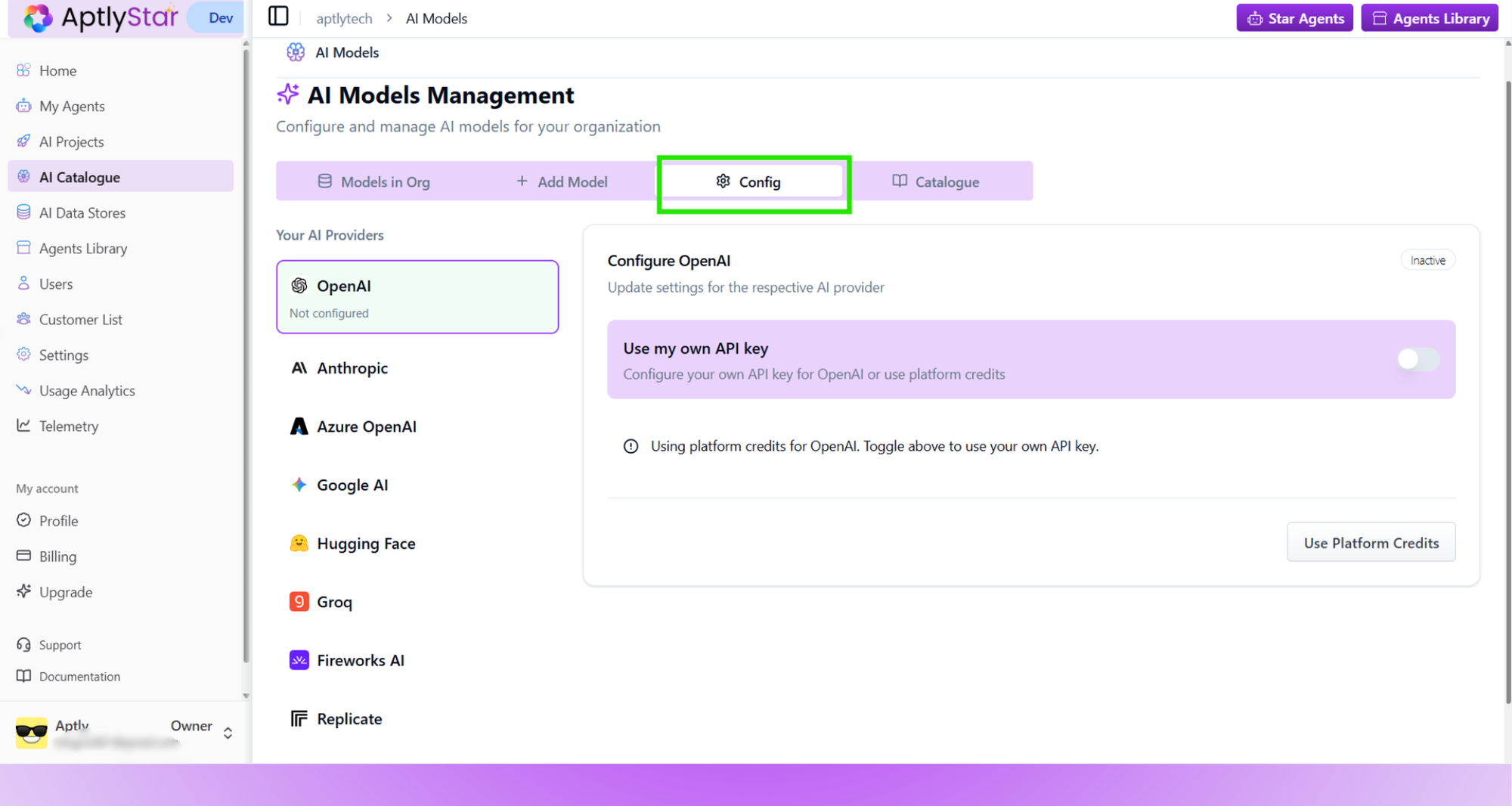
Beyond adding models, AptlyStar also provides a **config** option that allows you to configure **custom API keys** for supported providers.\
This is useful if your organization wants to use its own API keys instead of the system-provided ones for security, billing, or usage tracking purposes.
### AccessingConfig
To open the config, click the **Config** button on the top-right of the **AI Catalogue** page.
Ensure both **LLM models** and **embedding models** are successfully added to your organization to enable full agent functionality and performance.
## AI Catalogue Config
Beyond adding models, AptlyStar also provides a **config** option that allows you to configure **custom API keys** for supported providers.\
This is useful if your organization wants to use its own API keys instead of the system-provided ones for security, billing, or usage tracking purposes.
### AccessingConfig
To open the config, click the **Config** button on the top-right of the **AI Catalogue** page.
 ***
### Select AI Provider
From the settings panel, select the **AI Provider** for which you want to configure a key (e.g., OpenAI, Azure OpenAI, Anthropic, etc.).
***
### Select AI Provider
From the settings panel, select the **AI Provider** for which you want to configure a key (e.g., OpenAI, Azure OpenAI, Anthropic, etc.).
 ***
### Enable Custom API Key
Toggle the **Use Custom API Key** option. This allows you to provide your own key rather than relying on system defaults.
***
### Enable Custom API Key
Toggle the **Use Custom API Key** option. This allows you to provide your own key rather than relying on system defaults.
 ***
### Add and Validate Key
* Enter your **API Key**
* (Optional) Provide your **Organization ID** if the provider requires it
* Click **Validate API Key** to check correctness
* Save your settings to apply them globally
***
### Add and Validate Key
* Enter your **API Key**
* (Optional) Provide your **Organization ID** if the provider requires it
* Click **Validate API Key** to check correctness
* Save your settings to apply them globally
 ***
### Notes
* Keys are **encrypted and stored securely**.
* **Organization-level keys** apply to all agents by default.
* Keys can still be overridden at the **agent level** if a specific agent requires a different configuration.
Using custom API keys ensures you have full control over billing, monitoring, and provider-specific compliance requirements for your organization.
***
### Notes
* Keys are **encrypted and stored securely**.
* **Organization-level keys** apply to all agents by default.
* Keys can still be overridden at the **agent level** if a specific agent requires a different configuration.
Using custom API keys ensures you have full control over billing, monitoring, and provider-specific compliance requirements for your organization.