> ## Documentation Index
> Fetch the complete documentation index at: https://docs.aptlystar.ai/llms.txt
> Use this file to discover all available pages before exploring further.
# AI Models with Image Analysis
AI Models with **Image Analysis** and **Image Generation** capabilities allow your agents to process, understand, and create visual content.\
This unlocks powerful multimodal workflows — making your assistants capable of analyzing screenshots, generating visuals, and responding contextually.
***
## 🖼️ Why Image Analysis Matters
Traditional text-only AI agents are limited to what users type. With **Image Analysis enabled models**, you can:
* Upload documents or screenshots for instant analysis
* Run visual inspections (manufacturing, QA, product checks)
* Extract structured data from receipts, bills, or invoices
* Provide educational explanations from diagrams or charts
* Moderate user-submitted images in community platforms
* Automate HR and business workflows with scanned or photographed inputs
This makes your agents much more versatile and useful in real-world workflows.
***
## 📥 How to Use Image Analysis in Canvas
On the **Canvas playground**, when your selected model supports image analysis, you’ll see an option to **Add Photos** directly in the input bar.
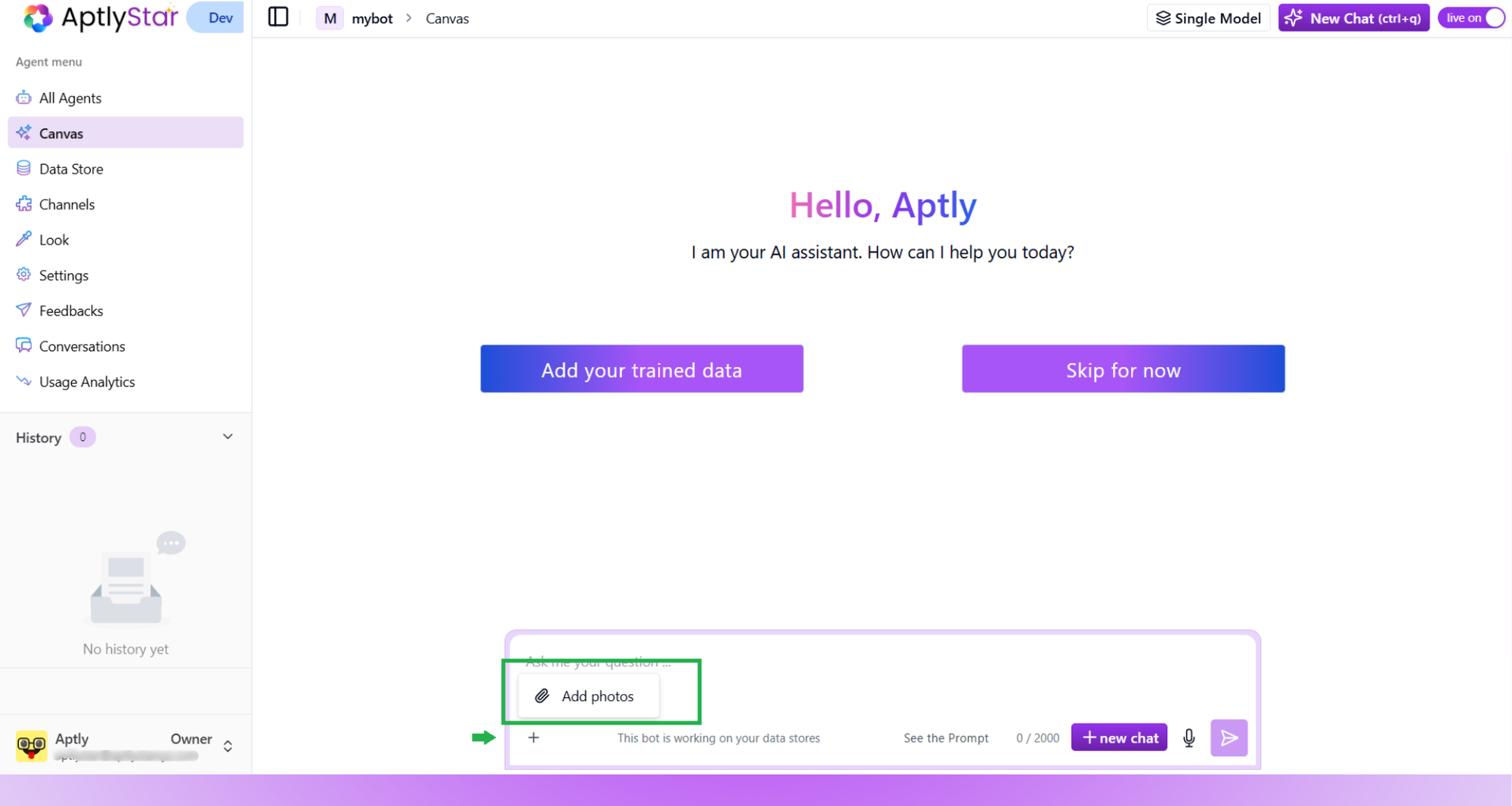 Users can drag and drop images or select them, and the model will generate a response that combines **text understanding + visual reasoning**.
***
## 🎯 Selecting Image Analysis Models
Not all LLMs support image processing. To ensure your agent can use image features, you need to select a model with **Image Analysis support**.
On the **AI Models** page, use the filter options:
* **Provider Filter** – Choose the provider (e.g., OpenAI, Anthropic, Azure)
* **Image Analysis Filter** – Narrow down to only those models that support **vision + multimodal tasks**
Users can drag and drop images or select them, and the model will generate a response that combines **text understanding + visual reasoning**.
***
## 🎯 Selecting Image Analysis Models
Not all LLMs support image processing. To ensure your agent can use image features, you need to select a model with **Image Analysis support**.
On the **AI Models** page, use the filter options:
* **Provider Filter** – Choose the provider (e.g., OpenAI, Anthropic, Azure)
* **Image Analysis Filter** – Narrow down to only those models that support **vision + multimodal tasks**
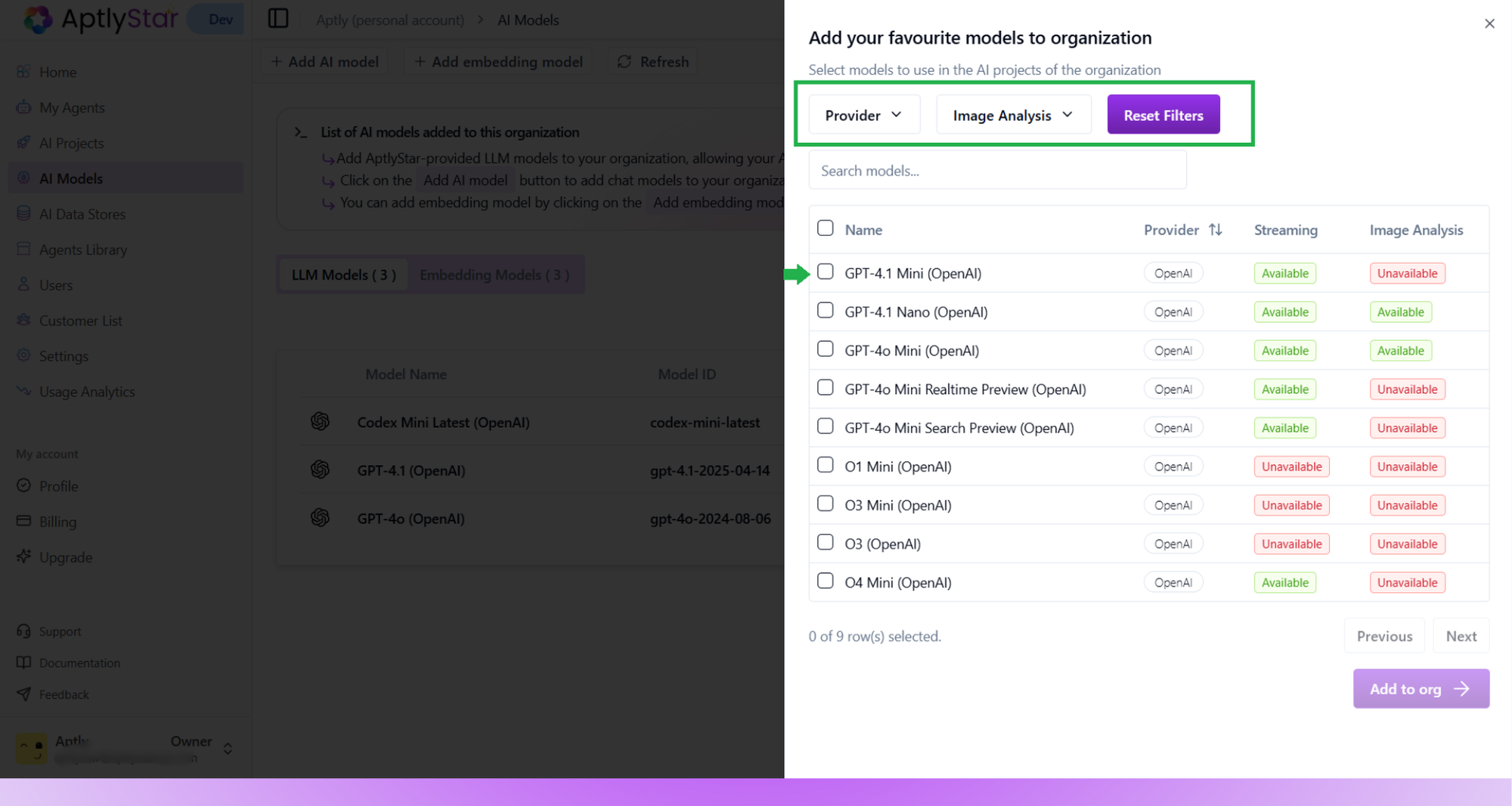 This ensures you only add models with visual reasoning capabilities into your organization.
***
## 🧠 Image Generation Models
Beyond analyzing visuals, AptlyStar also supports **AI models capable of generating images** from text prompts — opening new creative and automation possibilities.
This ensures you only add models with visual reasoning capabilities into your organization.
***
## 🧠 Image Generation Models
Beyond analyzing visuals, AptlyStar also supports **AI models capable of generating images** from text prompts — opening new creative and automation possibilities.
 ### ✨ How Image Generation Works
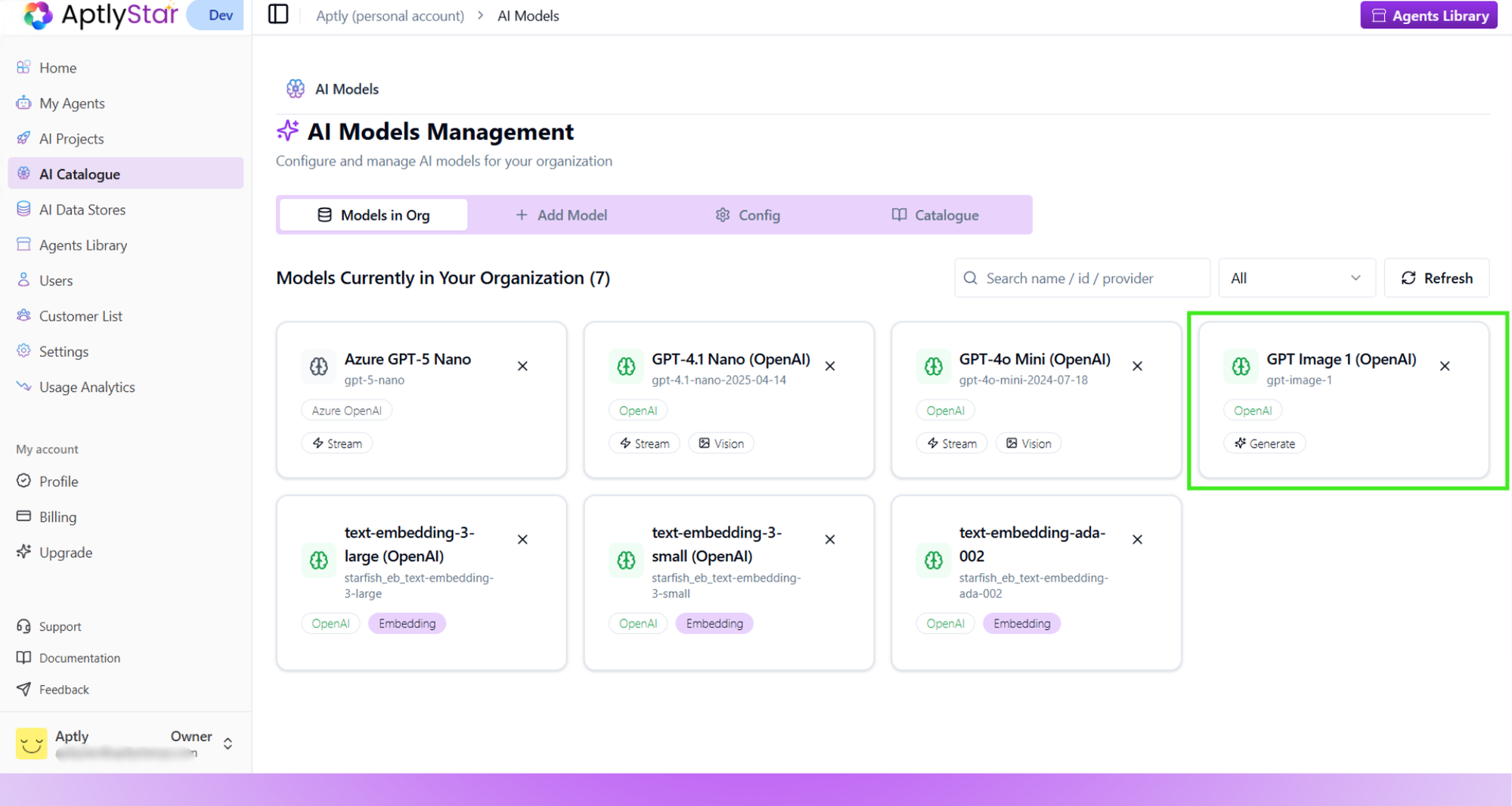
* Choose a model that supports **Image Generation** (e.g., *GPT Image 1 - OpenAI*).
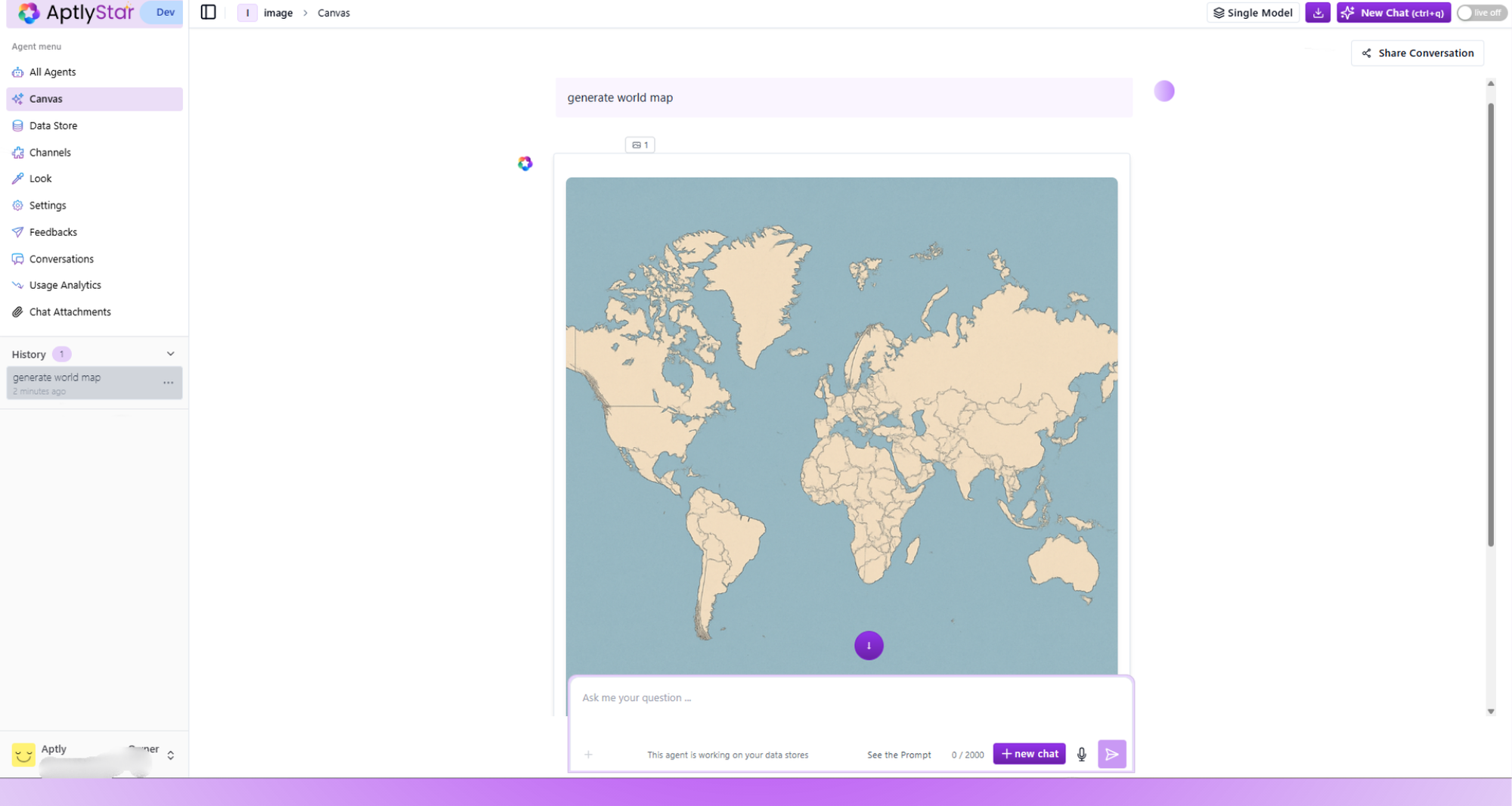
* Use **Canvas** to enter a descriptive text prompt such as “Generate a world map” or “Create a futuristic city skyline.”
* The model produces a **generated image output** directly inside the Canvas conversation.
### ✨ How Image Generation Works
* Choose a model that supports **Image Generation** (e.g., *GPT Image 1 - OpenAI*).
* Use **Canvas** to enter a descriptive text prompt such as “Generate a world map” or “Create a futuristic city skyline.”
* The model produces a **generated image output** directly inside the Canvas conversation.
 ### 🔍 Key Features
* Generate visuals using natural language descriptions.
* Ideal for creative workflows (marketing, education, storytelling, design).
* Works seamlessly inside the **Canvas interface** — no separate upload or setup needed.
* Supports iterative prompting: refine your image by continuing the conversation.
> 💡 Example prompt: “Generate a minimalist infographic showing AI workflow from data to decision.”
***
## 📚 Example Use Cases
### 🧾 Business: Document Parsing
* Upload receipts, invoices, contracts, or ID cards.
* The agent extracts structured data (amounts, parties, dates) for finance or legal systems.
* Example: Finance teams can upload monthly receipts for **automatic expense tracking**.
***
### 🏢 HR: Candidate Screening & Compliance
* Parse **resumes with embedded charts, certificates, or scanned copies**.
* Verify identity documents (passports, ID cards) for onboarding.
* Extract data from **employee forms** (tax forms, HR compliance scans) into HRIS systems.
* Example: HR uploads an employee’s scanned certificate → the agent validates the content and logs it automatically.
***
### 🏭 Industry: Quality Control
* Factory workers upload photos of product parts.
* The agent analyzes defects (scratches, misalignment, wear) and flags issues in real-time.
* Example: A car manufacturer uploads part images to ensure **paint quality and assembly alignment**.
***
### 📖 Education: Diagram Explainer
* Students upload math graphs or physics diagrams.
* The agent explains step-by-step interpretations (formulas, forces, trends).
* Example: A biology student uploads a photo of a cell diagram → the agent highlights organelles with explanations.
***
### 🌐 Customer Support: Screenshot Debugging
* Users share error screenshots.
* The agent interprets UI messages or codes and suggests troubleshooting steps.
* Example: A SaaS company receives screenshot-based queries → the agent automatically **guides users through fixes**.
***
### 🛍️ Retail & E-commerce
* Customers upload product photos for **catalog matching** or **AI image generation previews**.
* The agent can generate visuals of new variants or recommend similar items.
* Example: Upload a product photo → the agent creates a custom variation mockup.
***
## ✅ Key Takeaways
* Enable **Image Analysis** to make agents understand and reason over visuals.
* Use **Image Generation** models to create new visuals from text prompts.
* Both capabilities work seamlessly in **Canvas**, enhancing multimodal AI workflows across business, education, and creative domains.
By combining **Image Analysis** and **Image Generation**, your organization can build truly multimodal agents — capable of seeing, understanding, and creating.
### 🔍 Key Features
* Generate visuals using natural language descriptions.
* Ideal for creative workflows (marketing, education, storytelling, design).
* Works seamlessly inside the **Canvas interface** — no separate upload or setup needed.
* Supports iterative prompting: refine your image by continuing the conversation.
> 💡 Example prompt: “Generate a minimalist infographic showing AI workflow from data to decision.”
***
## 📚 Example Use Cases
### 🧾 Business: Document Parsing
* Upload receipts, invoices, contracts, or ID cards.
* The agent extracts structured data (amounts, parties, dates) for finance or legal systems.
* Example: Finance teams can upload monthly receipts for **automatic expense tracking**.
***
### 🏢 HR: Candidate Screening & Compliance
* Parse **resumes with embedded charts, certificates, or scanned copies**.
* Verify identity documents (passports, ID cards) for onboarding.
* Extract data from **employee forms** (tax forms, HR compliance scans) into HRIS systems.
* Example: HR uploads an employee’s scanned certificate → the agent validates the content and logs it automatically.
***
### 🏭 Industry: Quality Control
* Factory workers upload photos of product parts.
* The agent analyzes defects (scratches, misalignment, wear) and flags issues in real-time.
* Example: A car manufacturer uploads part images to ensure **paint quality and assembly alignment**.
***
### 📖 Education: Diagram Explainer
* Students upload math graphs or physics diagrams.
* The agent explains step-by-step interpretations (formulas, forces, trends).
* Example: A biology student uploads a photo of a cell diagram → the agent highlights organelles with explanations.
***
### 🌐 Customer Support: Screenshot Debugging
* Users share error screenshots.
* The agent interprets UI messages or codes and suggests troubleshooting steps.
* Example: A SaaS company receives screenshot-based queries → the agent automatically **guides users through fixes**.
***
### 🛍️ Retail & E-commerce
* Customers upload product photos for **catalog matching** or **AI image generation previews**.
* The agent can generate visuals of new variants or recommend similar items.
* Example: Upload a product photo → the agent creates a custom variation mockup.
***
## ✅ Key Takeaways
* Enable **Image Analysis** to make agents understand and reason over visuals.
* Use **Image Generation** models to create new visuals from text prompts.
* Both capabilities work seamlessly in **Canvas**, enhancing multimodal AI workflows across business, education, and creative domains.
By combining **Image Analysis** and **Image Generation**, your organization can build truly multimodal agents — capable of seeing, understanding, and creating.