> ## Documentation Index
> Fetch the complete documentation index at: https://docs.aptlystar.ai/llms.txt
> Use this file to discover all available pages before exploring further.
# Adding Webpage Data Sources
Webpages are one of the most powerful ways to enrich your Datastore.\
By connecting a webpage, your agent can directly reference and learn from the content of online resources like documentation, blogs, FAQs, or changelogs — ensuring answers stay **accurate and updated**.
This guide walks through how to add a **webpage as a data source**, configure **Auto-Sync schedules**, and monitor updates with **Sync History**.
***
## Step-by-Step Guide
Select the **Datastore** where you want to add external knowledge.\
Inside, go to the **Data Sources** tab. Here you’ll see all linked sources that feed information into your Datastore.
Click **Add new data source** to start adding content.
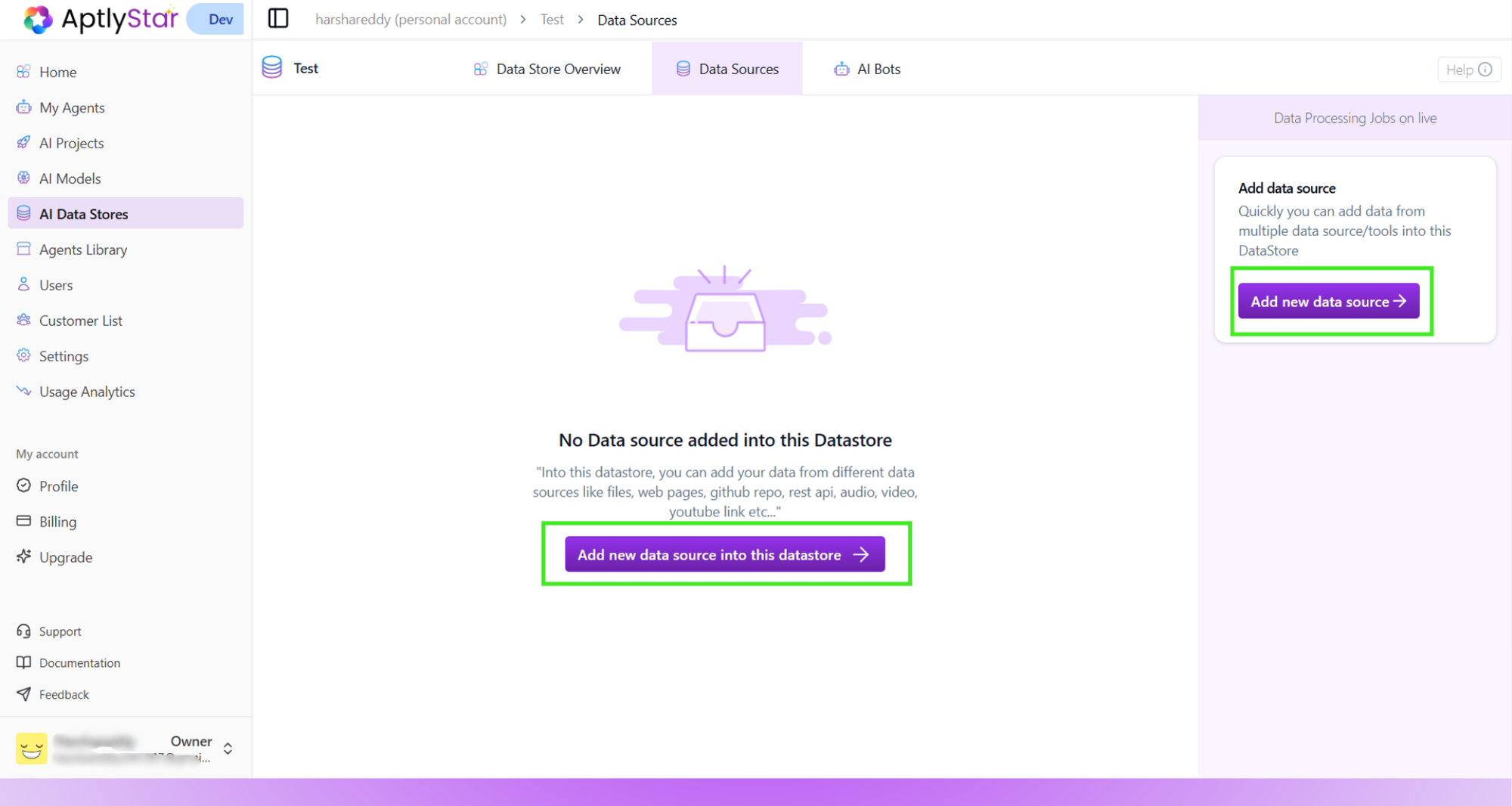 The system supports multiple types of sources (Files, Text, GitHub, REST API, etc.).
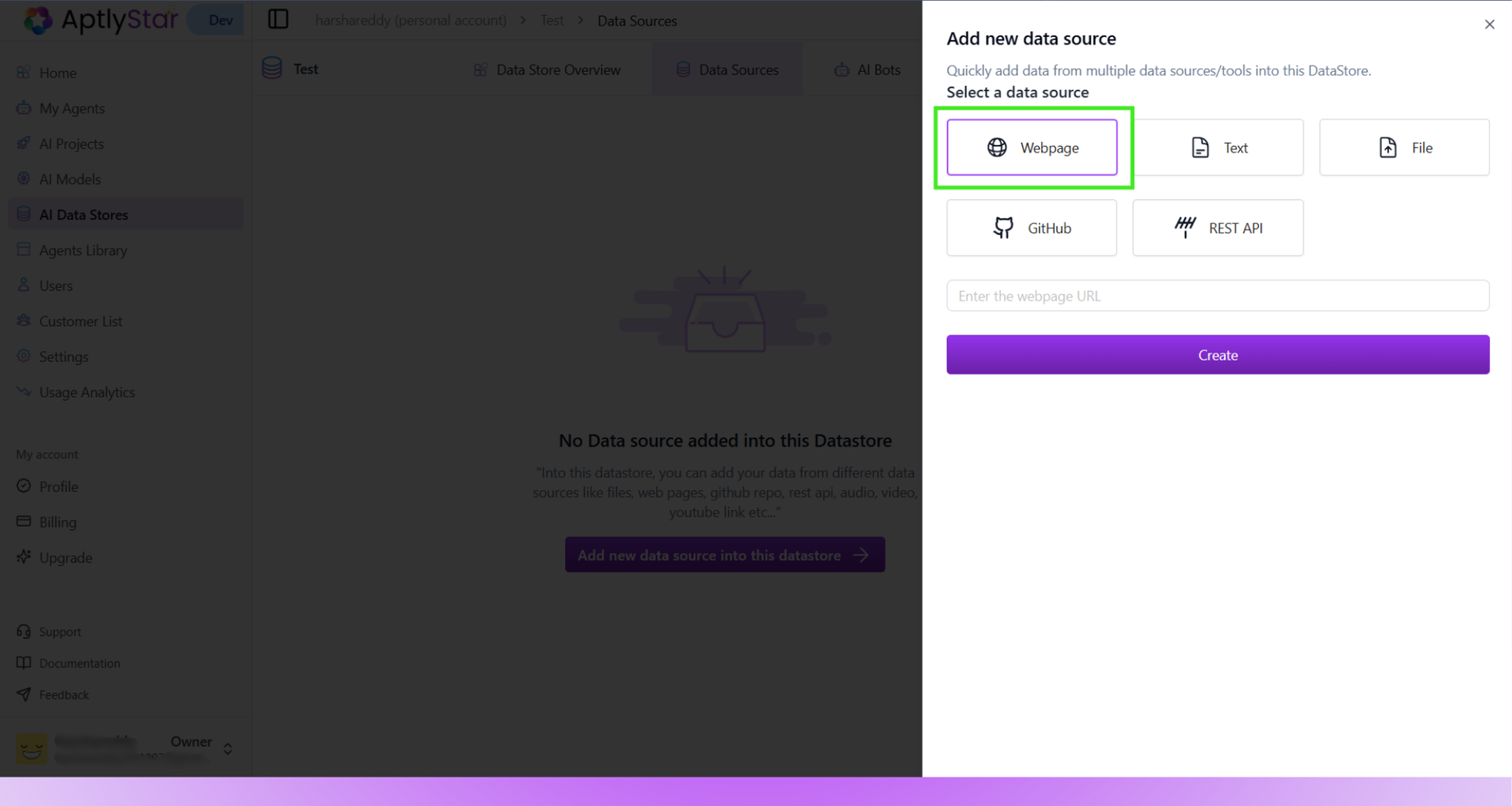
Select **Webpage**, paste the target URL, and click **Create**.\
This will crawl the page content and add it into the Datastore.
The system supports multiple types of sources (Files, Text, GitHub, REST API, etc.).
Select **Webpage**, paste the target URL, and click **Create**.\
This will crawl the page content and add it into the Datastore.
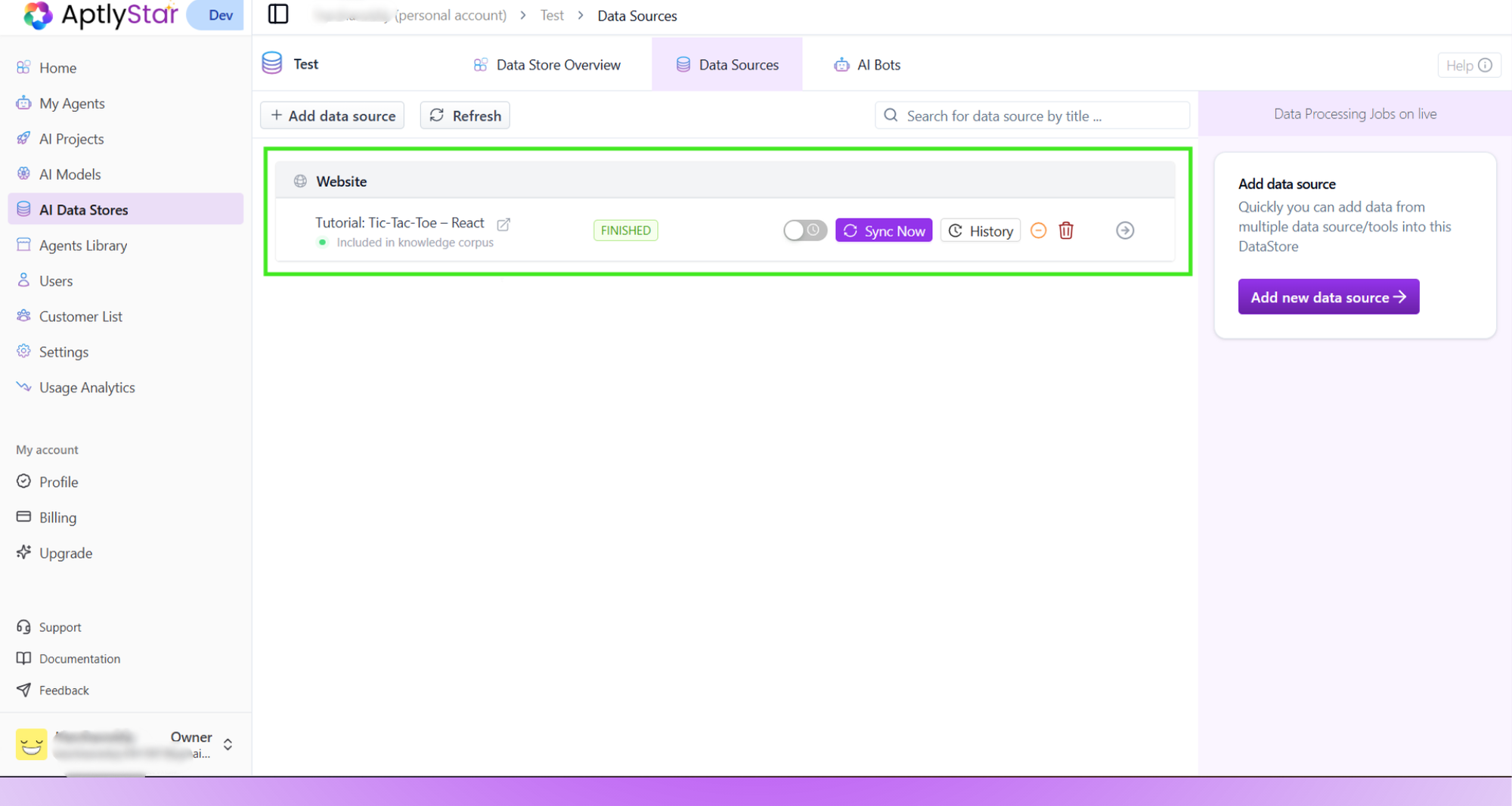
 Once processed, the webpage source will appear in the list of sources.
Each entry shows:
* **Source Type** (Webpage, File, etc.)
* **Title of the page**
* **Inclusion Status** (e.g., Included in knowledge corpus)
* **Processing State** (FINISHED, PENDING, etc.)
At this point, your agent can already use this content.
Once processed, the webpage source will appear in the list of sources.
Each entry shows:
* **Source Type** (Webpage, File, etc.)
* **Title of the page**
* **Inclusion Status** (e.g., Included in knowledge corpus)
* **Processing State** (FINISHED, PENDING, etc.)
At this point, your agent can already use this content.
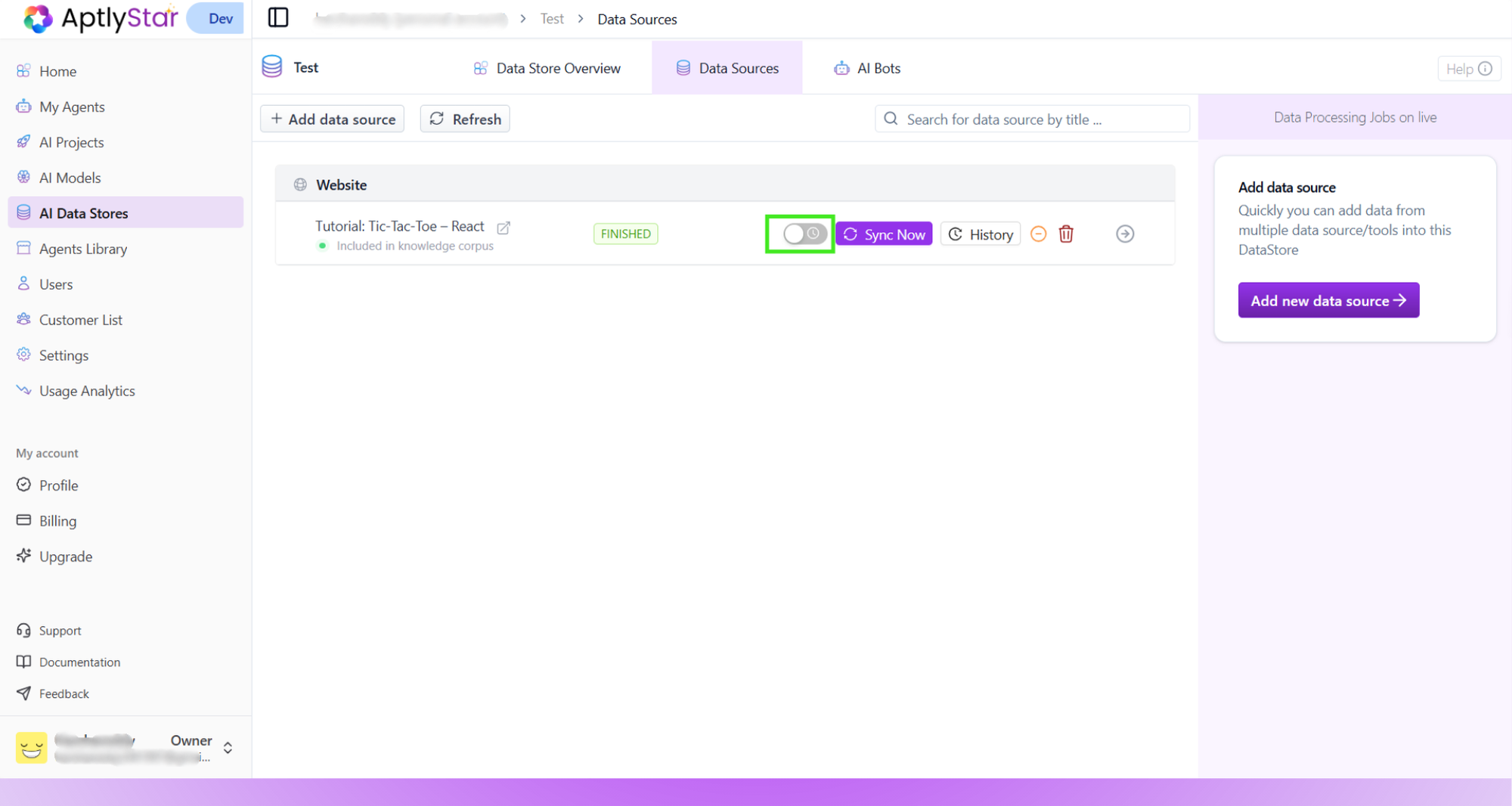
 Webpages often change — new docs, updated FAQs, or product details.\
To avoid outdated answers, toggle **Auto-Resync** on the source card.
This ensures the system automatically re-crawls the page at set intervals.
Webpages often change — new docs, updated FAQs, or product details.\
To avoid outdated answers, toggle **Auto-Resync** on the source card.
This ensures the system automatically re-crawls the page at set intervals.
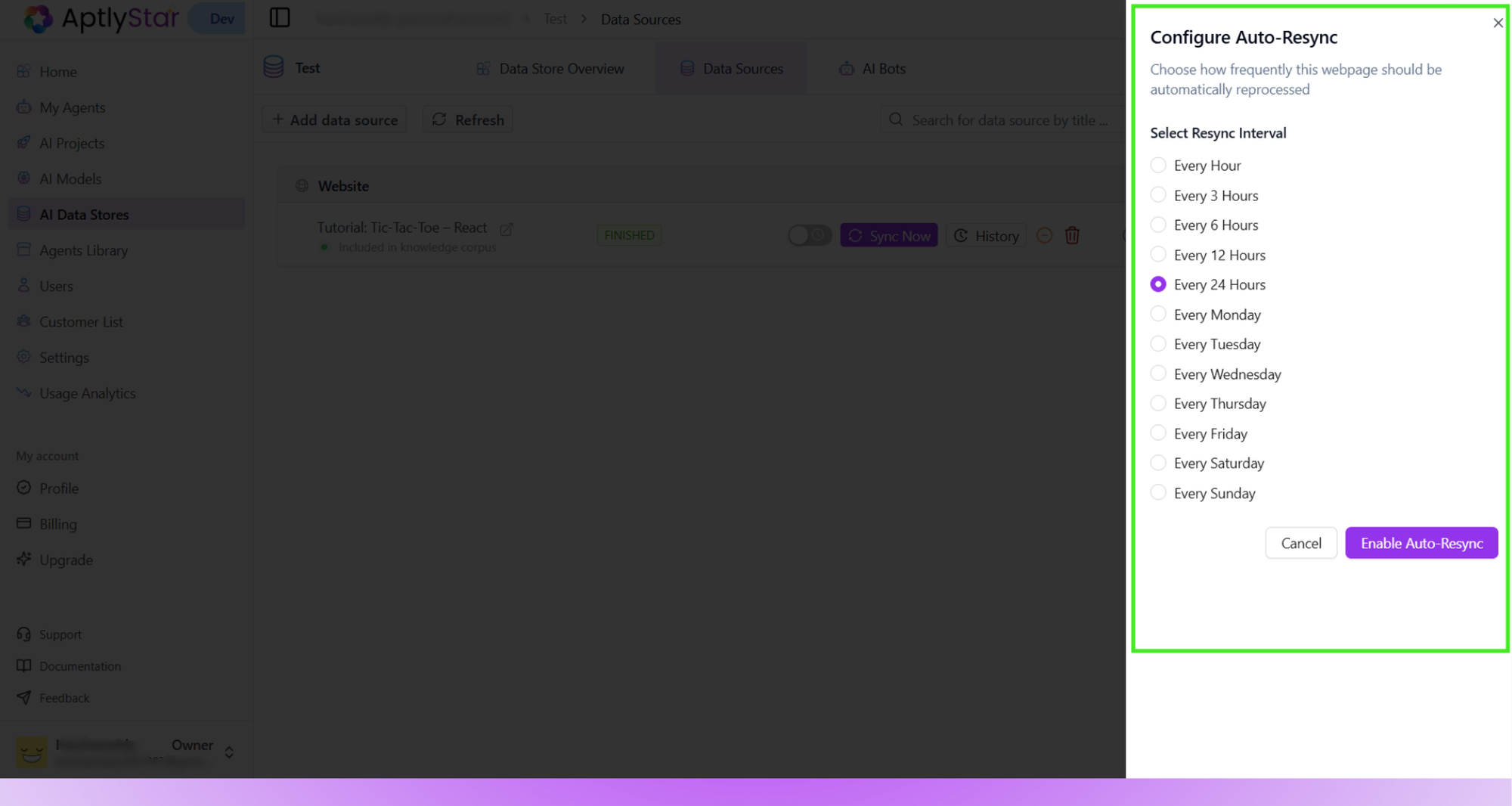
 When Auto-Sync is enabled, you can define how frequently the page should be re-processed.
Options include:
* Every hour / 3h / 6h / 12h / 24h
* Specific weekdays (e.g., every Monday, every Friday)
Pick a schedule that matches how often the page changes. For example, news sites may need hourly syncs, while product docs may only need daily updates.
When Auto-Sync is enabled, you can define how frequently the page should be re-processed.
Options include:
* Every hour / 3h / 6h / 12h / 24h
* Specific weekdays (e.g., every Monday, every Friday)
Pick a schedule that matches how often the page changes. For example, news sites may need hourly syncs, while product docs may only need daily updates.
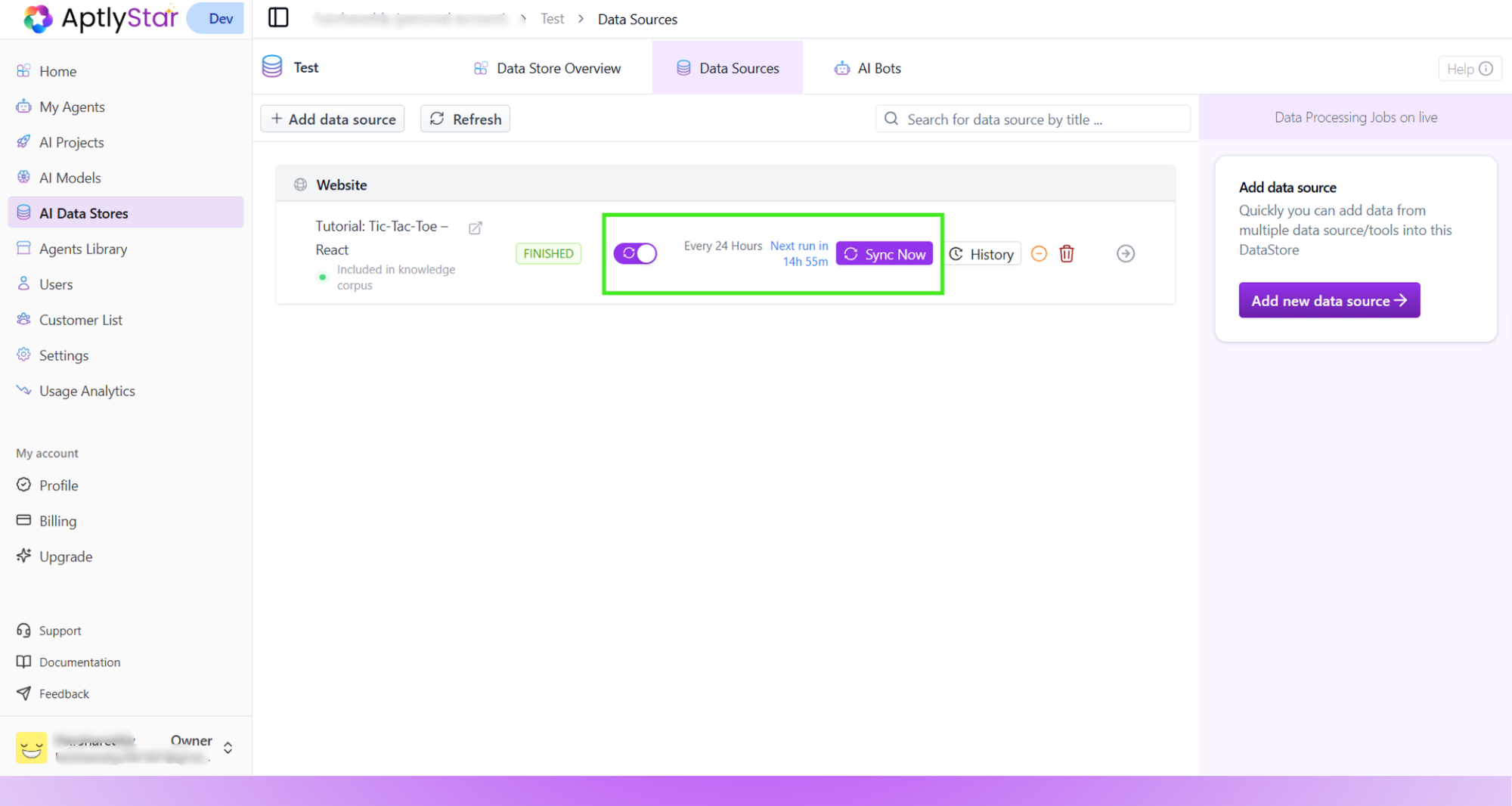
 If urgent changes happen on the webpage and you don’t want to wait for the next scheduled sync, click **Sync Now**.
This immediately reprocesses the page and refreshes the Datastore with the latest version.
If urgent changes happen on the webpage and you don’t want to wait for the next scheduled sync, click **Sync Now**.
This immediately reprocesses the page and refreshes the Datastore with the latest version.
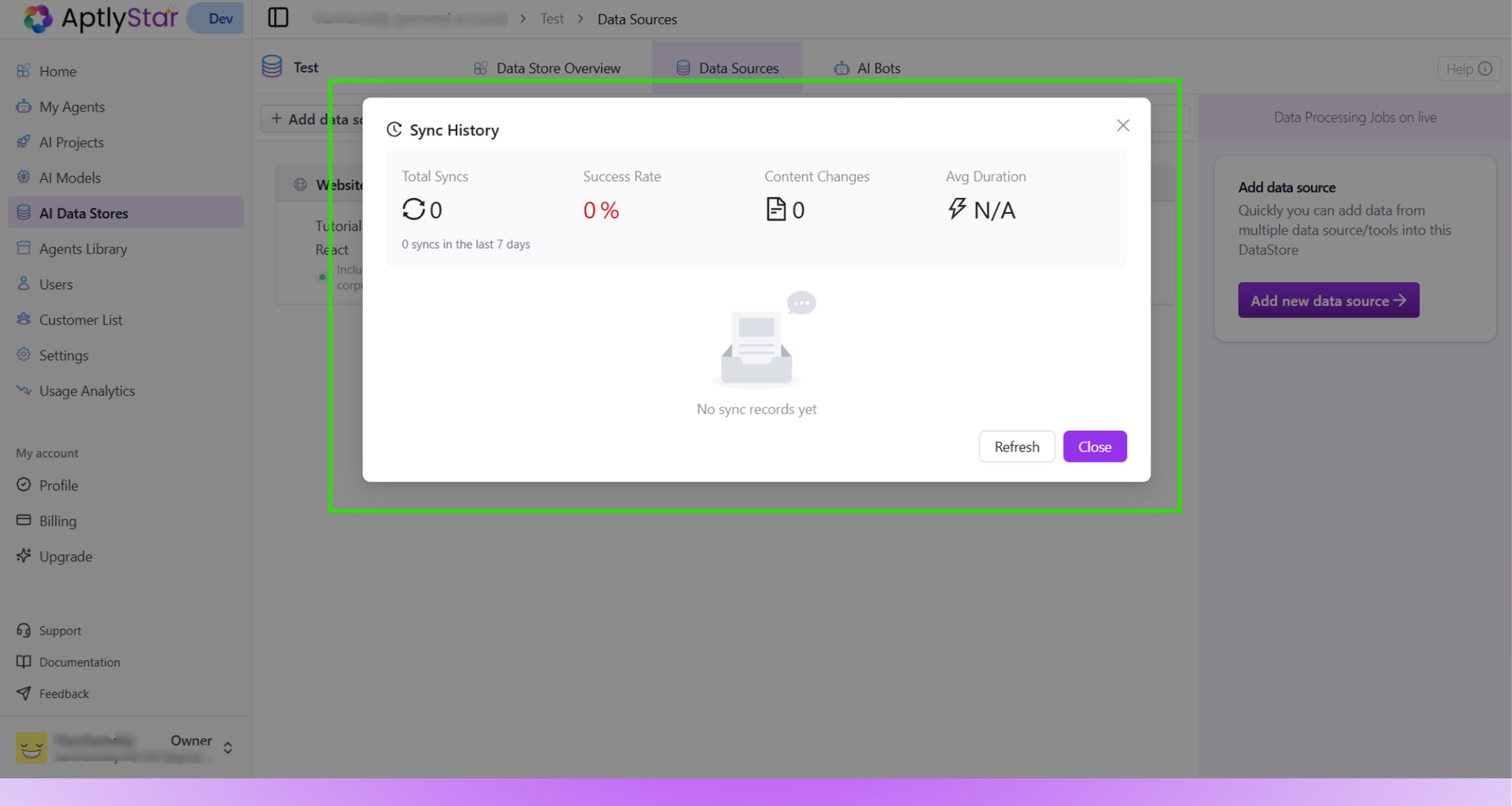
 To track all re-crawls, click **History** on the source card.\
Here you can see:
* Number of syncs performed
* **Success rate** (were syncs successful or failed)
* **Content changes** (if any new text was detected)
* **Average processing time**
This is helpful for auditing and ensuring data freshness.
To track all re-crawls, click **History** on the source card.\
Here you can see:
* Number of syncs performed
* **Success rate** (were syncs successful or failed)
* **Content changes** (if any new text was detected)
* **Average processing time**
This is helpful for auditing and ensuring data freshness.
 ***
## ✅ Key Takeaways
* Webpages are a simple way to continuously feed **dynamic, public content** into your Datastore.
* Use **Auto-Sync** for hands-free updates, and **Sync Now** for urgent refreshes.
* Track updates with **Sync History** to ensure your agent always has the most accurate knowledge.
Keeping your web data sources updated ensures your AI agents always provide **relevant, reliable, and up-to-date answers**.
***
## ✅ Key Takeaways
* Webpages are a simple way to continuously feed **dynamic, public content** into your Datastore.
* Use **Auto-Sync** for hands-free updates, and **Sync Now** for urgent refreshes.
* Track updates with **Sync History** to ensure your agent always has the most accurate knowledge.
Keeping your web data sources updated ensures your AI agents always provide **relevant, reliable, and up-to-date answers**.