> ## Documentation Index
> Fetch the complete documentation index at: https://docs.aptlystar.ai/llms.txt
> Use this file to discover all available pages before exploring further.
# Look
## 🎨 Customize the Look of Your Agent
The **Look** tab helps you personalize your agent’s interface to match your brand and tone. Whether it's for internal use or external deployment, a polished visual identity increases engagement and user trust.
***
## 🖼️ Overview of Look Settings
When you open the **Look** section from the agent sidebar, you’re presented with a clear layout to modify various appearance-related fields.
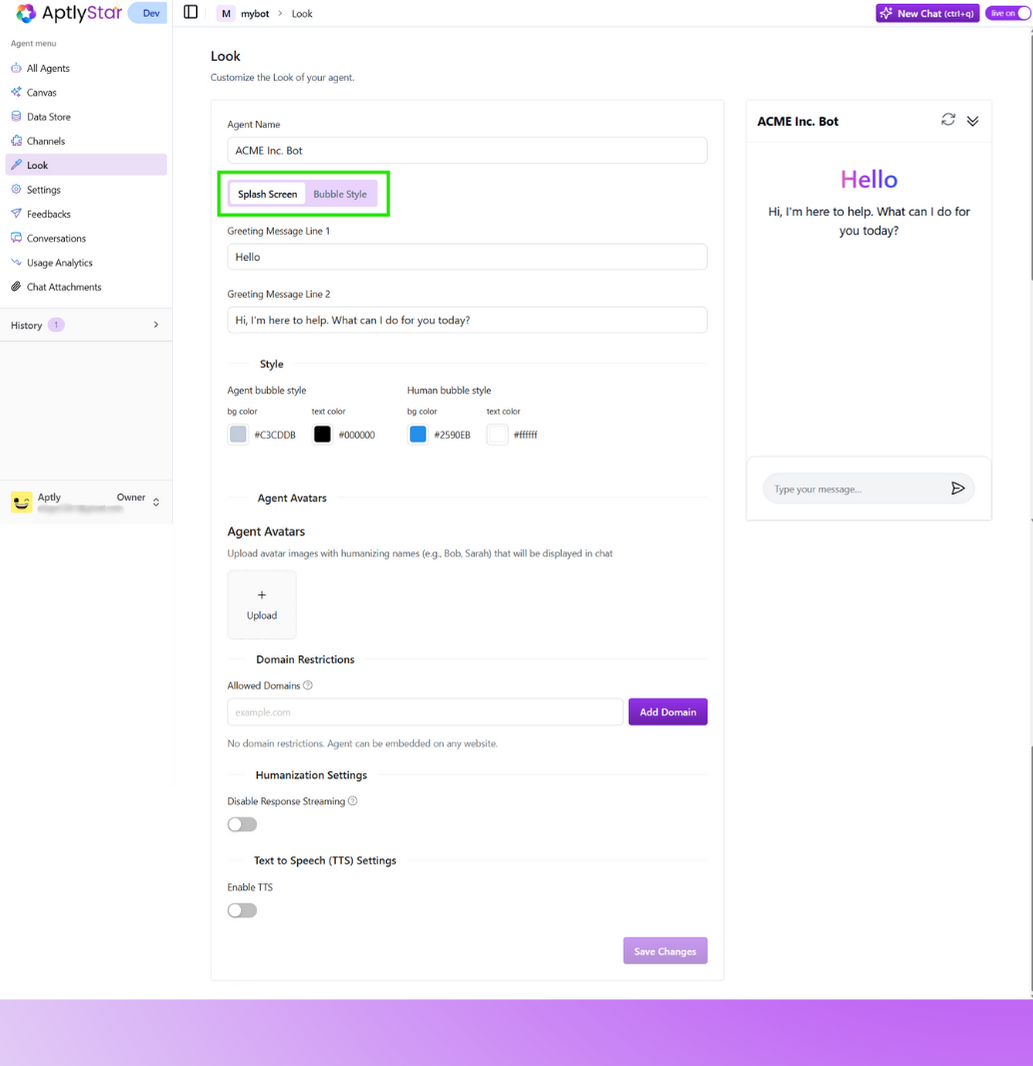 Here's what you can configure:
* **Agent Name**: Title shown on the agent header.
* **Splash Screen** and **Bubble Style** toggles: Switch between launch screen and chat styling.
* **Greeting Messages**: Two lines of welcome text for the splash screen.
* **Style Settings**: Colors for agent and human chat bubbles.
***
## 💬 Bubble Style View
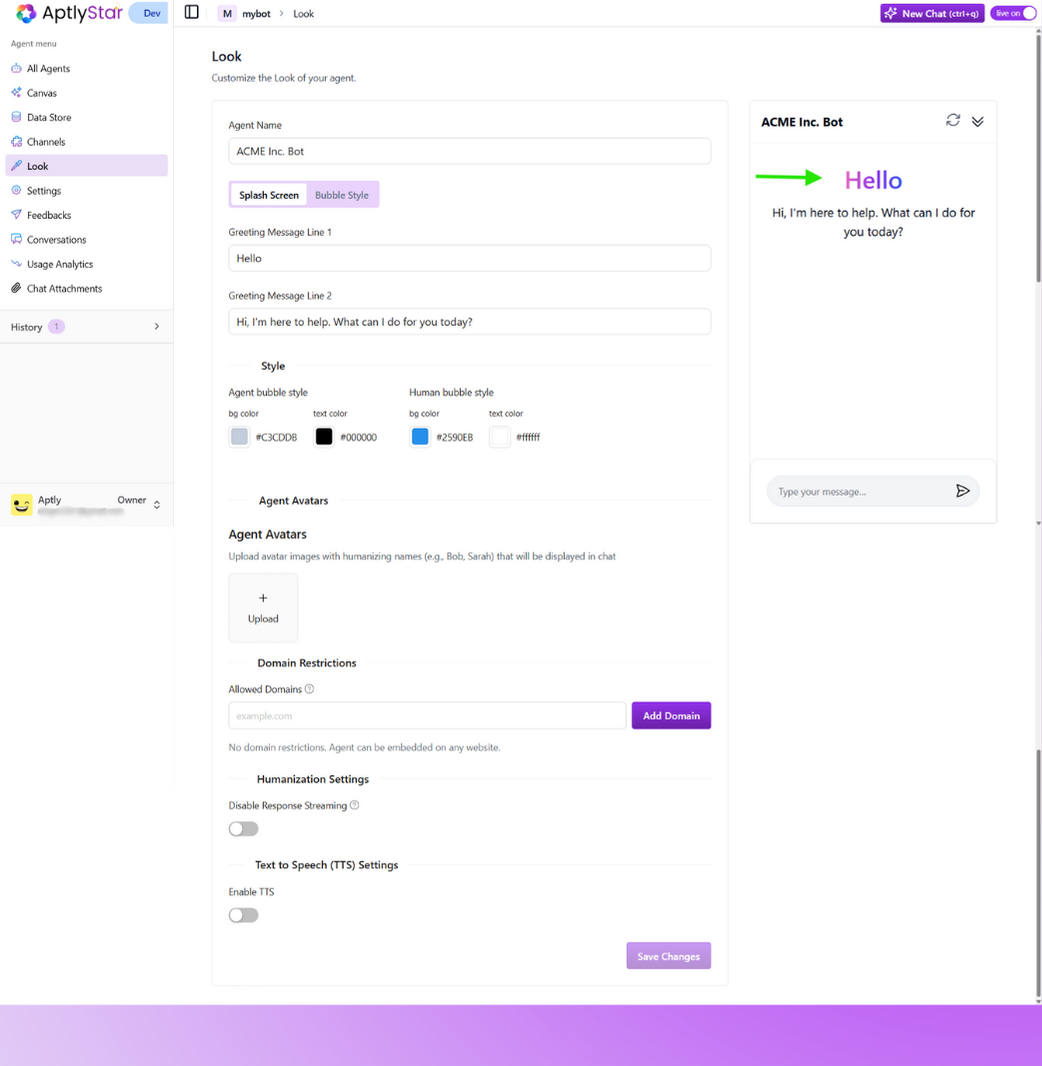
Switching to the **Bubble Style** tab updates the chat view to resemble a real-time message flow. This is useful for tailoring agent interactions after the splash screen is dismissed.
Use this mode to:
* Match your **chat bubbles** to brand colors
* Preview how responses will appear in actual conversations
* Ensure a consistent, accessible user experience
Here's what you can configure:
* **Agent Name**: Title shown on the agent header.
* **Splash Screen** and **Bubble Style** toggles: Switch between launch screen and chat styling.
* **Greeting Messages**: Two lines of welcome text for the splash screen.
* **Style Settings**: Colors for agent and human chat bubbles.
***
## 💬 Bubble Style View
Switching to the **Bubble Style** tab updates the chat view to resemble a real-time message flow. This is useful for tailoring agent interactions after the splash screen is dismissed.
Use this mode to:
* Match your **chat bubbles** to brand colors
* Preview how responses will appear in actual conversations
* Ensure a consistent, accessible user experience
 ***
## 🌍 Customize Greeting in Any Language
You can configure the initial greeting shown to users by updating **Greeting Message Line 1** and **Greeting Message Line 2**. This is perfect for multi-lingual agents or region-specific experiences.
***
## 🌍 Customize Greeting in Any Language
You can configure the initial greeting shown to users by updating **Greeting Message Line 1** and **Greeting Message Line 2**. This is perfect for multi-lingual agents or region-specific experiences.
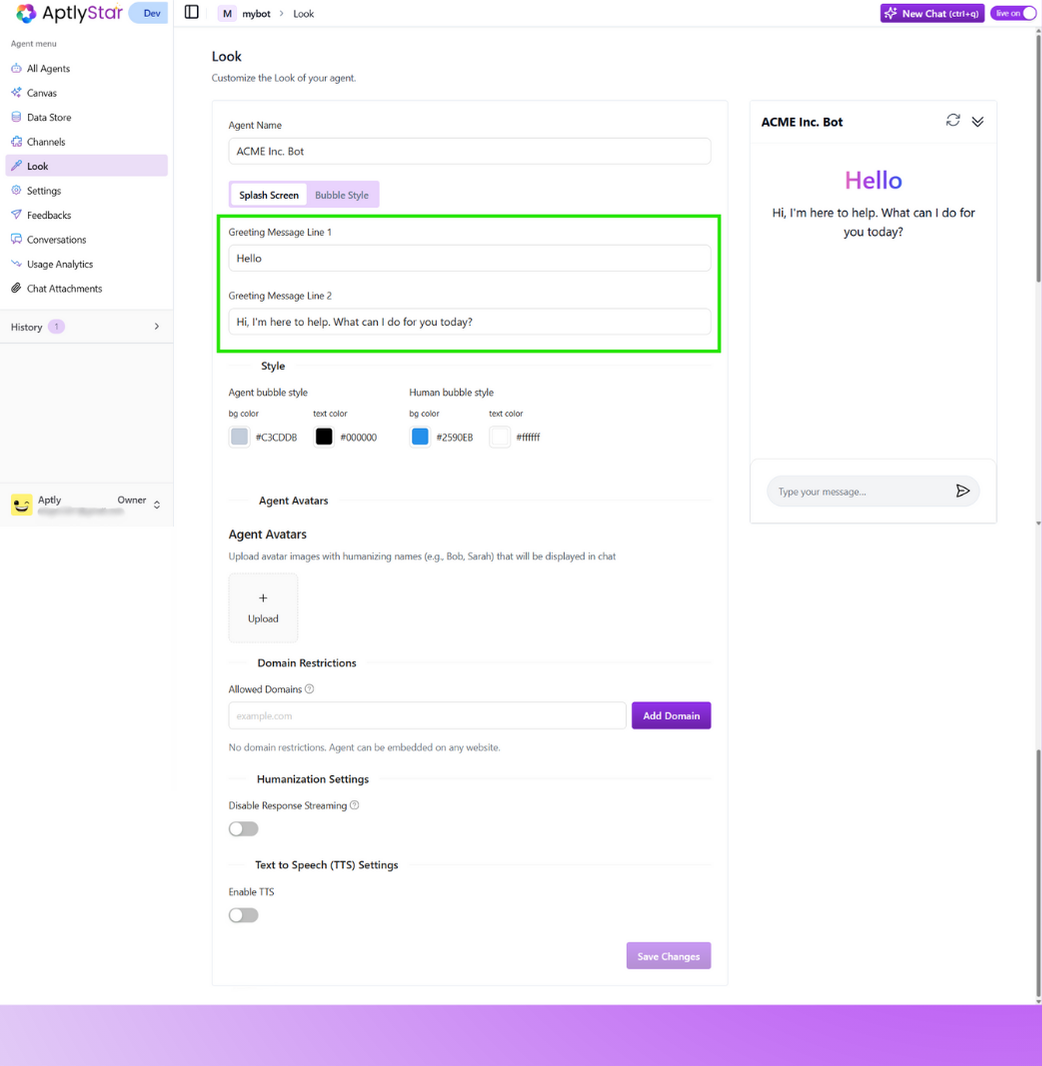 Just replace the default text with your desired language. For example:
* Greeting 1: `Bonjour`
* Greeting 2: `Bonjour, je suis là pour vous aider. Que puis-je faire pour vous aujourd’hui ?`
***
## 👀 Preview Greeting in Splash Screen
After saving your custom greetings, the splash screen preview instantly reflects the new welcome messages.
Just replace the default text with your desired language. For example:
* Greeting 1: `Bonjour`
* Greeting 2: `Bonjour, je suis là pour vous aider. Que puis-je faire pour vous aujourd’hui ?`
***
## 👀 Preview Greeting in Splash Screen
After saving your custom greetings, the splash screen preview instantly reflects the new welcome messages.
 ***
## 🎨 Style Chat Bubbles
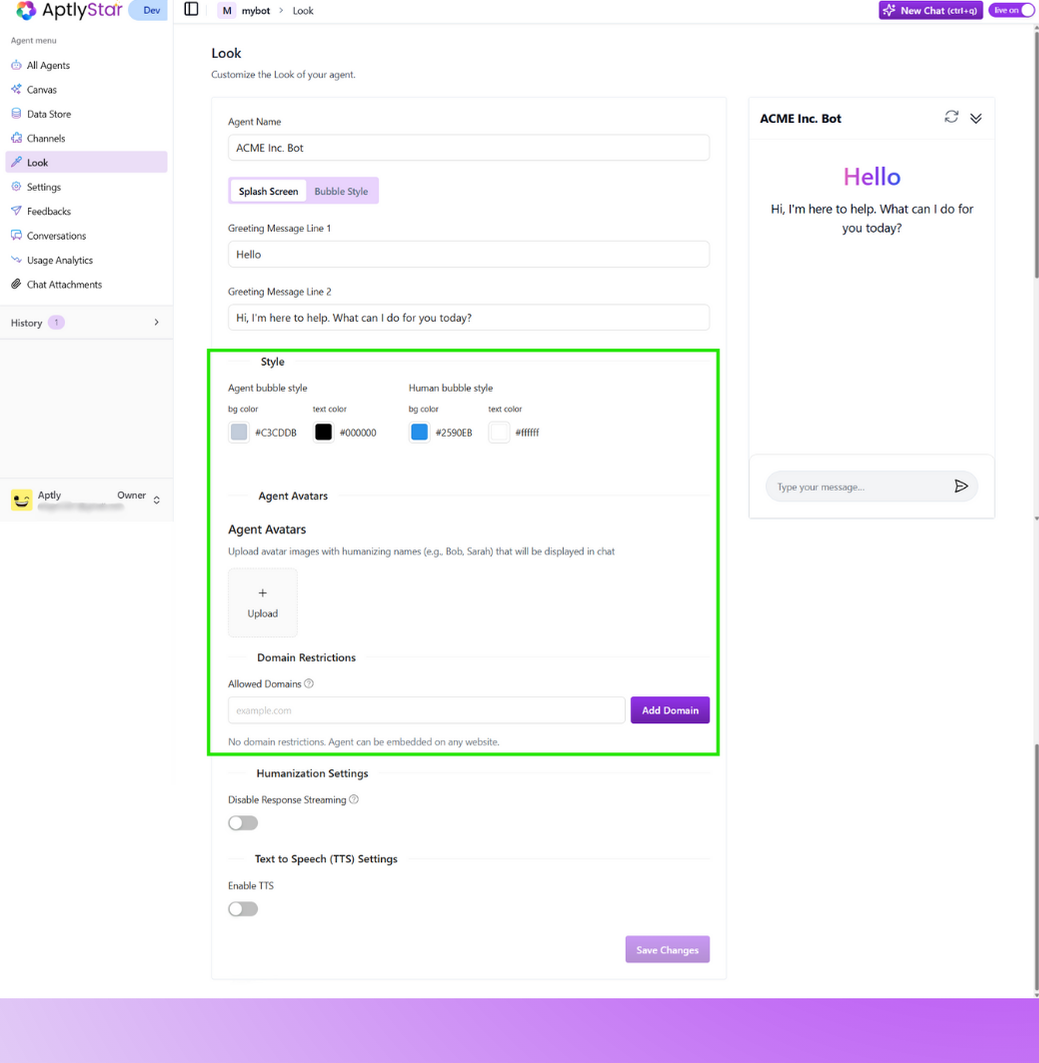
At the bottom of the Look tab, you’ll find **Style Settings** to update your agent's and user’s message bubbles.
* **Agent bubble style**: Set background and text color for agent replies.
* **Human bubble style**: Customize how user messages appear.
This helps match your brand identity and improves accessibility.
You can also upload avatar images to humanize your agent responses. Use familiar names like *Bob*, *Sarah*, or *Anna* to show who is replying within a group or team-based agent.
***
## 🎨 Style Chat Bubbles
At the bottom of the Look tab, you’ll find **Style Settings** to update your agent's and user’s message bubbles.
* **Agent bubble style**: Set background and text color for agent replies.
* **Human bubble style**: Customize how user messages appear.
This helps match your brand identity and improves accessibility.
You can also upload avatar images to humanize your agent responses. Use familiar names like *Bob*, *Sarah*, or *Anna* to show who is replying within a group or team-based agent.
 Uploaded avatars will appear beside responses in chat, giving a personal and warm touch.
***
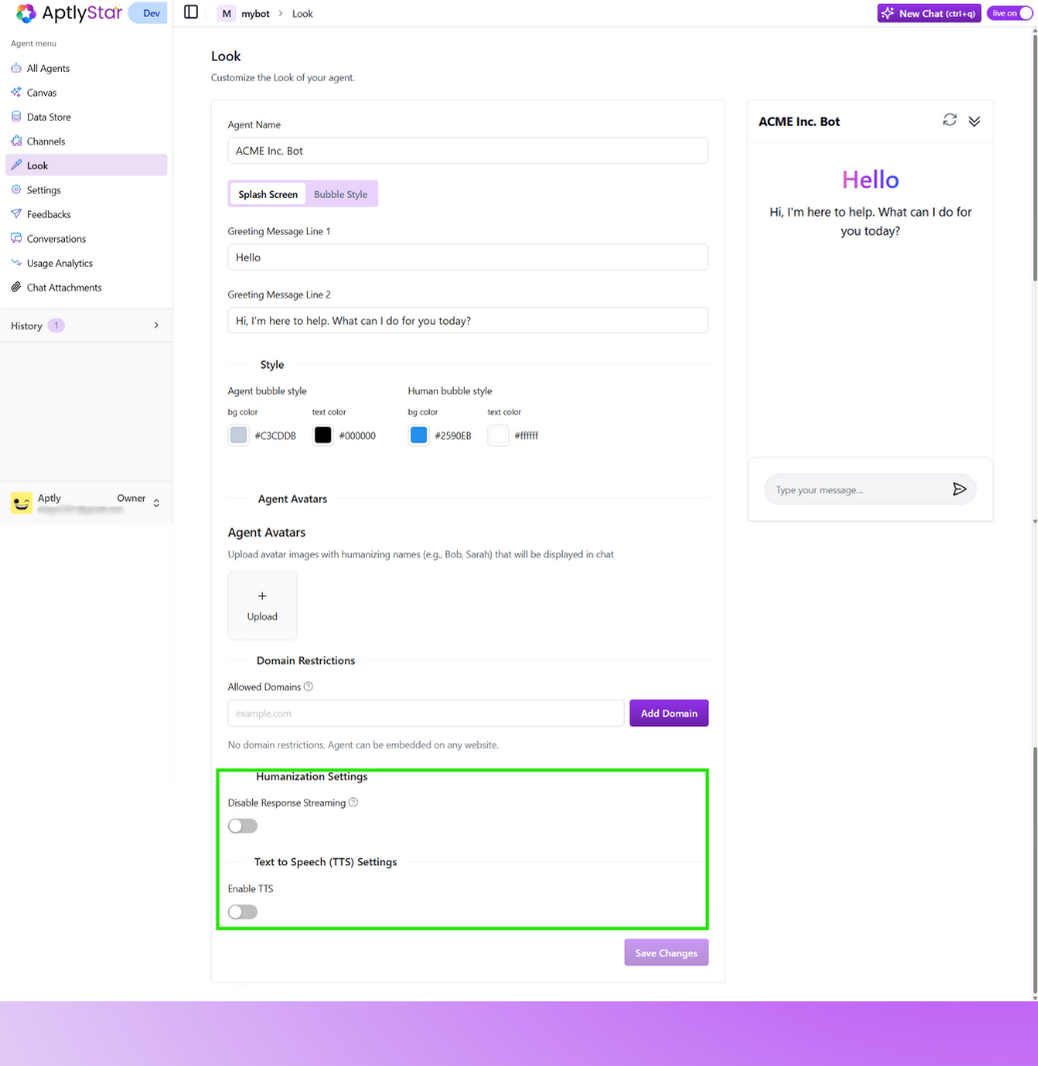
## 🧠 Humanization Settings & 🗣️ Text to Speech (TTS)
Two additional options help you make your agent more natural and accessible:
* **Disable Response Streaming**: Turns off token-by-token typing animation and shows full reply at once.
* **Enable TTS**: Allows your agent to speak replies out loud for enhanced accessibility or kiosk-style interfaces.
Uploaded avatars will appear beside responses in chat, giving a personal and warm touch.
***
## 🧠 Humanization Settings & 🗣️ Text to Speech (TTS)
Two additional options help you make your agent more natural and accessible:
* **Disable Response Streaming**: Turns off token-by-token typing animation and shows full reply at once.
* **Enable TTS**: Allows your agent to speak replies out loud for enhanced accessibility or kiosk-style interfaces.
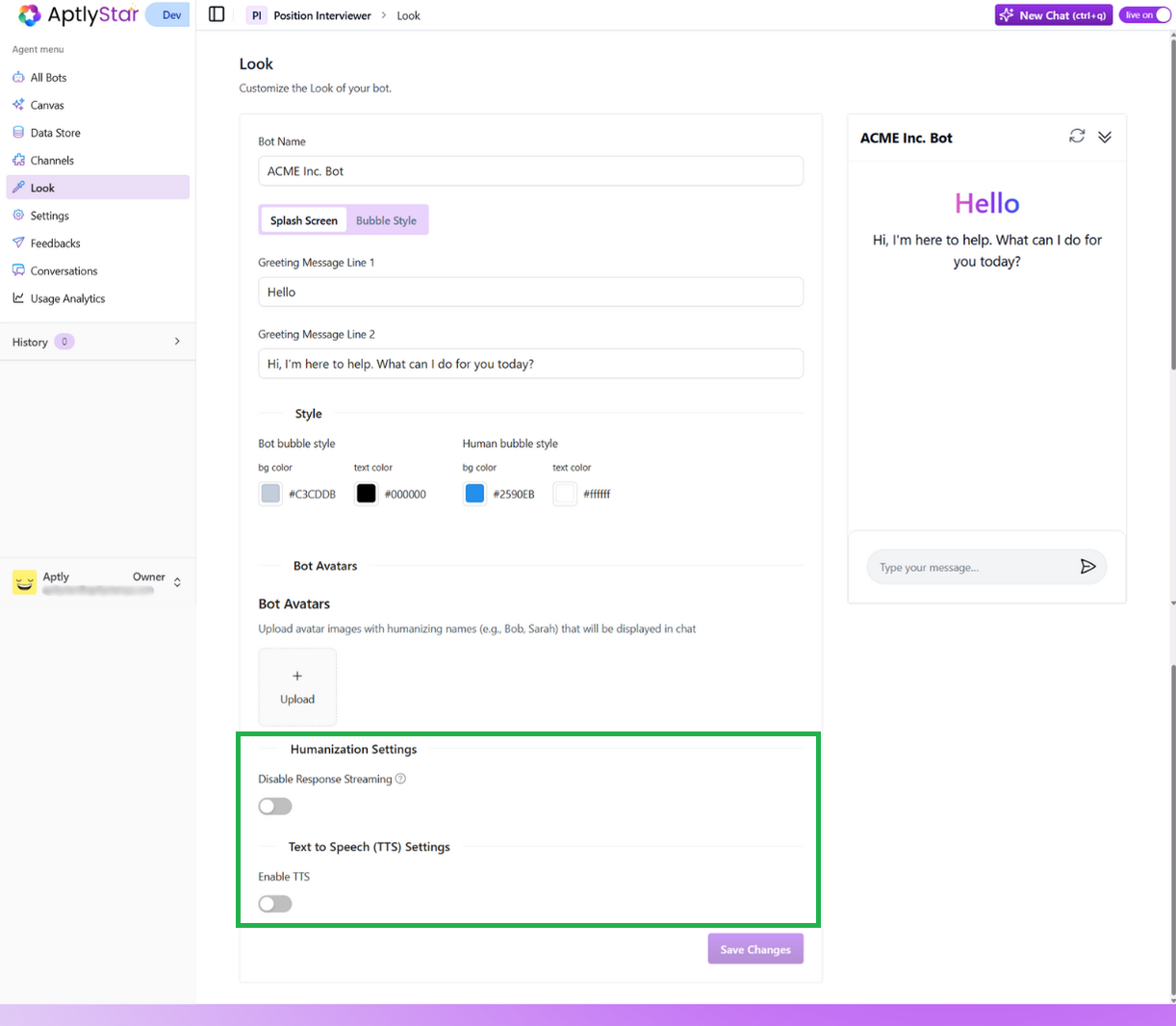 These features are especially useful for voice-first interfaces, multilingual agents, or for improving inclusivity.
***
By fine-tuning the Look settings, you ensure your agent not only sounds intelligent but also looks and feels aligned with your product’s tone and user expectations.
These features are especially useful for voice-first interfaces, multilingual agents, or for improving inclusivity.
***
By fine-tuning the Look settings, you ensure your agent not only sounds intelligent but also looks and feels aligned with your product’s tone and user expectations.