> ## Documentation Index
> Fetch the complete documentation index at: https://docs.aptlystar.ai/llms.txt
> Use this file to discover all available pages before exploring further.
# Feedbacks
## Feedbacks Overview
Track and analyze user sentiment in real time using the **Feedbacks** feature in the Agent Console. Feedback helps improve your agent’s accuracy and user experience by collecting direct input on its responses.
***
## Steps to Test Feedback Feature
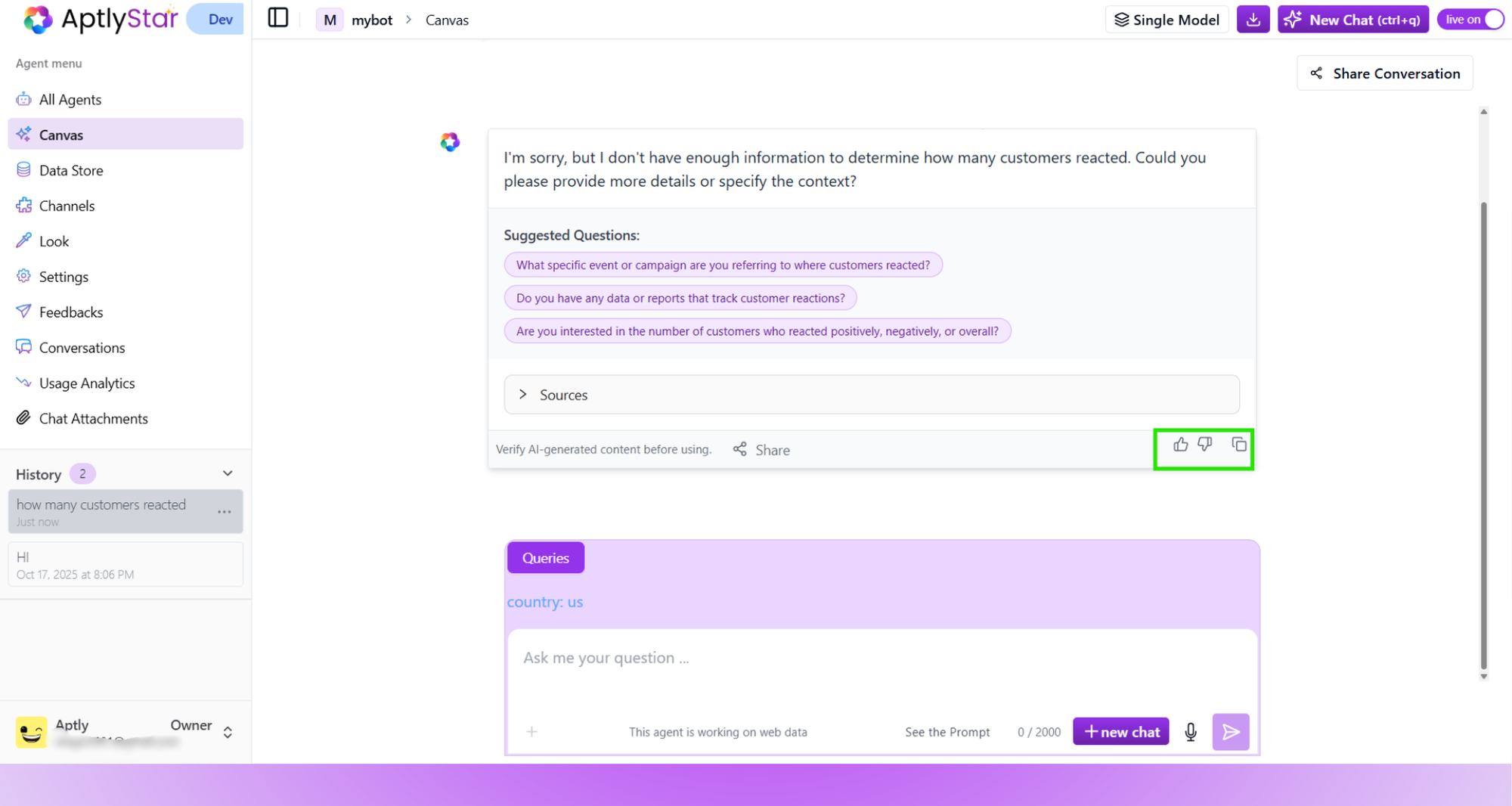
Once the agent responds, give a **thumbs-up** or **thumbs-down** to express your satisfaction.
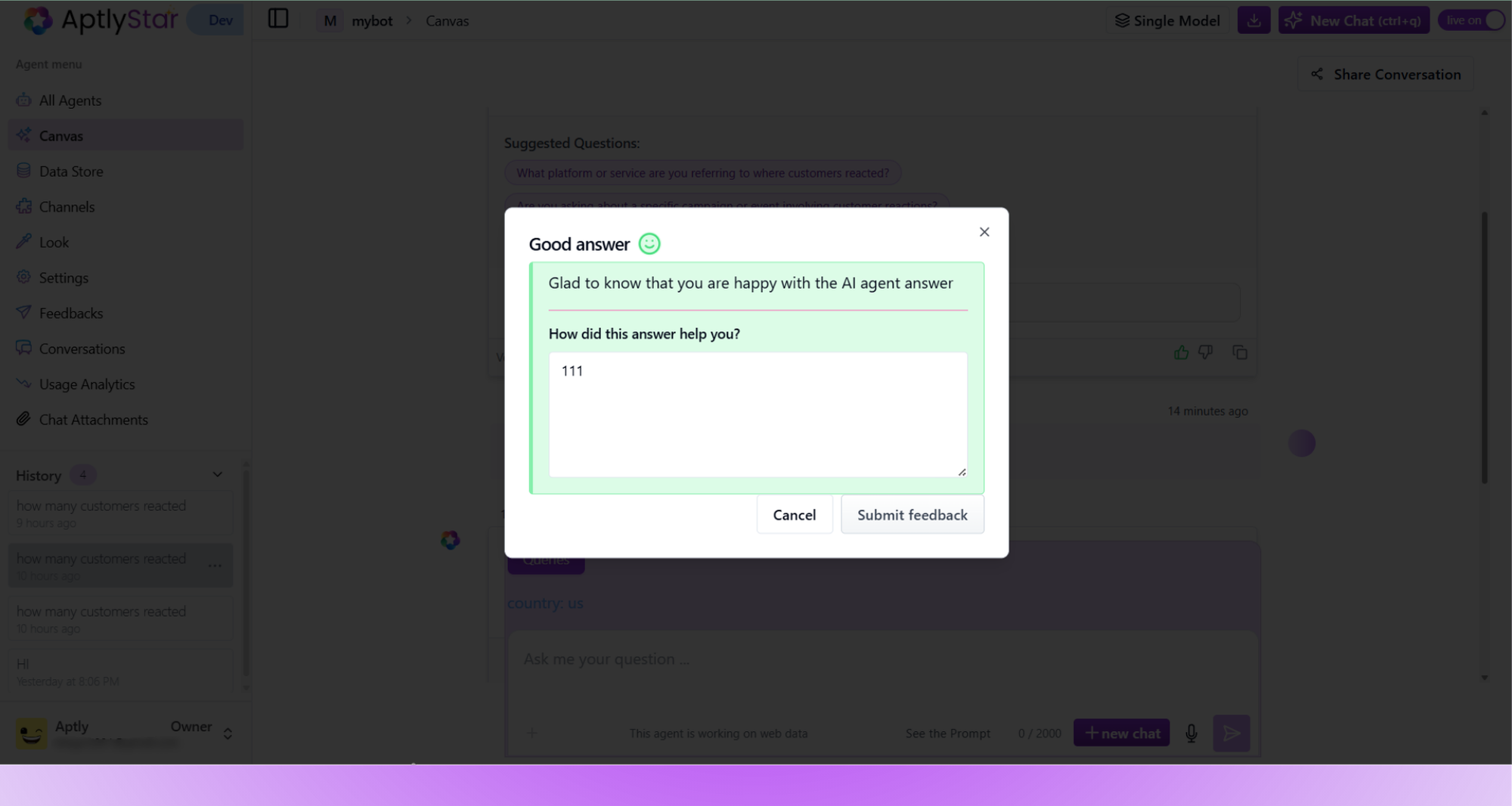
 After reacting, a popup appears prompting for additional comments. You can enter how helpful the answer was and submit it.
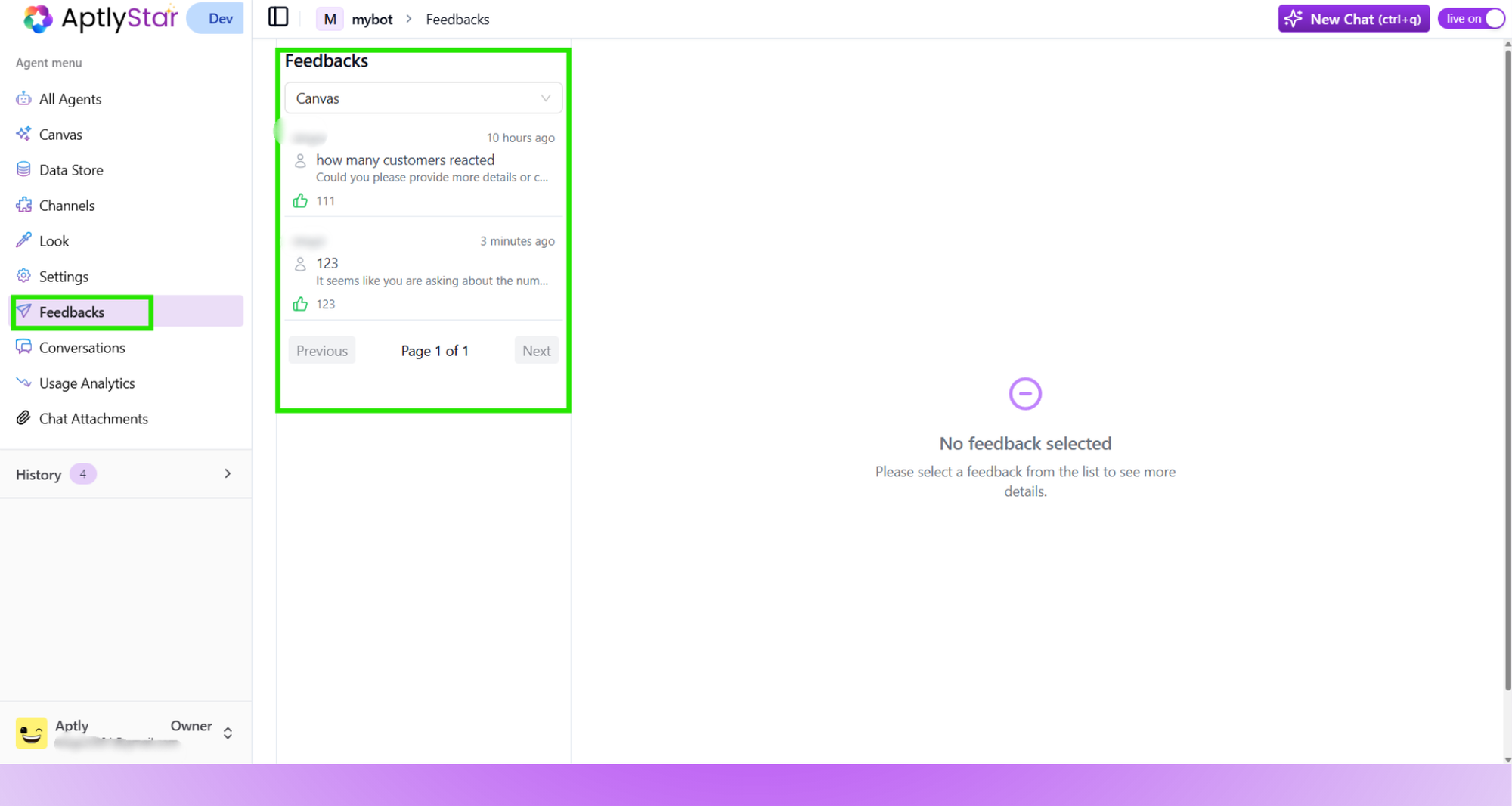
 Go to the **Feedbacks** tab from the left sidebar. All submitted feedback will be listed here. Click for detailed responses.
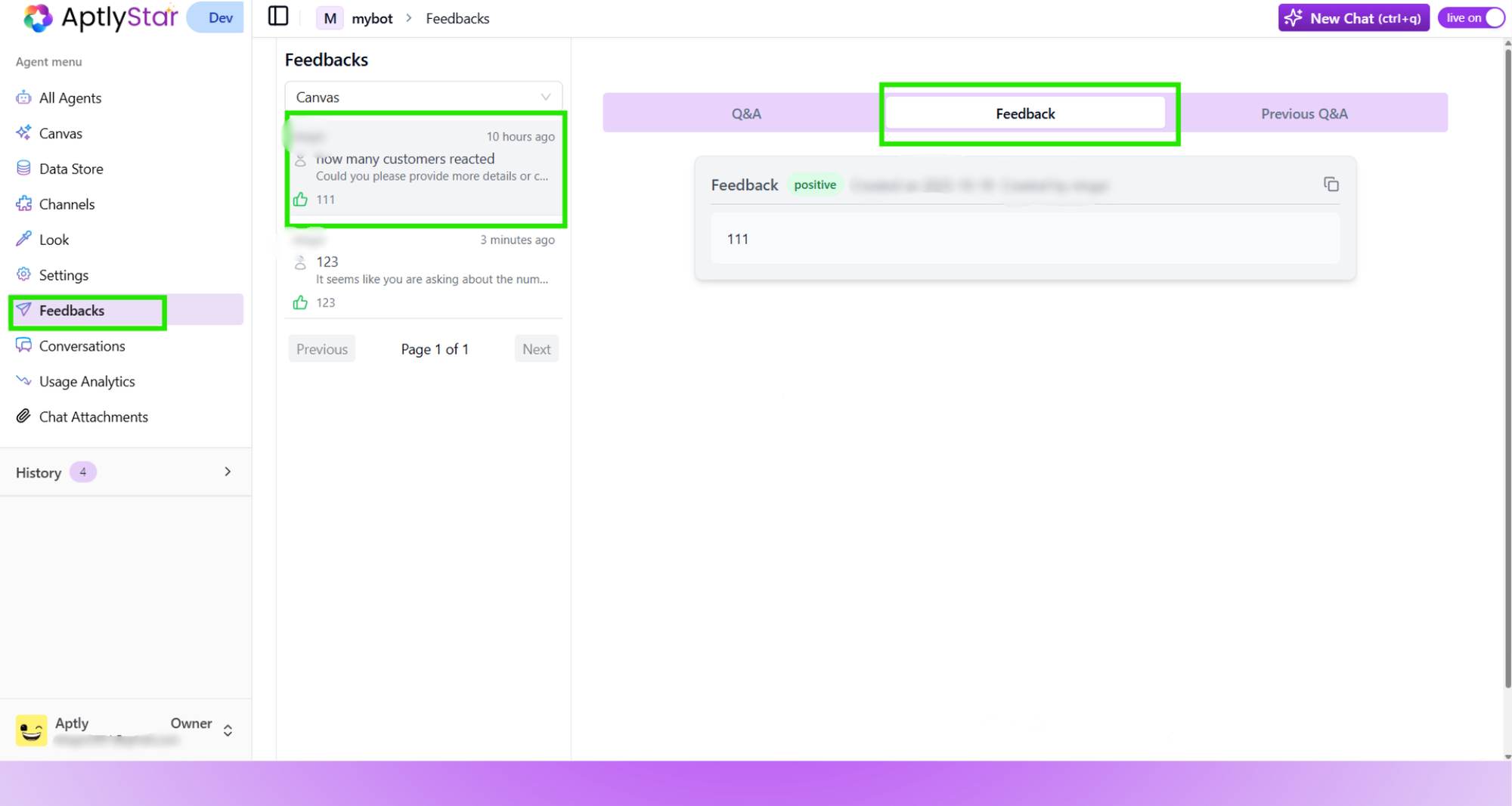
 A side panel appears showing detailed comments, sentiment (positive/negative), timestamp, and feedback source, **Q\&A** and
**Previous Q\&A** could also be viewed here.
A side panel appears showing detailed comments, sentiment (positive/negative), timestamp, and feedback source, **Q\&A** and
**Previous Q\&A** could also be viewed here.
 ***
## Why Use Feedback?
* Identify gaps in agent performance
* Capture user satisfaction in real-time
* Improve agent prompts and logic over time
* Filter by positive or negative sentiment
Feedback works best when reviewed regularly and used to iterate on your prompt designs or model configurations.
***
## Why Use Feedback?
* Identify gaps in agent performance
* Capture user satisfaction in real-time
* Improve agent prompts and logic over time
* Filter by positive or negative sentiment
Feedback works best when reviewed regularly and used to iterate on your prompt designs or model configurations.