> ## Documentation Index
> Fetch the complete documentation index at: https://docs.aptlystar.ai/llms.txt
> Use this file to discover all available pages before exploring further.
# Conversations
Track, review, and analyze all interactions users have with your AI agent—whether it's on your website or integrated platforms like Telegram and Discord.
***
## What Are Conversations?
The **Conversations** section logs every chat your users have with the agent. These include queries submitted on:
* Your **website** (via the embedded widget)
* External channels (Telegram, Discord, etc.)
Each message, response, and follow-up is recorded with timestamps and source identifiers for easy traceability.
***
## How to Enable Website Conversations
Add the provided HTML embed snippet to your website.
Refer to [Agent Channel Integration Guide](https://docs.aptlystar.ai/ai-bots-console/channels) for full setup instructions.
Once embedded, your agent will appear as a floating chat icon at the bottom-right of your webpage:
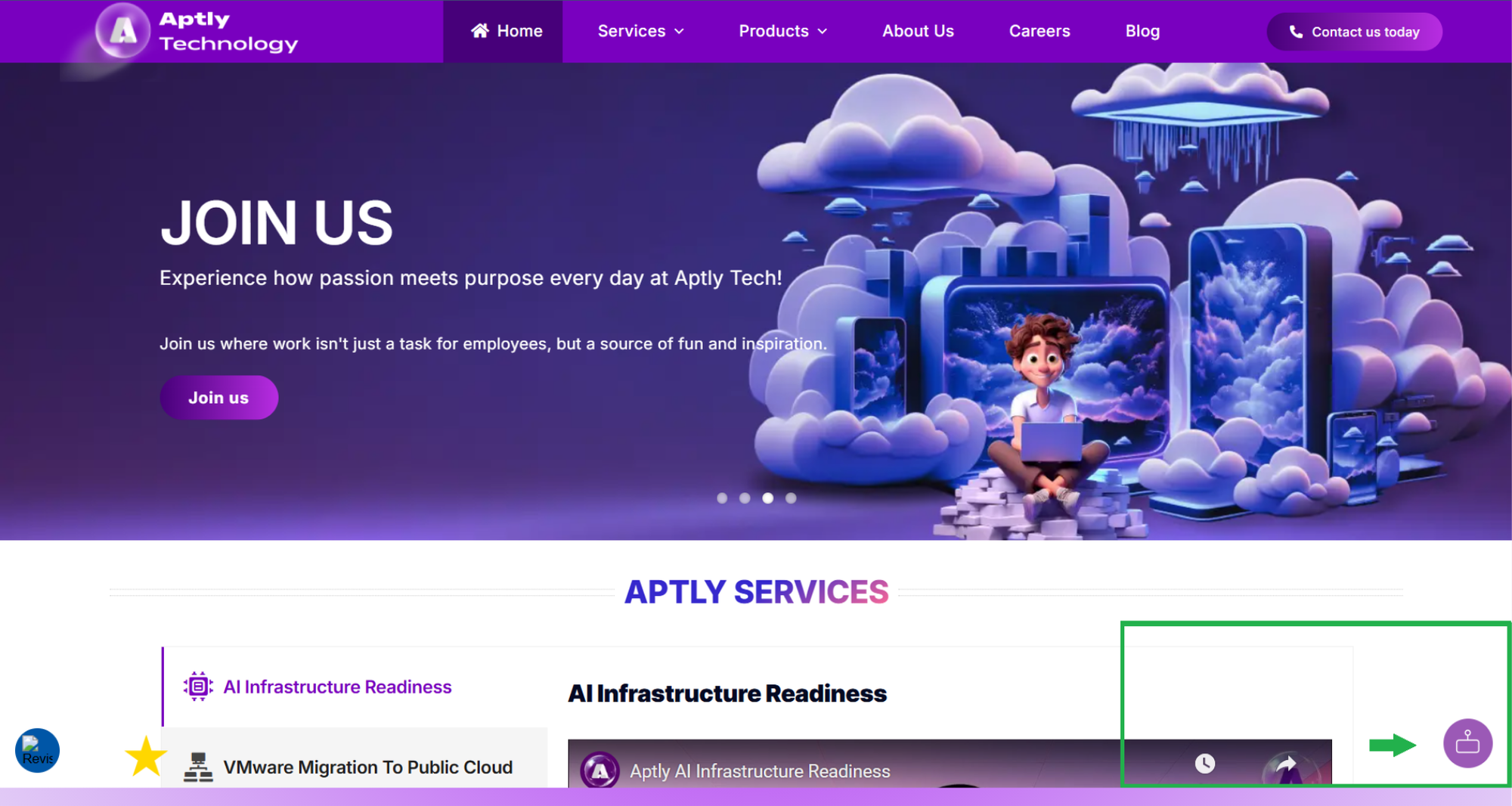 Clicking the chat icon will open the chat widget for interaction.
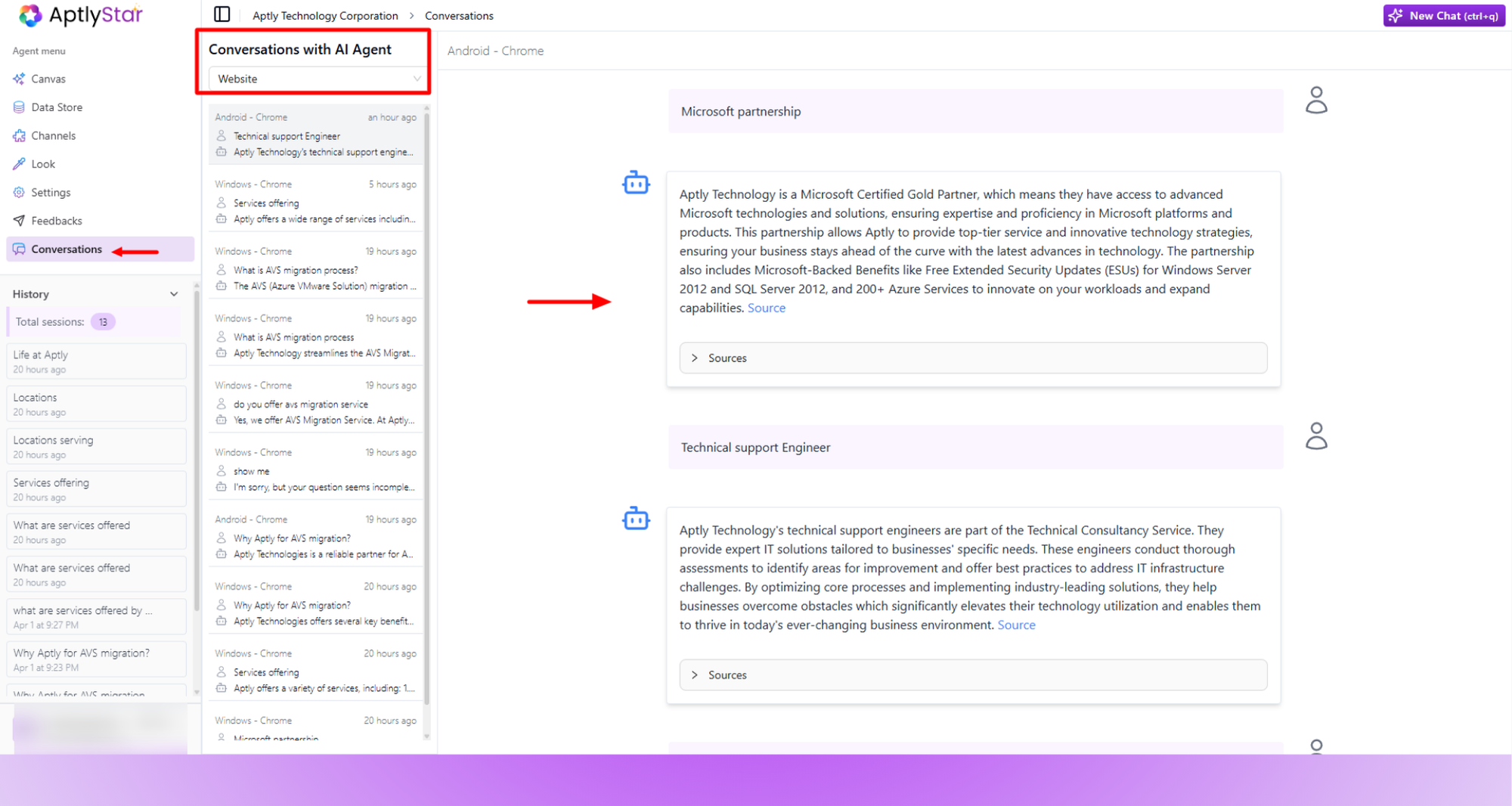
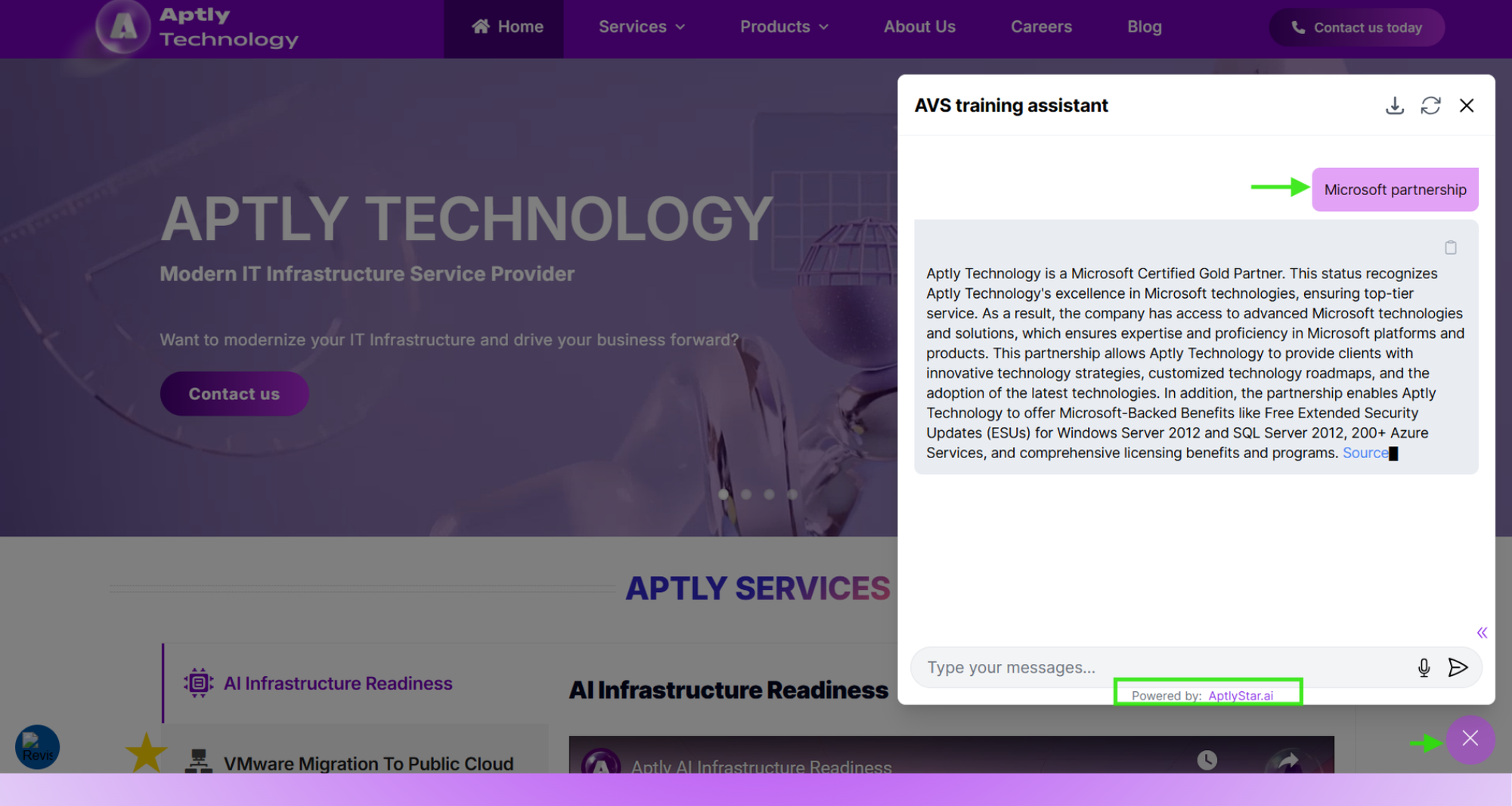 After integration, user conversations are recorded in the AptlyStar portal.
* Navigate to your agent dashboard
* Click on the **Conversations** tab in the sidebar
* Filter by platform, session, or keyword to review exchanges
After integration, user conversations are recorded in the AptlyStar portal.
* Navigate to your agent dashboard
* Click on the **Conversations** tab in the sidebar
* Filter by platform, session, or keyword to review exchanges
 ***
## 🗂️ Exporting Chat History
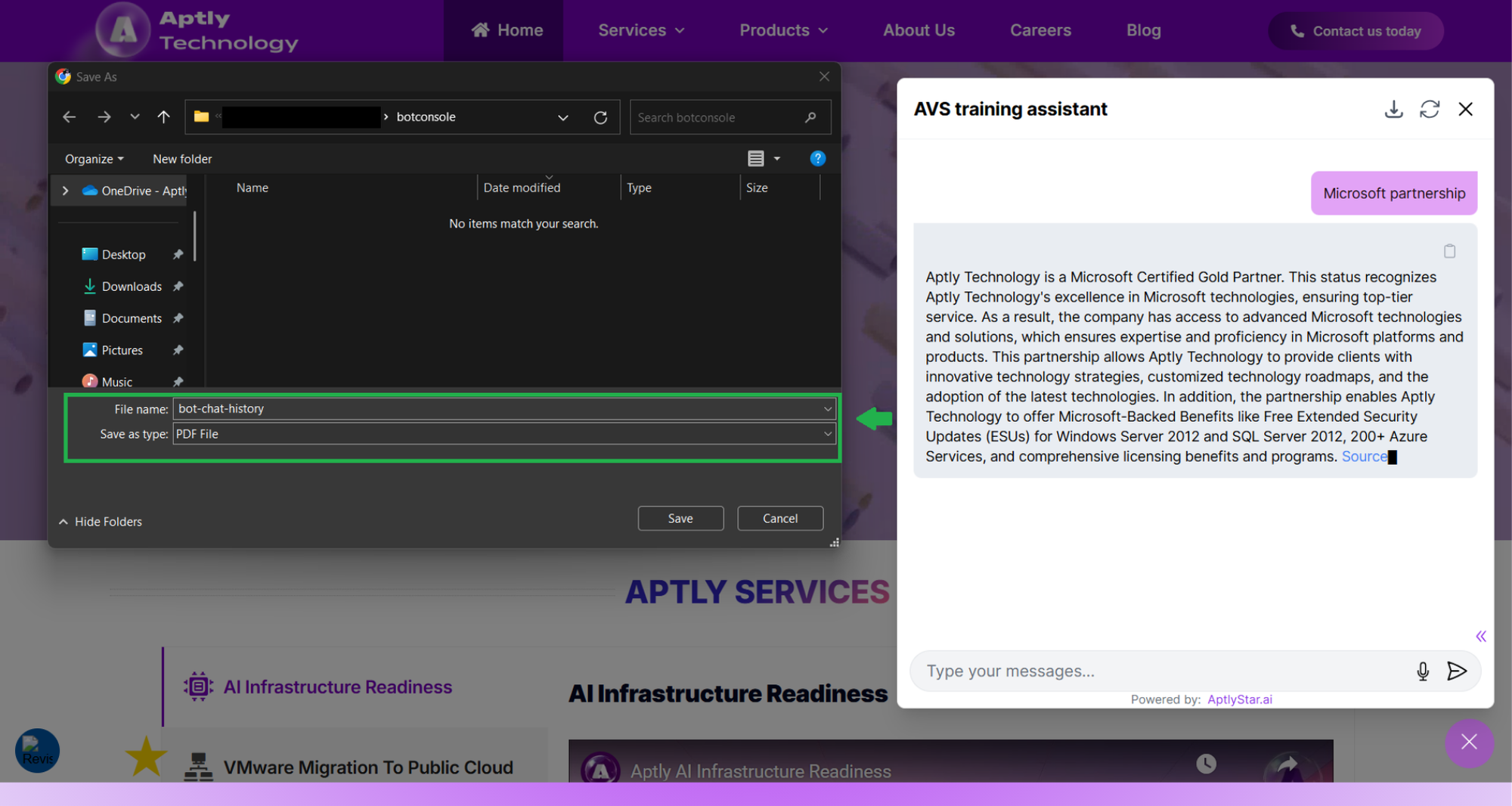
Users can export the most recent chat from the agent interface directly as a PDF. This helps in documentation, auditing, and knowledge tracking.
***
## 🗂️ Exporting Chat History
Users can export the most recent chat from the agent interface directly as a PDF. This helps in documentation, auditing, and knowledge tracking.
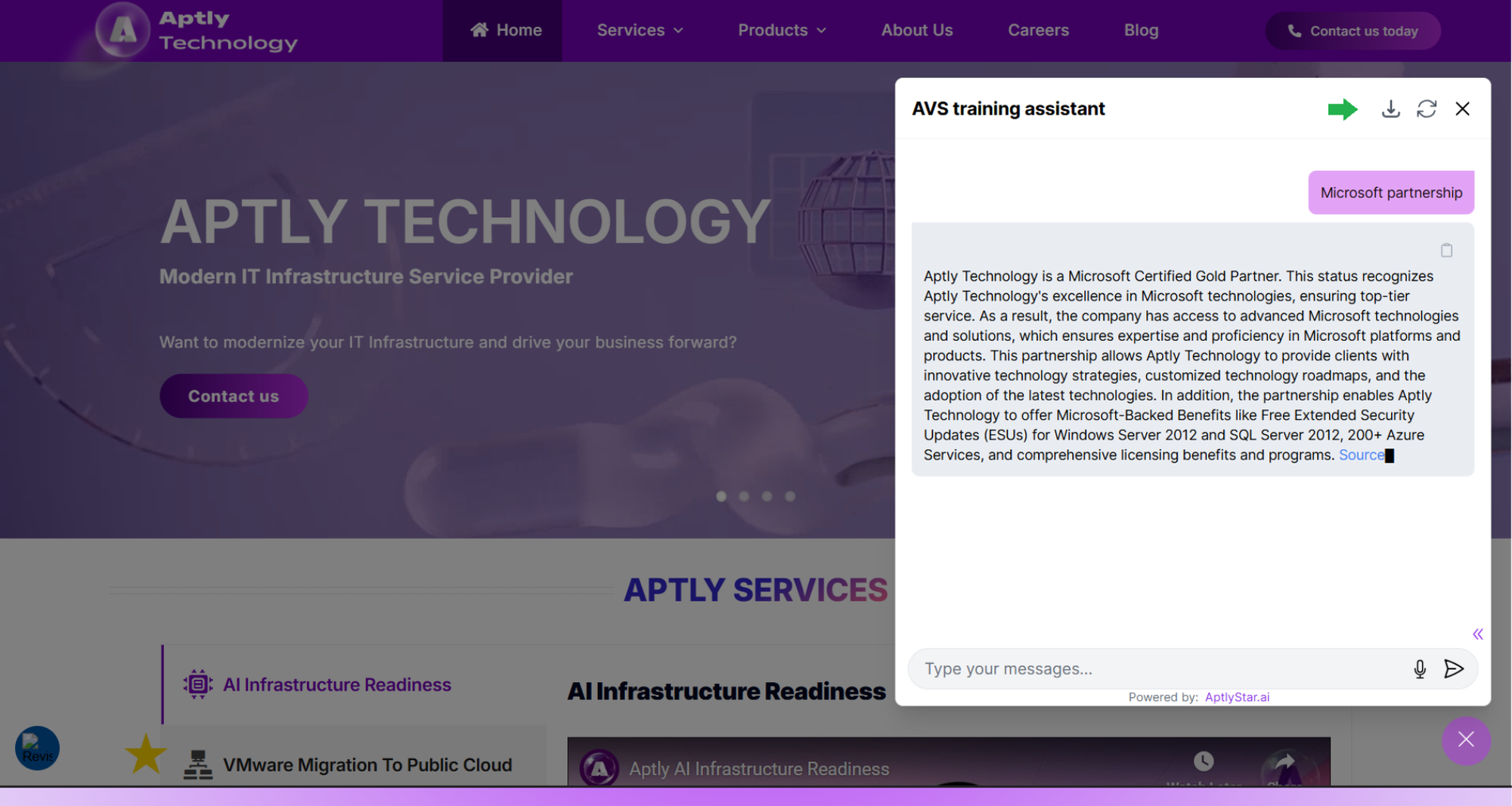 Clicking the download option will allow users to export the chat transcript as a PDF file for their records.
 You can also analyze these conversations to improve your agent’s responses or refine your training data.