> ## Documentation Index
> Fetch the complete documentation index at: https://docs.aptlystar.ai/llms.txt
> Use this file to discover all available pages before exploring further.

# Channels

The **Channels** section lets you connect your AI agent to platforms like **Telegram**, **Discord**, **WhatsApp**, and **HTML websites** — enabling your agent to operate wherever your users are.

By setting up these integrations, you can:

* Reach users directly inside their preferred apps and tools
* Create consistent multi-platform agent experiences
* Seamlessly embed or launch agents on any digital interface

This section serves as your hub to deploy the agent across external channels.
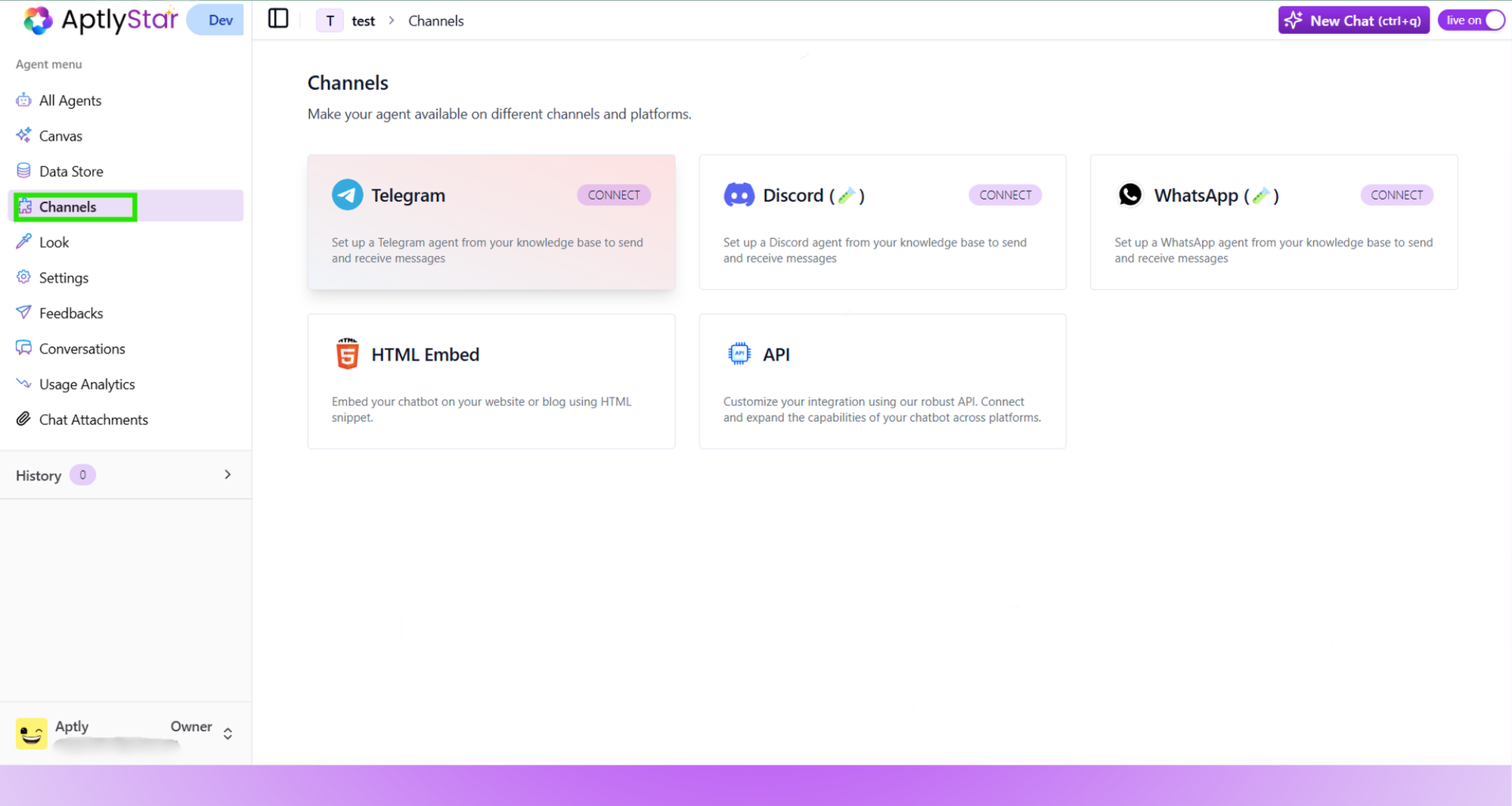
<Frame caption="Channels: Main View">
  <img src="https://mintcdn.com/aptlytechnologies/Oomvhw_D5bjA43Sl/images_new/agentsconsole/channel/channels.png?fit=max&auto=format&n=Oomvhw_D5bjA43Sl&q=85&s=4cfc63addcb8405bc1bd5b8f0144288f" alt="Channels Section" width="2000" height="1066" data-path="images_new/agentsconsole/channel/channels.png" />
</Frame>

## Enable Live Mode for Integrations

Before using any integrations in the **Channels** tab, you must activate **Live Mode**.

This toggle — located at the top-right of your agent page — ensures your agent is ready to communicate on external platforms.
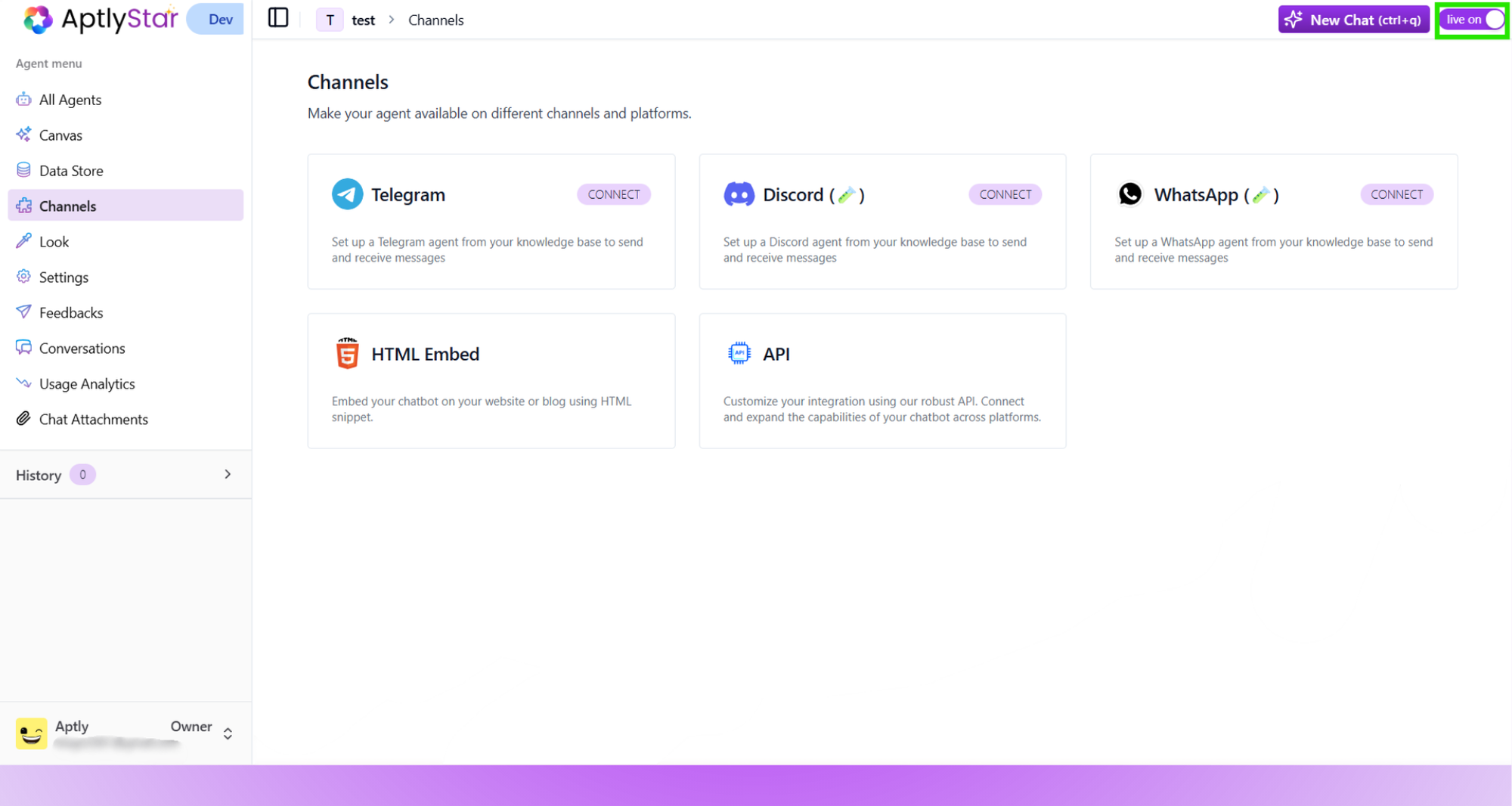
<Frame caption="Live Mode Toggle">
  <img src="https://mintcdn.com/aptlytechnologies/Oomvhw_D5bjA43Sl/images_new/agentsconsole/channel/live.png?fit=max&auto=format&n=Oomvhw_D5bjA43Sl&q=85&s=4743359f6d8db29c51acf950cb087dca" alt="Live On Toggle Switch" width="2000" height="1066" data-path="images_new/agentsconsole/channel/live.png" />
</Frame>

<Note>
  Without enabling Live Mode, integration options will remain disabled.
</Note>

## Embedding the Agent via HTML

To embed your AI agent into your website:

<Steps>
  <Step title="Select HTML Embed">
    Open the **Channels** section and choose the **HTML Embed** option.
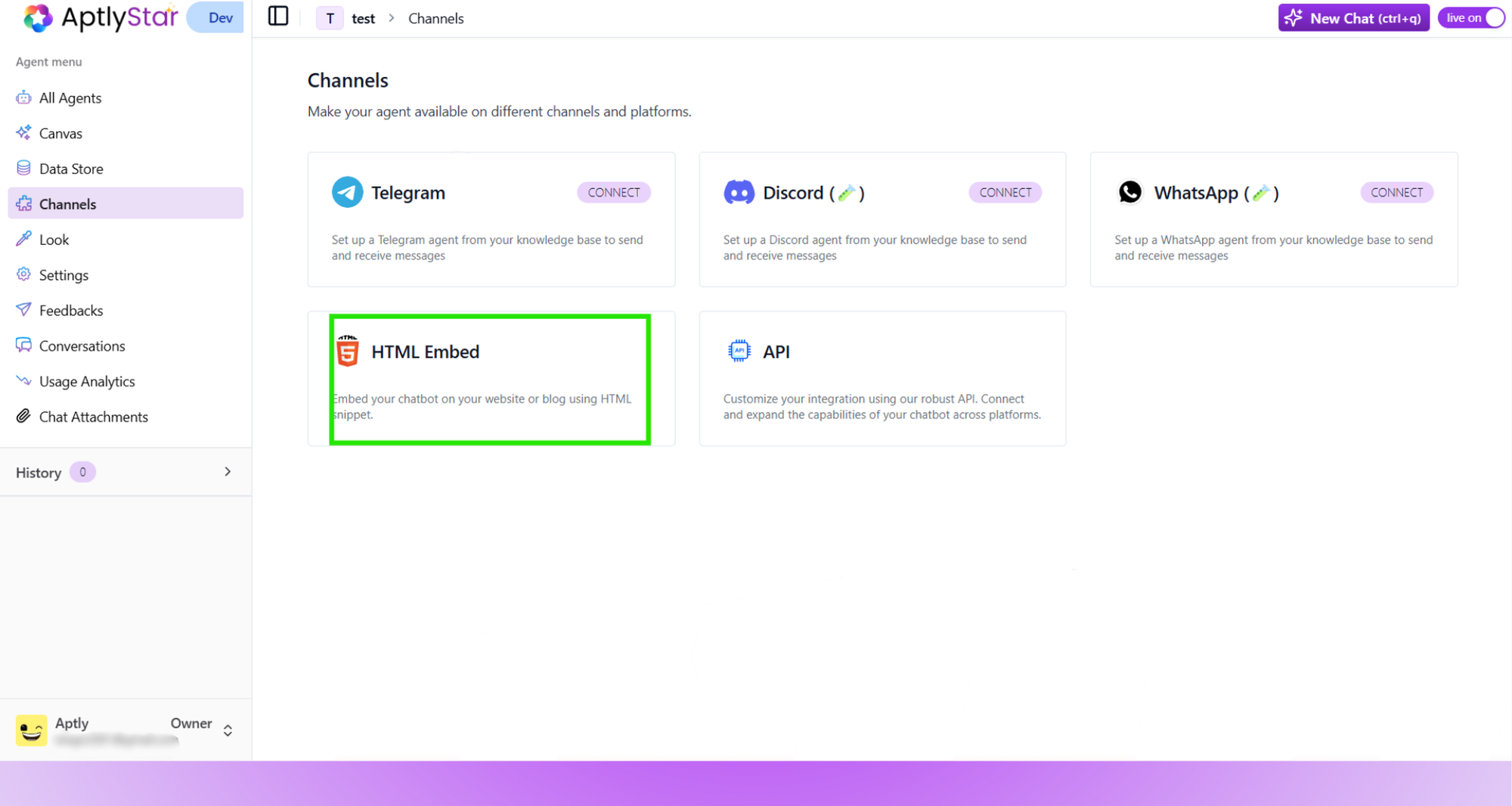
    <Frame caption="Channels: HTML Embed Option">
      <img src="https://mintcdn.com/aptlytechnologies/Oomvhw_D5bjA43Sl/images_new/agentsconsole/channel/htmlembed.png?fit=max&auto=format&n=Oomvhw_D5bjA43Sl&q=85&s=58513195a7ef17f7247edc8fd3aeb100" alt="HTML Embed Option" width="2000" height="1066" data-path="images_new/agentsconsole/channel/htmlembed.png" />
    </Frame>
  </Step>

  <Step title="Copy the Script">
    Once inside HTML Embed, copy the auto-generated embed script.
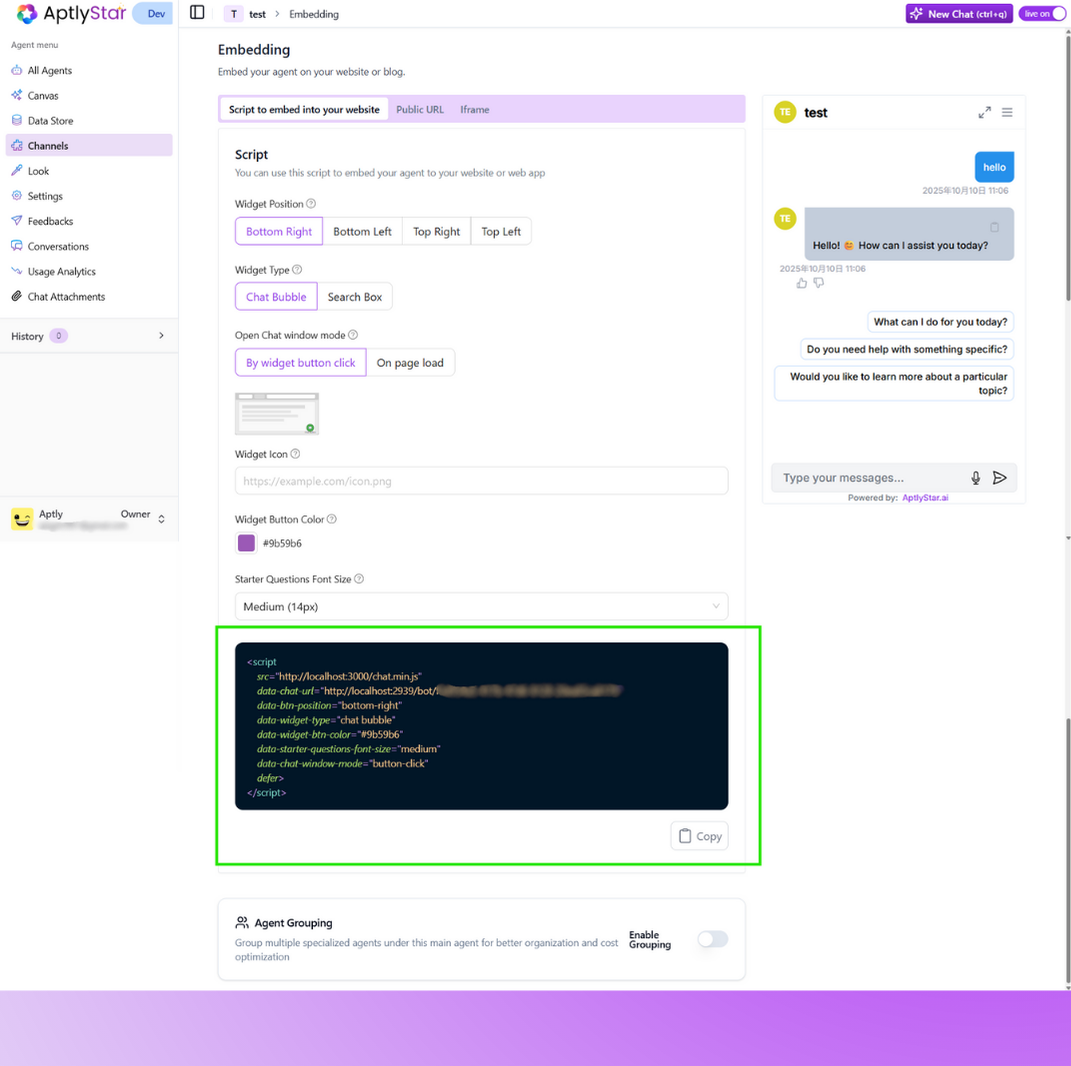
    <Frame caption="Channels: Embed Script Generator">
      <img src="https://mintcdn.com/aptlytechnologies/Oomvhw_D5bjA43Sl/images_new/agentsconsole/channel/htmlscript.png?fit=max&auto=format&n=Oomvhw_D5bjA43Sl&q=85&s=bfcf3ea467e1bd8173694f4390d64583" alt="Embed Script" width="1071" height="1066" data-path="images_new/agentsconsole/channel/htmlscript.png" />
    </Frame>
  </Step>

  <Step title="Paste Into Your Website">
    ```javascript Code Block Example theme={null}
    <html lang="en">
    <head>
      <meta charset="UTF-8">
      <meta name="viewport" content="width=device-width, initial-scale=1.0">
      <title>Document</title>
    </head>
    <body>
      <script src="http://localhost:3000/chat.min.js" data-chat-url="http://localhost:2939/agent/e7856d02-bf18-4487-a081-dec2e8857ce3" data-btn-position="bottom-right" data-widget-type="chat bubble" data-widget-btn-color="#9b59b6 " defer> </script>
    </body>
    </html>
    ```

    Paste the script before the closing `</body>` tag of your HTML file and refresh the page to view the widget.

    <Frame caption="Channels: Live Widget Example">
      <img src="https://mintcdn.com/aptlytechnologies/UkbTgxaKdDIfw3X1/images/botconsole/chatwidget.png?fit=max&auto=format&n=UkbTgxaKdDIfw3X1&q=85&s=6c02088f76d6f2ef27b914333a2a6d71" alt="Widget Live on Site" width="2000" height="1066" data-path="images/botconsole/chatwidget.png" />
    </Frame>
  </Step>
</Steps>

***

## Widget Customization Options

The HTML Embed interface includes flexible controls to adapt the widget to your brand or use case.

### Customization Tabs

<Frame caption="Channels: Embed Configuration Options">
  <img src="https://mintcdn.com/aptlytechnologies/Oomvhw_D5bjA43Sl/images_new/agentsconsole/channel/tab.png?fit=max&auto=format&n=Oomvhw_D5bjA43Sl&q=85&s=bc134c12289635c9c3a0671d6e380117" alt="Widget Customization Options" width="1079" height="1066" data-path="images_new/agentsconsole/channel/tab.png" />
</Frame>

The **HTML Embed** tool provides three tab options:

* **Script to embed into your website**
* **Public URL**: shareable hosted link to the chat interface
* **Iframe**: embed the agent using an iframe tag inside your site layout

### Visual Customizations

<Frame caption="Channels: Embed Configuration Options">
  <img src="https://mintcdn.com/aptlytechnologies/Oomvhw_D5bjA43Sl/images_new/agentsconsole/channel/visual.png?fit=max&auto=format&n=Oomvhw_D5bjA43Sl&q=85&s=5e94b9eaa12d0122c1132b6da687254b" alt="Widget Customization Options" width="1076" height="1066" data-path="images_new/agentsconsole/channel/visual.png" />
</Frame>

You can adjust:

* **Widget Position**: Bottom Right, Bottom Left, Top Right, Top Left
* **Widget Type**: Chat Bubble or Search Box
* **Open Mode**: Open via widget click or automatically on page load
* **Widget Icon**: Supply a custom icon URL
* **Widget Button Color**: Customize button color using a hex code
* **Starter Questions Font Size**: Choose between Small (12px), Medium (14px), and Large (16px)

These options let you tailor the look and behavior of the agent widget to suit your site’s layout and branding.

***
