> ## Documentation Index
> Fetch the complete documentation index at: https://docs.aptlystar.ai/llms.txt
> Use this file to discover all available pages before exploring further.
# Canvas
The **Canvas** is your interactive workspace to communicate with an AI agent in real time. It delivers fast, accurate responses and shows the **sources used** for each answer, ensuring **transparency** and **trust**.
Whether you're troubleshooting, exploring knowledge, or just experimenting—Canvas is where conversations become insights.
***
## 🎯 Key Features
* **Live Query Interface**: Engage directly with the agent using natural language
* **Source Traceability**: View documents or data used in the agent’s response
* **Session History**: Track your conversation flow and total query count
* **Download Chat**: Save entire conversations with a single click
* **Conversation Sharing**: Share either a full conversation or a specific message as a public link
***
## How to Use the Canvas
To get started:
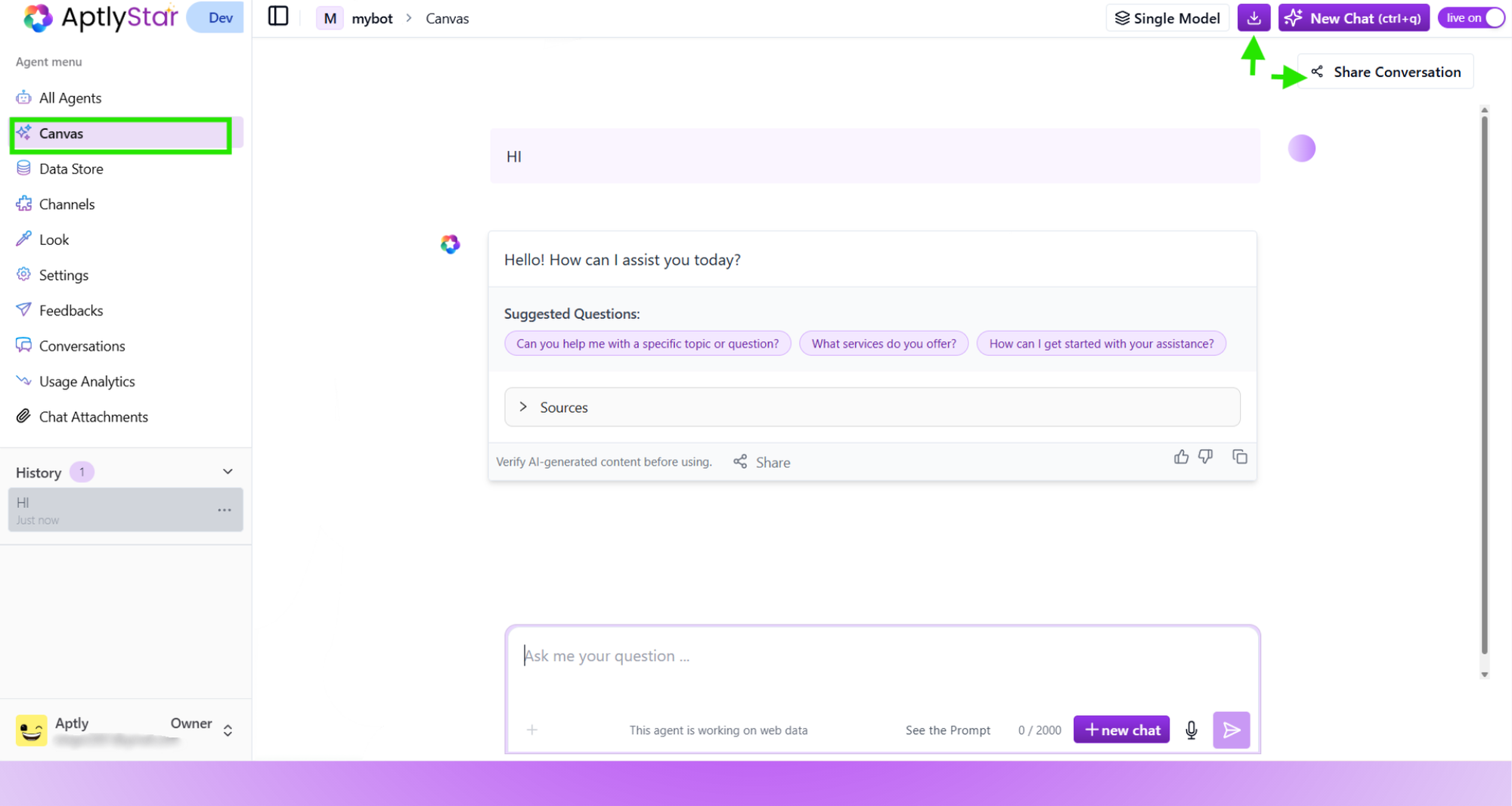
1. Navigate to the **Canvas** section from the left sidebar
2. Type your question into the query bar
3. View the agent’s real-time response, suggested follow-ups, and source trace
4. Click **Download** to export the conversation
5. Use **Share Conversation** or **Share** (per-message) to generate public links
 ***
## 🔗 Share Conversations
You can now share your conversations in two ways:
### 1. Share Entire Conversation
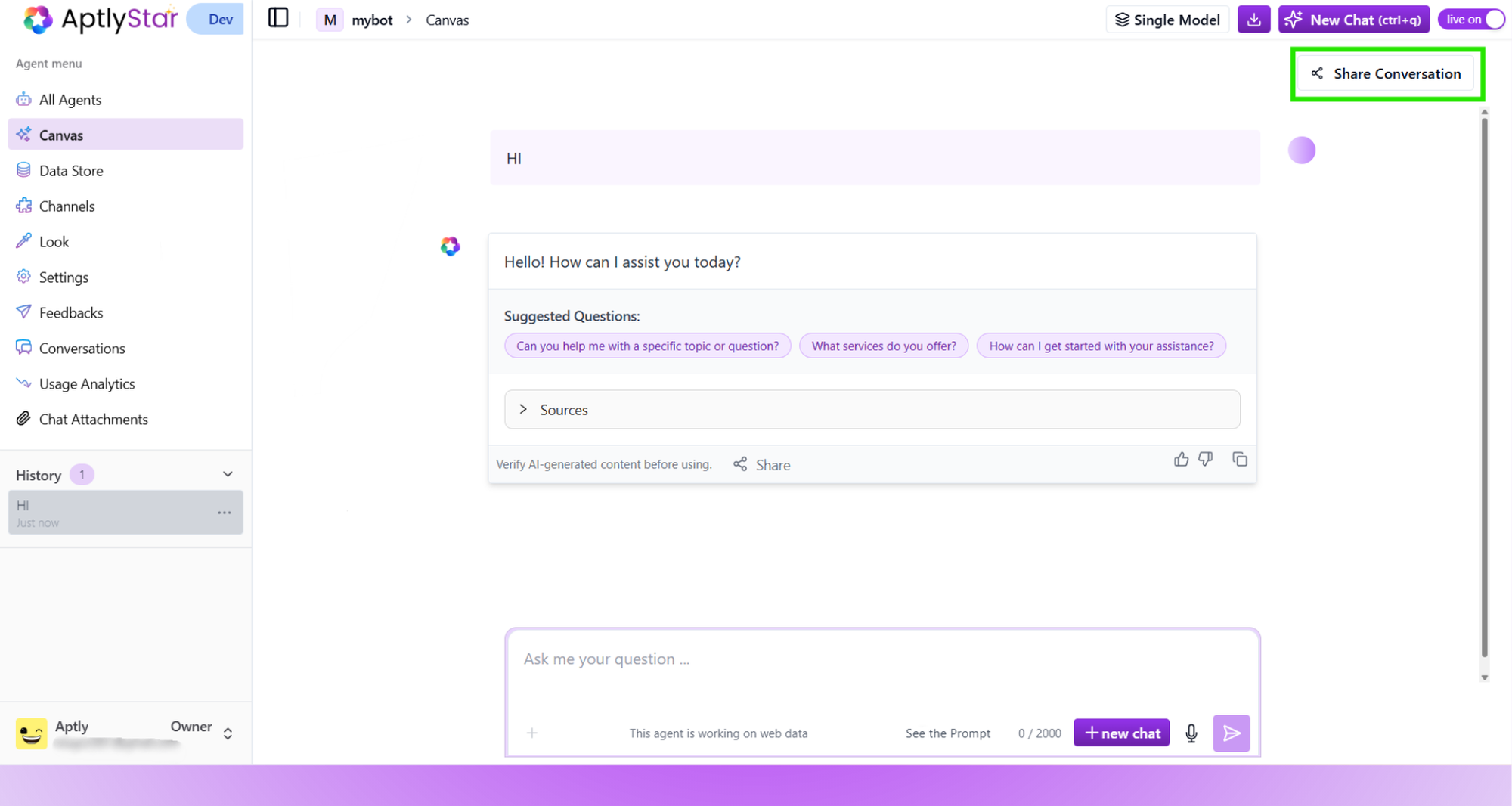
* Click the **Share Conversation** button at the top right
* A public view-only link will be generated
***
## 🔗 Share Conversations
You can now share your conversations in two ways:
### 1. Share Entire Conversation
* Click the **Share Conversation** button at the top right
* A public view-only link will be generated
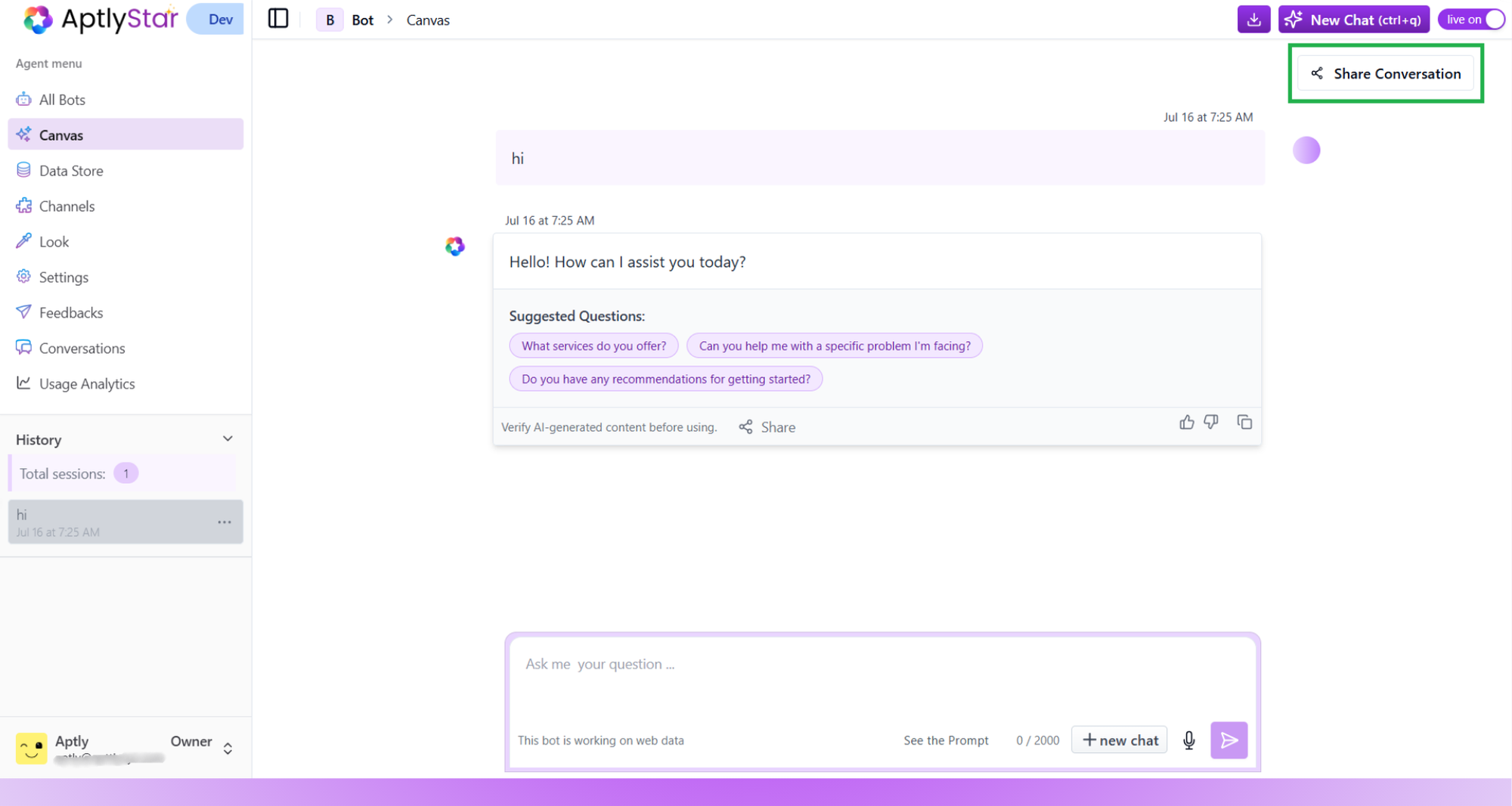 * You can revoke this access at any time
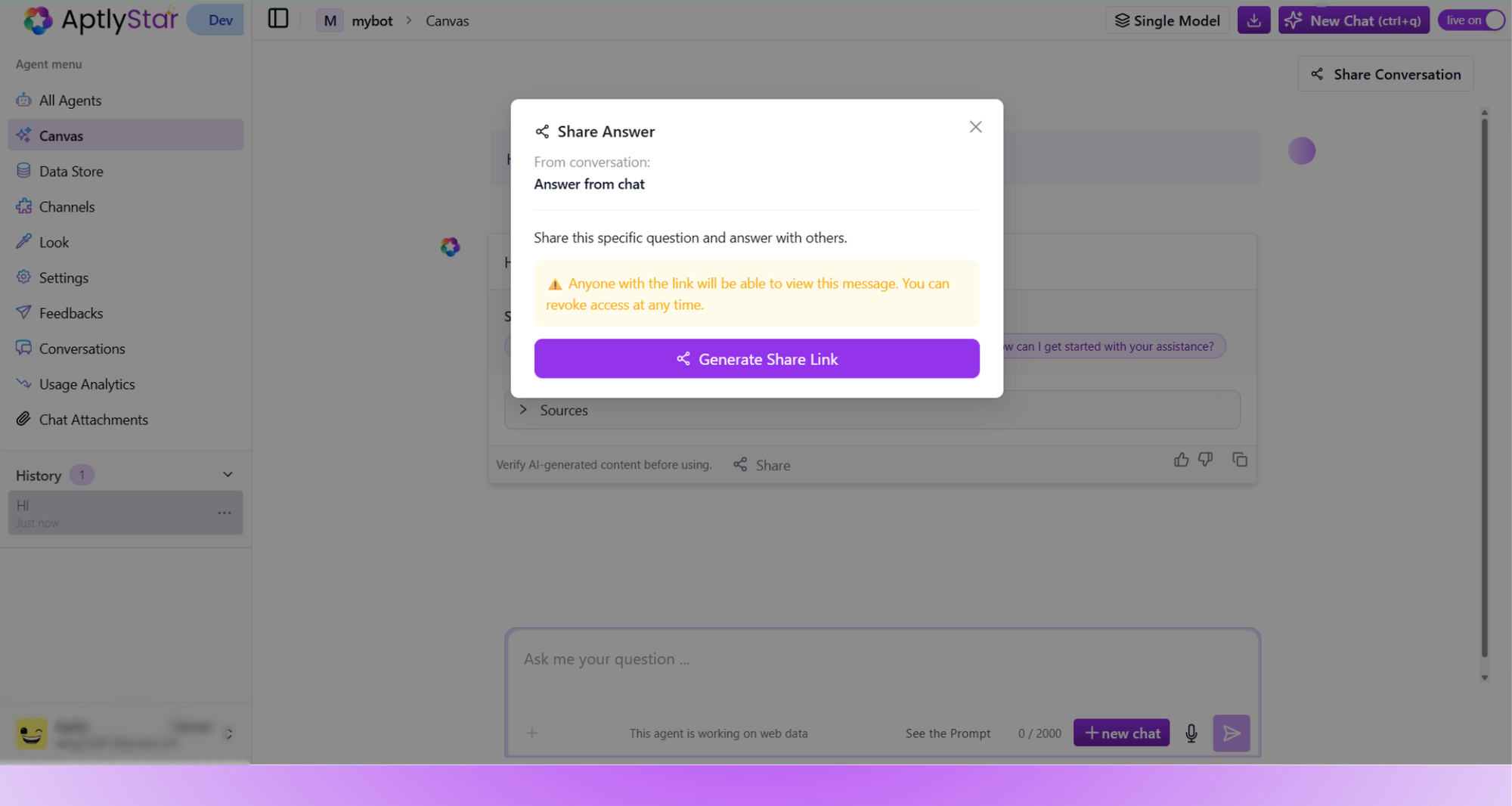
 ### 2. Share Specific Answer
* Hover over an individual answer
* Click the **Share** button underneath
### 2. Share Specific Answer
* Hover over an individual answer
* Click the **Share** button underneath
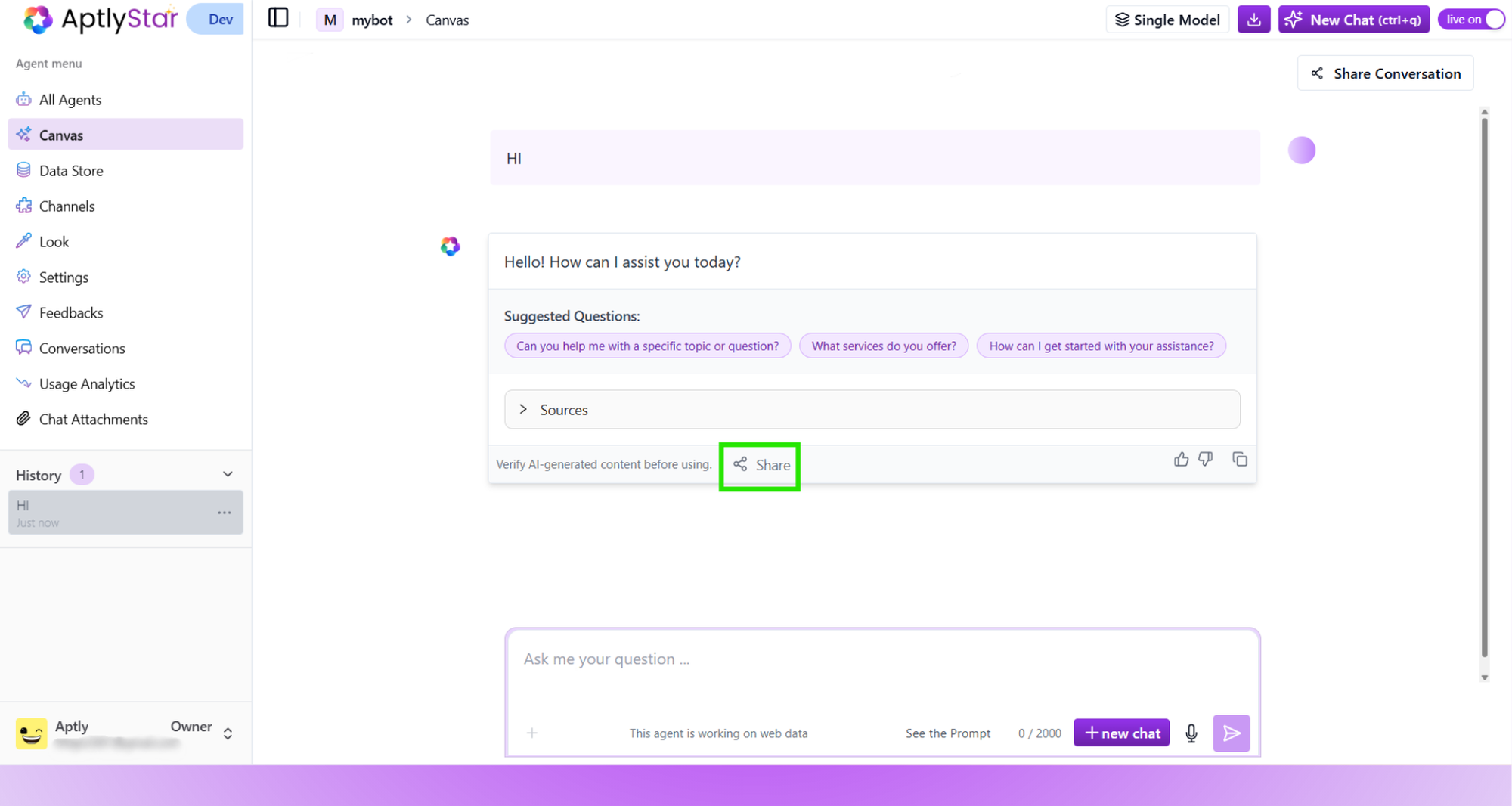 * This generates a link for just that response and question
 ***
## ⚡ Enable Live Mode for Integrations
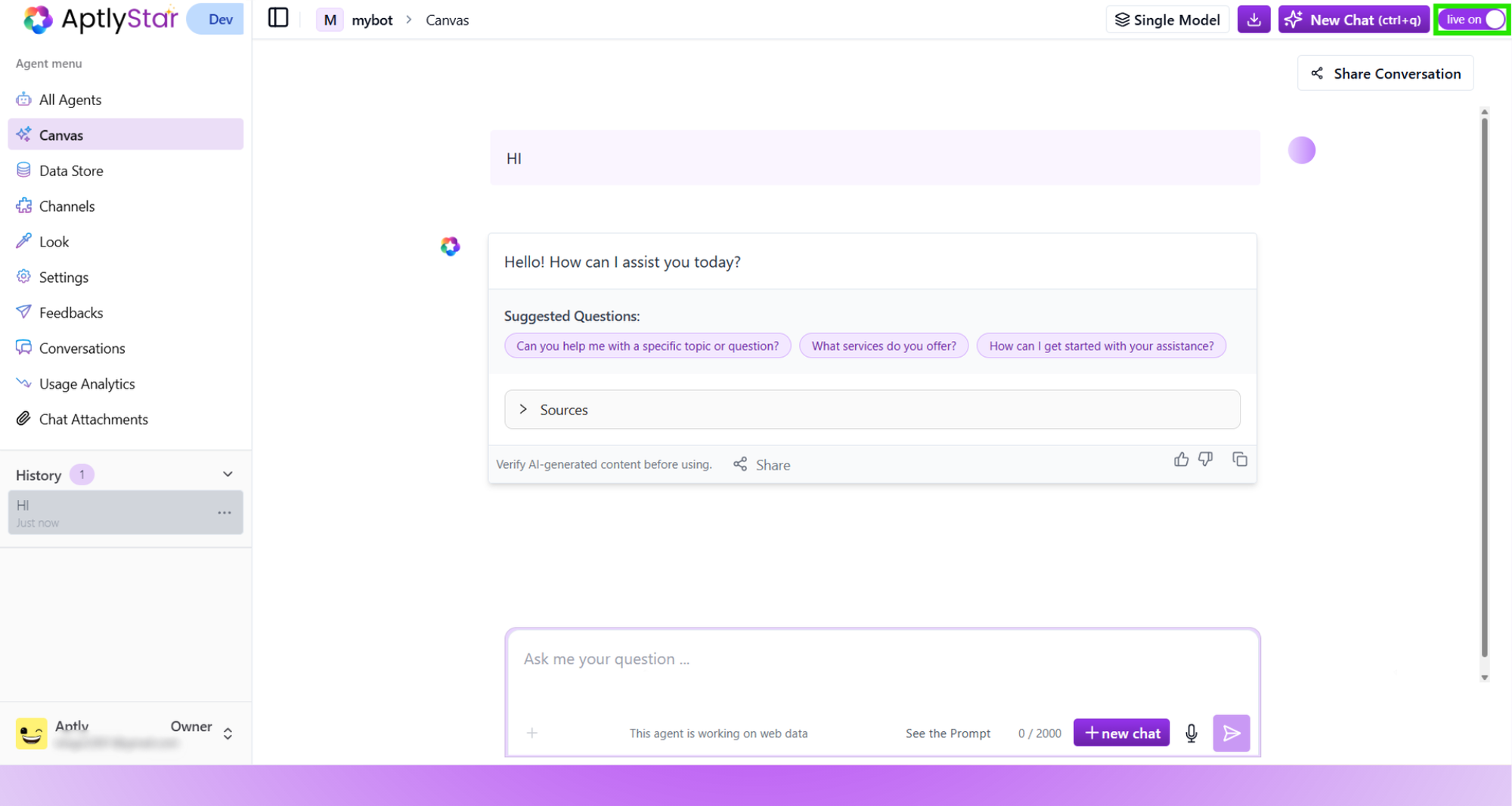
Before you can use the integrations inside the **Channels** tab, you must turn **Live Mode** ON.
Located at the top-right corner of your agent interface, this toggle ensures that your agent is ready to interact across external platforms like your **website**, **chat apps**, or **APIs**.
***
## ⚡ Enable Live Mode for Integrations
Before you can use the integrations inside the **Channels** tab, you must turn **Live Mode** ON.
Located at the top-right corner of your agent interface, this toggle ensures that your agent is ready to interact across external platforms like your **website**, **chat apps**, or **APIs**.
 ***
## 🛠 Tip: Simulate Real Interactions
Use Canvas to simulate real user interactions and validate how your AI agent performs in production-like scenarios. Ideal for QA, feedback review, and regression testing.
## 🧠 Multi-Model Comparison
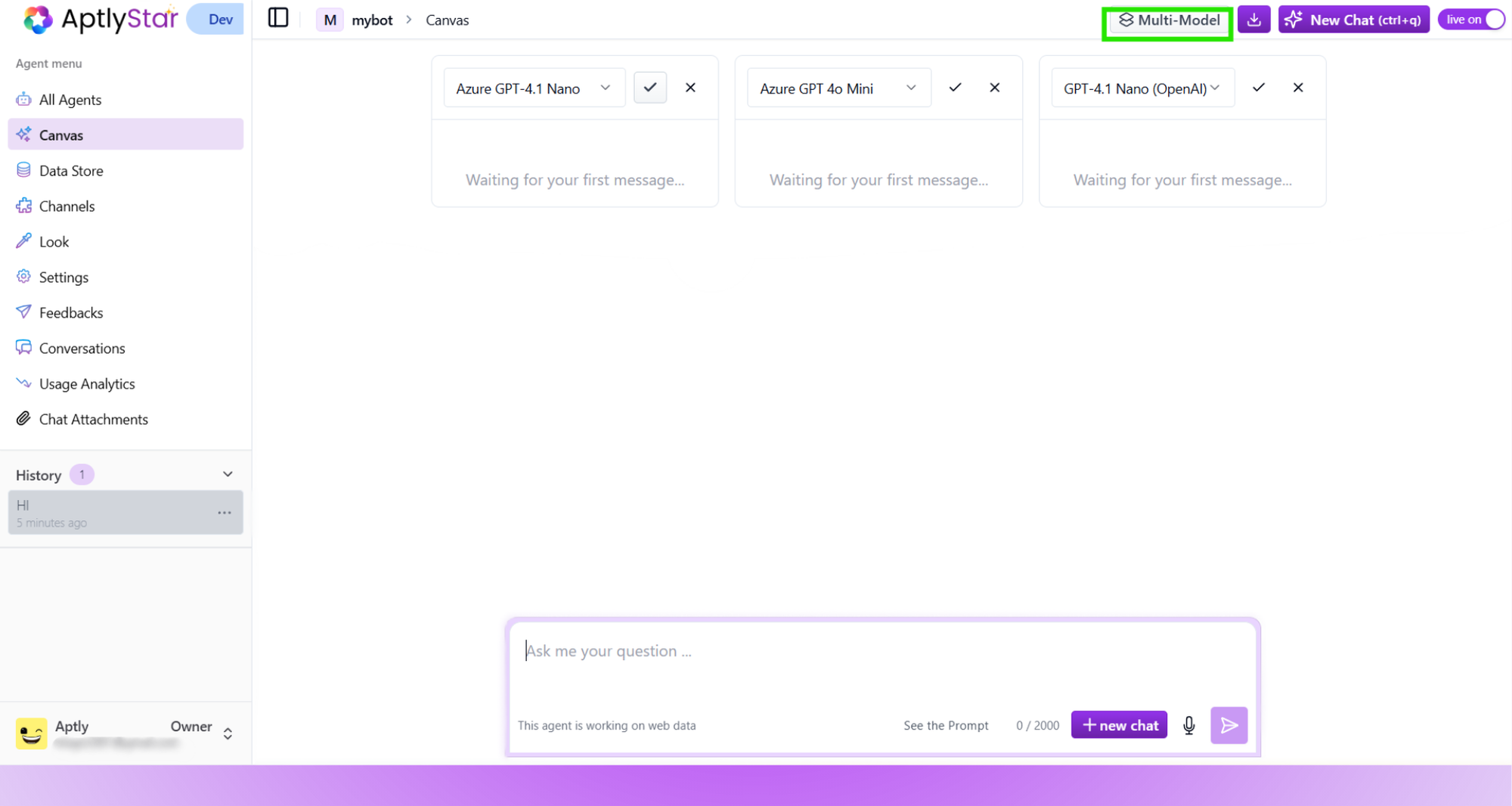
The Canvas also supports **Multi-Model Comparison** — a feature that lets you test and compare responses from **up to 3 different AI models simultaneously**.
This is especially useful for:
* Comparing model capabilities side-by-side
* Evaluating new models before rollout
* Ensuring consistent answers across providers (e.g., GPT-4 vs Claude vs Mistral)
To use this feature:
1. Click on the **Multi-Model** toggle in the top-right of Canvas
2. Add up to 3 models to the canvas using the dropdowns
3. Enter a question once and receive responses from all selected models
***
## 🛠 Tip: Simulate Real Interactions
Use Canvas to simulate real user interactions and validate how your AI agent performs in production-like scenarios. Ideal for QA, feedback review, and regression testing.
## 🧠 Multi-Model Comparison
The Canvas also supports **Multi-Model Comparison** — a feature that lets you test and compare responses from **up to 3 different AI models simultaneously**.
This is especially useful for:
* Comparing model capabilities side-by-side
* Evaluating new models before rollout
* Ensuring consistent answers across providers (e.g., GPT-4 vs Claude vs Mistral)
To use this feature:
1. Click on the **Multi-Model** toggle in the top-right of Canvas
2. Add up to 3 models to the canvas using the dropdowns
3. Enter a question once and receive responses from all selected models
 This mode can be easily toggled off if you want to return to single-model focus.